What this plugin does
Audiences let administrators group users by rules or manual membership — without maintaining Moodle cohort membership by hand. You define the criteria once; LernHive keeps the membership up to date on the configured schedule, and every Audience is projected as a Moodle cohort so it can drive enrolments and any core feature that expects a cohort.
Who this is for
| Role | What they do |
|---|---|
| Platform administration | Create and manage all Audiences; configure rules; manage static members; trigger and approve recalculations; bind Audiences to course access; review the audit log |
| Learner | May open the detail page of an Audience they are a member of — without seeing rules, audit rows or the member list; sees the conditions that apply to them when the Audience has Reason visible to members switched on |
| Site administrator | Sets the automatic recalculation interval and the role sources used by dashboards and reporting |
Access is capability-first: the management surfaces require local/lernhive_audience:view, :manage and :managemembers (granted to the manager archetype and therefore to Moodle's Manager role, Platform administration, by default). The limited detail page requires local/lernhive_audience:viewaudience, which every authenticated user holds, and opens only for the viewer's own Audiences; people with one of the management capabilities open every Audience. Other ids answer with a permission error.
Core concepts
Audience
A named group of users, defined either manually (Static) or by one or more rules (Dynamic). Dynamic membership is recalculated automatically. Every Audience is projected as a Moodle cohort for enrolment and other core Moodle features that need a cohort.
Rule
A single condition a user must satisfy to be included. Rules can share a Rule group ID; rules in one group are combined with the group's Group operator, and the groups (and ungrouped rules) are combined with the Audience's Rule operator: AND (all must match) or OR (one is enough). Nested rule trees are not supported.
Static membership
Users added directly to a static Audience through Manage members.
Interactive recalculation and static member changes require the complete Audience/cohort capability gate. If a projected cohort was removed or a managed course binding is out of sync, the acting person must also be able to manage cohort enrolment in every affected course. Actions that cannot pass this check are hidden or rejected before any membership or audit data changes.
Rule types
| Type | What it checks |
|---|---|
time_rule → enrolled_before_days | User enrolled in any course more than N days ago |
time_rule → no_activity_for_days | User has had no activity (no site access) for more than N days |
time_rule → last_login_within_days | User has logged in within the last N days |
time_rule → account_created_before_days | User account was created at least N days ago |
activity_rule → completed_course | User has completed a specific course |
activity_rule → enrolled_in_course | User is actively enrolled in a specific course |
activity_rule → posted_in_forum | User has posted at least once in a specific forum |
activity_rule → member_of_cohort | User is a member of a specific cohort |
profile_rule → equals | A profile field exactly matches a value |
profile_rule → contains | A profile field contains a substring |
profile_rule → starts_with | A profile field value starts with a string |
profile_rule → in_list | A profile field value is in a comma-separated list |
cohort_rule (any / all) | User is a member of any / every selected cohort |
Any rule can additionally be negated with Negate this rule (match users who do not satisfy it).
Cohort projection
LernHive projects Audience membership directly to Moodle core cohorts:
- Creates a Moodle cohort with the same name as the Audience when projection is first needed.
- Adds and removes cohort members to match the Audience membership after every dynamic recalculation or static member edit.
- Recreates the projected cohort if it was removed manually and the Audience is synced again.
This lets you use Audiences for Moodle cohort enrolments, badges or third-party plugins that require a cohort.
What happens when an Audience is deleted
Deleting an Audience does not automatically delete its projected cohort. By default the cohort is decoupled: it stays in place with all its members, the link to this plugin is removed, and you can manage it like any other Moodle cohort afterwards. Plugin-owned course access bindings are removed first, so the Audience cannot leave orphaned enrol_cohort instances behind. Binding records whose ownership cannot be proven are removed without touching their external enrolment instances or user access. A short provenance note is appended to the cohort description.
The delete confirmation offers an explicit checkbox Also delete the projected cohort "…" (only if no course enrolments depend on it). Tick it only if you want the cohort gone for good. The cascade is suppressed automatically if any course still uses the cohort for enrolment — then the cohort is decoupled instead and a warning is shown.
Journeys by role
Platform administration: open Audiences
- Open Audiences in the launcher.
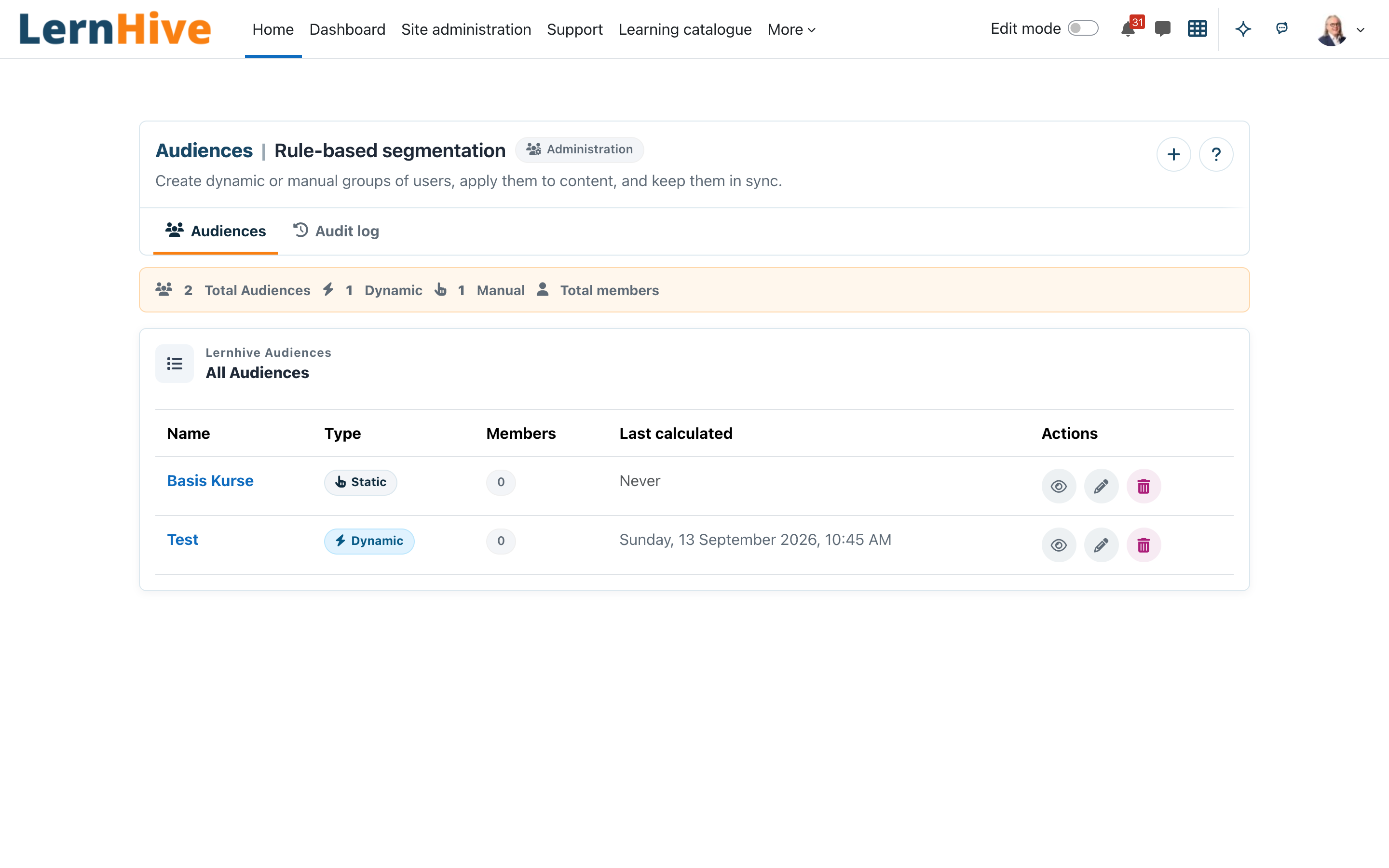
- The list shows every Audience with type, members and Last calculated. The section navigation switches between Audiences and Audit log.
Platform administration: create a new Audience
- On Audiences, click Create Audience.
- Enter a Name and an optional Description.
- Choose Static for manual membership or Dynamic for rule-based membership, and for dynamic Audiences the Rule operator.
- Click Save changes. LernHive creates the projected Moodle cohort when the Audience first receives members or is recalculated.
Platform administration: add rules to an Audience
- Open a dynamic Audience.
- Click Add rule. Optionally pick a starter rule under Start from a template; its values stay editable, and missing profile fields or cohorts are reported.
- Choose the Rule type and fill in the parameters (for example "no activity for 90 days"). Optionally set a Rule group ID and Group operator, or Negate this rule.
- While you edit, the preview shows how many users match this rule and the whole rule set, and lists Members in current preview — the first 50 members of the Audience's saved rules.
- Save the rule. Add more rules as needed.
Platform administration: switch a static Audience to dynamic
- Open the Audience and choose Edit.
- Set Type to Dynamic. If the Audience has members, a warning shows how many members and how many enrolling courses are affected.
- Tick Confirm type change and click Save changes. Without the tick the form does not save.
- Add at least one rule. Until then the members stay unchanged; from the next recalculation on, the rule result replaces the member list, and members who no longer match lose access to the courses that use this Audience for enrolment: their enrolment is suspended, their grades and progress stay (LernHive sets Moodle's cohort-sync setting "External unenrol action" to suspend).
Platform administration: show members why they are in an Audience
- Open the Audience and choose Edit.
- Tick Reason visible to members and click Save changes.
- Members now see on the Audience page only the conditions that apply to themselves, for example their own department or a completed course. They see no other rules, no NOT conditions, no thresholds and no other members. Members of a static Audience read that the administration added them.
The reason can reveal internal criteria such as profile values or course names. The switch is off by default; without it members see no conditions.
Platform administration: add static members
- Open a static Audience.
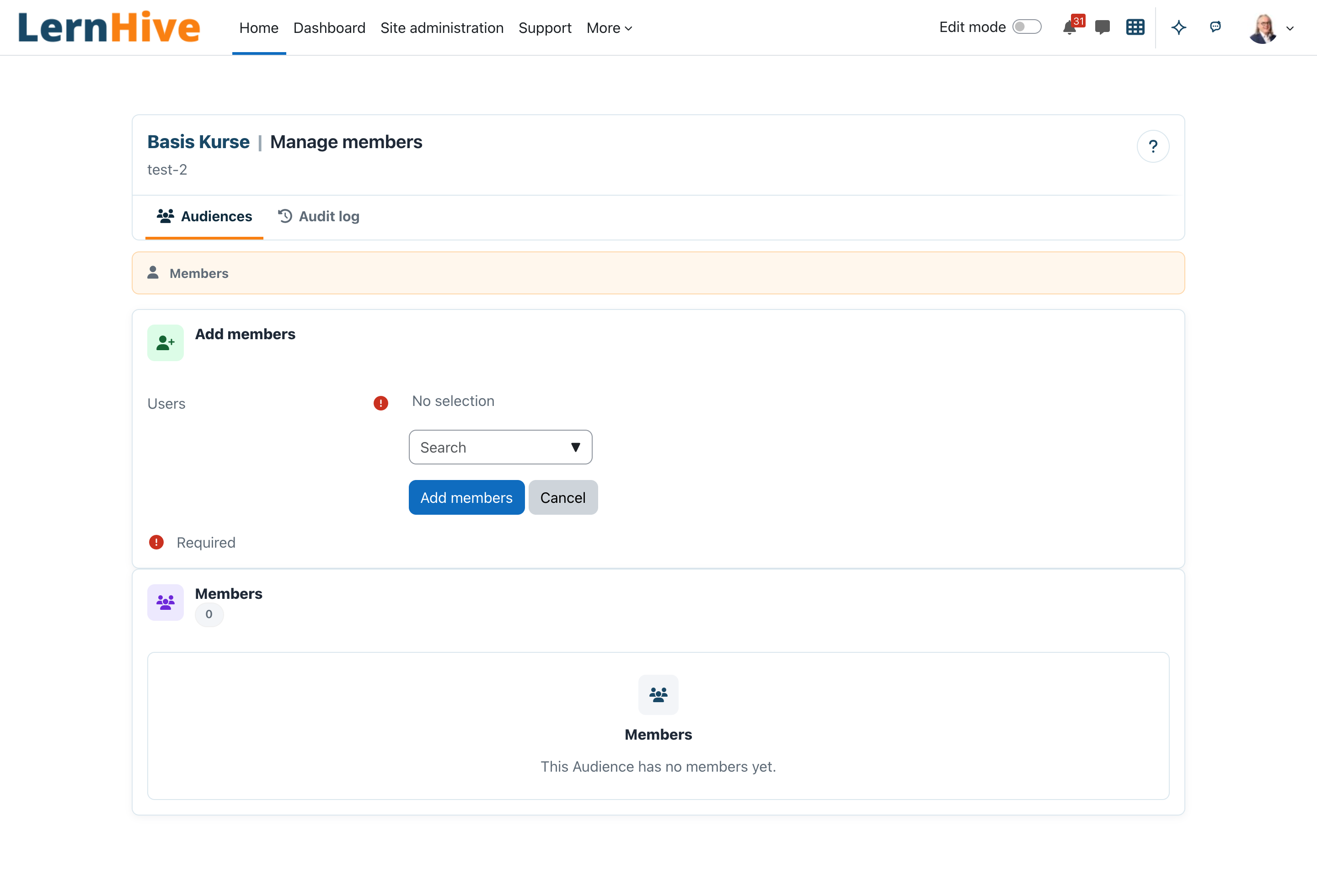
- Open Manage members.
- Select users under Users and click Add members. Remove a member with the row action.
Platform administration: view current members
- Open the Audience. As a manager you see the management view; User view shows the page as a member sees it.
- The Members list shows the members of the last recalculation; Last calculated shows when it ran.
Platform administration: trigger and approve a recalculation
- Open the Audience.
- Click Recalculate now — membership of this Audience is recomputed immediately.
- The scheduled task runs every 15 minutes and recalculates the dynamic Audiences whose configured interval has elapsed.
Safety brakes. In two cases neither the task nor Recalculate now applies the result; the members stay unchanged:
- A rule refers to a course, forum, profile field or cohort that no longer exists. The management view shows a notice naming the missing reference, and the audit log records "Recalculation stopped (missing reference)". A negated rule never turns such an error into "everybody". Fix or remove the rule.
- The Audience grants course access (a course binding or a cohort enrolment method) and a recalculation would change more than 20 % of the current members (additions plus removals). The management view shows how many people would be added and removed, with Approve change and Discard change. Approving recalculates: if the result is unchanged, exactly that change is applied; if the situation changed, the new change is checked again and, above 20 %, waits for approval again. Discarding keeps the members; the next regular recalculation checks again. While a change waits, the scheduled task writes nothing for this Audience. An empty Audience has no brake.
Platform administration: bind an Audience to course access
- Open the Audience in the management view and find Course access (or open Course access bindings from the Audience's action icons).
- Select a Course and an Assignable role, then click Save binding. LernHive creates a new Moodle
enrol_cohortinstance that it marks as plugin-owned. If a matching instance already exists, LernHive shows a notice and leaves that instance unchanged; configure or remove it manually before retrying. - Audience membership now grants or revokes the selected course role through Moodle's normal cohort enrolment sync.
Use Remove binding to unbind a course. Moodle removes an enrolment instance only when the binding proves that LernHive created it; legacy or externally managed instances and their enrolments remain unchanged. Restrict-access conditions are not part of this binding.
Platform administration: review the audit log
- Open Audit log in the section navigation.
- Filter by Audience, actor, action and date range and click Apply filter; open Details for one entry.
- Download the filtered entries with Export CSV.
Learner: see why I am in an Audience
- Open the Audience page through a link from your administration; there is no menu entry for learners.
- The page confirms that you are a member. If the administration switched on Reason visible to members, it lists the conditions that apply to you.
Site administrator: configure recalculation and role sources
- Go to Site administration → Plugins → Local plugins → LernHive → LernHive Audiences.
- Set Automatic recalc interval — Manual only, Every hour (default), Every 4 hours or Once per day.
- Review the four role overrides (Learner role override, Trainer role override, Manager role override, Administrator role override). Use canonical default keeps the documented source logic; selecting Moodle roles creates an explicit override; an empty selection intentionally matches no configured roles.
Settings that matter
Under Site administration → Plugins → Local plugins → LernHive → LernHive Audiences (site administrators only):
| Setting | Default | Effect |
|---|---|---|
| Automatic recalc interval | Every hour | When a dynamic Audience becomes due; the task recalculate_audiences runs every 15 minutes |
| Learner/Trainer/Manager/Administrator role override | Use canonical default | Which Moodle roles back the dashboard and reporting sources role/learner, role/trainer, role/manager, role/admin; defaults from 0.4.27 are migrated automatically |
Rollout checklist:
- [ ] Scheduled task
recalculate_audiencesis running (every 15 min; the interval controls eligibility) - [ ] The Moodle cohort enrolment plugin is enabled if Audiences grant course access
- [ ] At least one rule or static member is defined for each active Audience
Limitations
- One grouping level only; nested Boolean rule trees are not supported.
- The preview lists members of the saved rules; there is no member list for a rule that is not saved yet.
- Dynamic membership updates on the configured schedule, not in real time; use Recalculate now when an immediate update is needed.
- A dynamic Audience without rules is not recalculated; its members stay unchanged until the first rule exists.
- Deleting an Audience decouples the projected cohort by default; cohort deletion is an explicit opt-in and is suppressed while courses still enrol through the cohort.
- Course access works through Moodle cohort enrolment only; restrict-access conditions are not supported.
- There is no team-scoped Manager view: the Audience list is a management surface, not an Orgchart-scoped reporting surface.
Troubleshooting
An Audience has no members even though the rules look correct. → Check Last calculated — if it is empty, the scheduled task may not have run. → Use Recalculate now to force an immediate update. → Look for a missing-reference notice or a change waiting for approval on the management view. → Review the rule parameters: enrolled_before_days requires the enrolment to be older than N days, not newer.
Cohort membership does not update. → Check that the Moodle cohort was not deleted manually — if it was, recalculation recreates it. → Check the Moodle scheduled task log for errors from recalculate_audiences.
A course binding shows "Ineffective — enable cohort enrolment". → Enable the cohort enrolment plugin in Site administration → Plugins → Enrolments; the binding becomes active again after the next sync.
A user is in the Audience but should not be. → Check the Members list and the Audience's Rule operator: with OR, matching one rule is enough. → For static Audiences, check the manually managed member list.
A learner gets a permission error on an Audience page. → The page only opens for members of that Audience and for people with a management capability.
Screenshots
The following screenshots show the LernHive demo interface before the main navigation entry was added: