What this plugin does
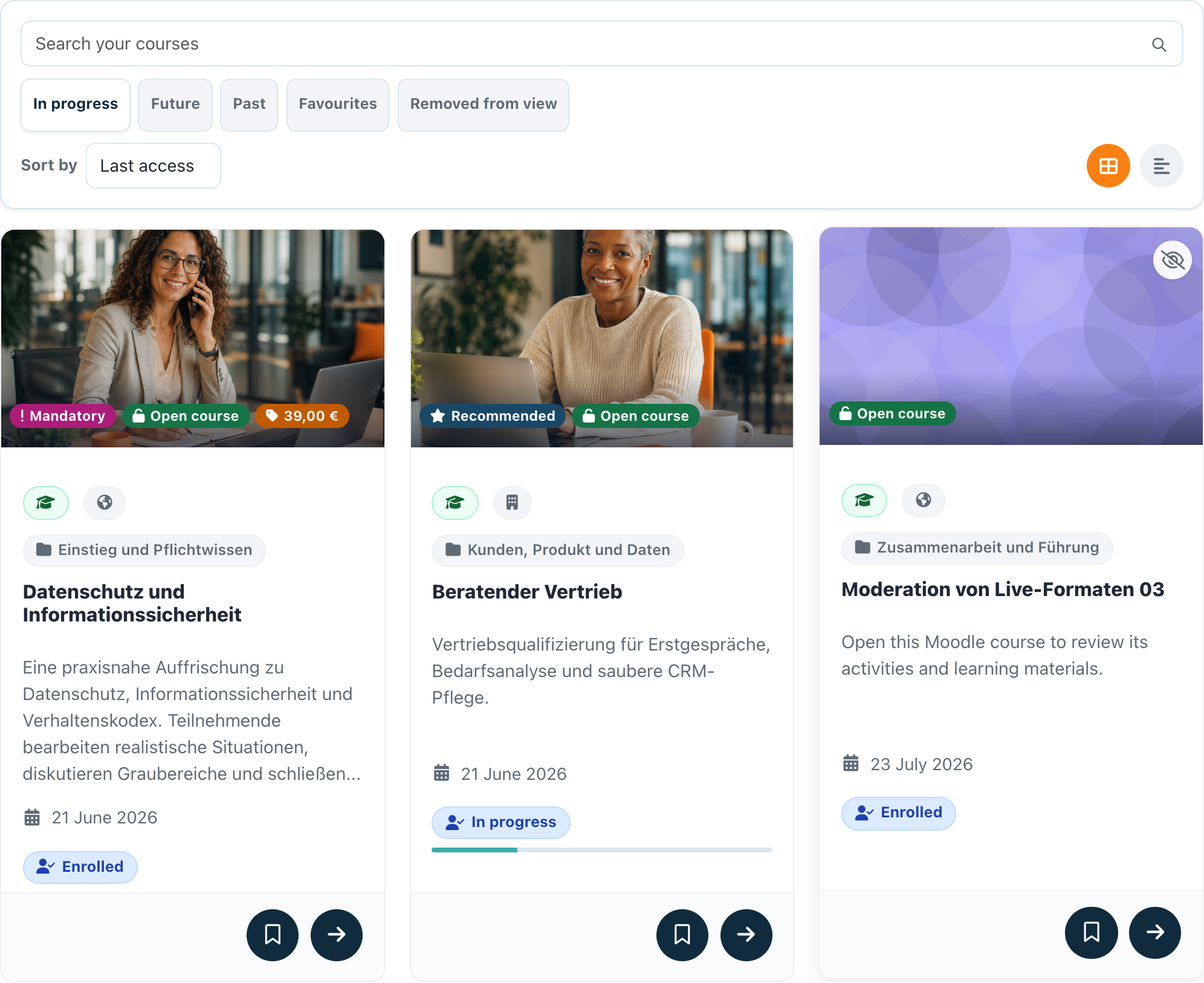
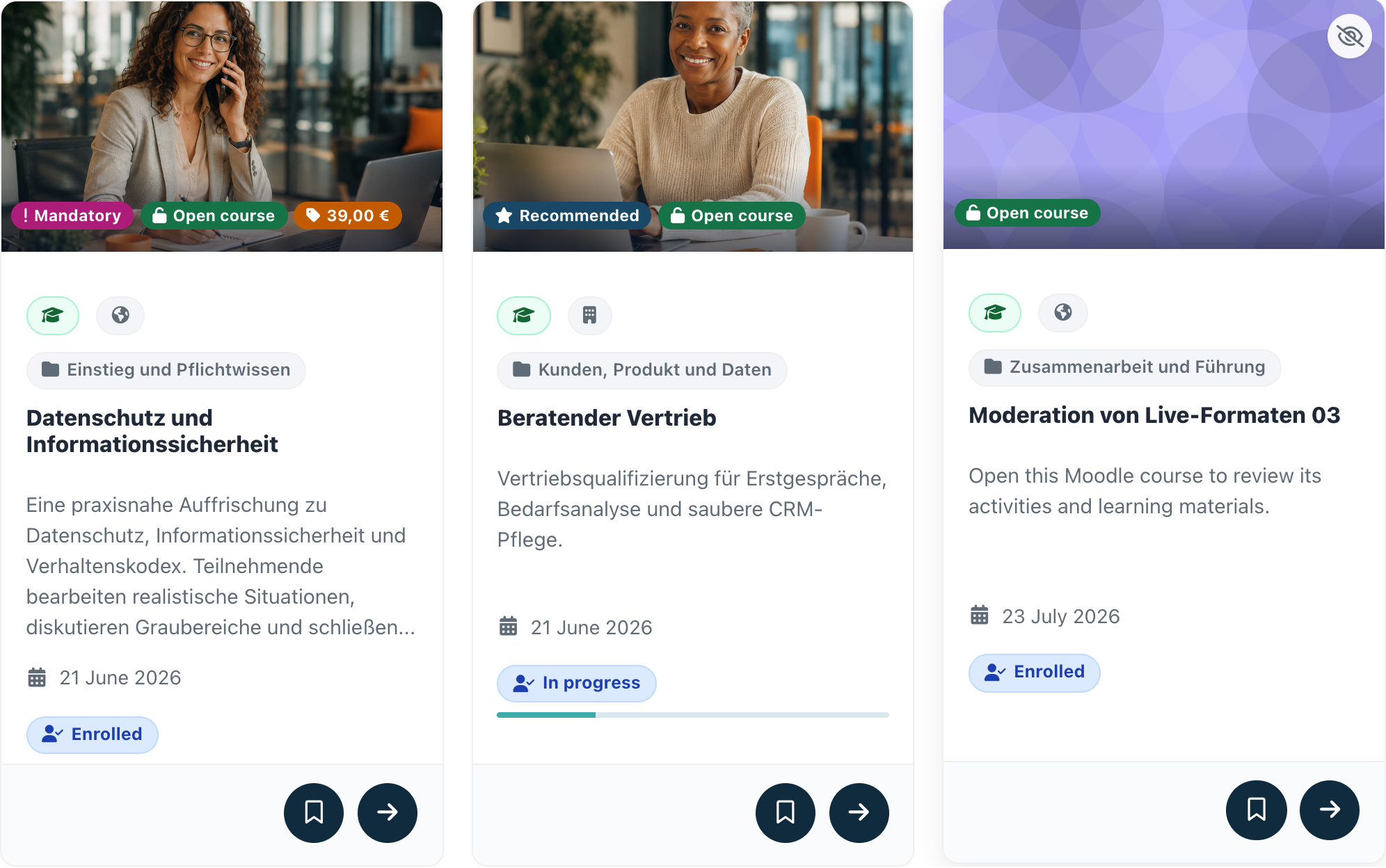
My Courses shows your enrolled courses on the Moodle Dashboard as cards in the style of the learning catalogue. A toolbar lets you filter by timeline, search, sort and switch the layout instantly, and each card opens the course directly. When the course tracks completion, the card shows your progress.
The list appears as the My Courses section of the LernHive My Learning block. The standalone LernHive My Courses block is no longer offered under Add a block; a block placed earlier keeps working.
On the page the block heading reads My Courses; Add a block and the plugin list name it LernHive My Courses.
Who this is for
| Role | What they do |
|---|---|
| Learner | Finds, filters, sorts and opens enrolled courses; follows progress |
| Site administrator | Removes duplicate standalone blocks from Dashboards |
Journeys by role
Learner: find a course on the Dashboard
- Open your Dashboard. My Courses lists your enrolled courses as cards. With only one course, the card keeps the width of a card in a two-course layout.
- Switch between the tabs In progress, Future, Past, Bookmarked and Removed from view. They use Moodle's course timeline.
- Type into Search your courses to narrow the cards by title or summary while you type.
- Use Sort by to order by Course name, Last access or Start date.
- Use the two icons on the right to switch between Card and Description.
- Click a card to open the course. Tab, sort order and view are remembered for your next visit.
Learner: follow your progress
- For courses with completion tracking, the card footer shows how many activities you have completed, for example "2 of 4 activities completed", with a bar on a grey track.
- When every activity is done but the course has further requirements, the card reads All activities done; the course stays under Continue learning. Once the course is complete, the card shows the activity count again.
- Courses without completion tracking show Enrolled and no bar.
Learner: remove a course from view and restore it
- Click the eye icon on a card (Remove from view). The card disappears from the current tab.
- To bring it back, open Removed from view and click the eye icon again (Restore to view).
- The hidden state is shared with Moodle's own course overview block.
Site administrator: clean up standalone blocks
- The standalone block is no longer offered under Add a block; the My Courses section of LernHive My Learning shows the same list.
- Where a Dashboard shows the courses twice, remove the standalone block, or reset Dashboards under Appearance → Default Dashboard page.
Settings that matter
There is no settings page. The list stores three personal preferences (tab, sort order, view) when you use the toolbar.
Limitations
- Only enrolled Moodle courses; no catalogue offerings, seminar bookings or bookmarks (these are separate sections of LernHive My Learning).
- Progress needs Moodle completion tracking. Teachers see no progress bar, because Moodle tracks completion for learners only.
- Filtering, sorting and search run in the browser on up to 200 courses.
- Courses hidden by their course setting are not shown to learners.
- Guests and logged-out users see no content.
Troubleshooting
A course is missing. → Check the other tabs first; the course may count as Future or Past, or it was removed from view. Also check that the enrolment is active and the course is visible.
No progress appears on a card. → Completion tracking is off for that course, or no activity has a completion condition. This is course configuration.
The tab, sort or view is not remembered. → The choice is saved in the background; check that the session was still active.
Screenshots