What this plugin does
Privacy and certification data
A Moodle Privacy deletion request removes the user's certification assignments, periods, dependency records, requests, external evidence, and generated files. Certification definitions remain configuration, while actor references on them are pseudonymised.
Certify gives LernHive a clear answer to compliance and renewal questions: who holds a certification, when it was granted, when it expires, and what must happen next to renew it. It keeps validity visible for learners and manageable for administrators.
Who this is for
| Role | What they do |
|---|---|
| Learner | See current, expiring, and expired certifications; download certificate PDFs; export the personal learning record |
| Manager | Review team certificates and learning records for users in their Orgchart reporting scope |
| Platform administration | Create certification templates, issue or correct records, manage assignment sources, review expiry |
| Site administrator | Adjust the plugin setting for automatic certificate email dispatch |
Access is capability-first: management journeys require local/lernhive_certify:manage (granted to the manager archetype and therefore to Moodle's Manager role by default); the team views require local/lernhive_certify:viewreports, scoped to the Orgchart reporting line; learner views require local/lernhive_certify:view (every logged-in user).
Finding your way around
Certify has one interface for every role — there is no separate learner and admin view. The tab strip at the top shows only what you are allowed to reach:
| You are … | Tabs you see |
|---|---|
| Learner | Catalogue · My certifications · Learning record |
| Manager | plus Team |
| Platform administration | plus Manage · Requests |
Rarely used administrative surfaces sit behind the cog in the top right: custom fields, the assignment-source overview, and the history import. Reports are reached from the chart icon on the Team view. The Certify entry in the primary navigation (Learn; people who manage Certify or view its reports open it from the launcher) takes you straight to where you work — learners to "My certifications", administrators to "Manage".
Core concepts
Certification
A reusable template such as "First Aid", "Data Protection", or "Forklift Licence". The template defines what the certification is and how renewal works.
Assignment
The long-lived relationship between one user and one certification. A user can keep the same assignment across multiple renewal cycles.
Period
One validity window of a certification. A period has a start, due date, end date, and completion status. Recertification creates a new period rather than editing the old one.
Renewal logic
Certify is built around renewal cycles:
- a certification can have an initial path and a recertification path
- reminders can be scheduled before expiry
- a new renewal cycle creates a new period instead of overwriting history
- completing the renewal target again by the end of the recertification window issues the new period and the certification is valid again at once; without it, the window and the previous period are revoked when the window ends
- after such a lapse, completing the target again starts a new certification, in every renewal cycle
- temporary validity can be granted when paper evidence exists but the digital record is still pending
This keeps the audit trail clean and makes reporting easier.
Journeys by role
Platform administration: create a certification template
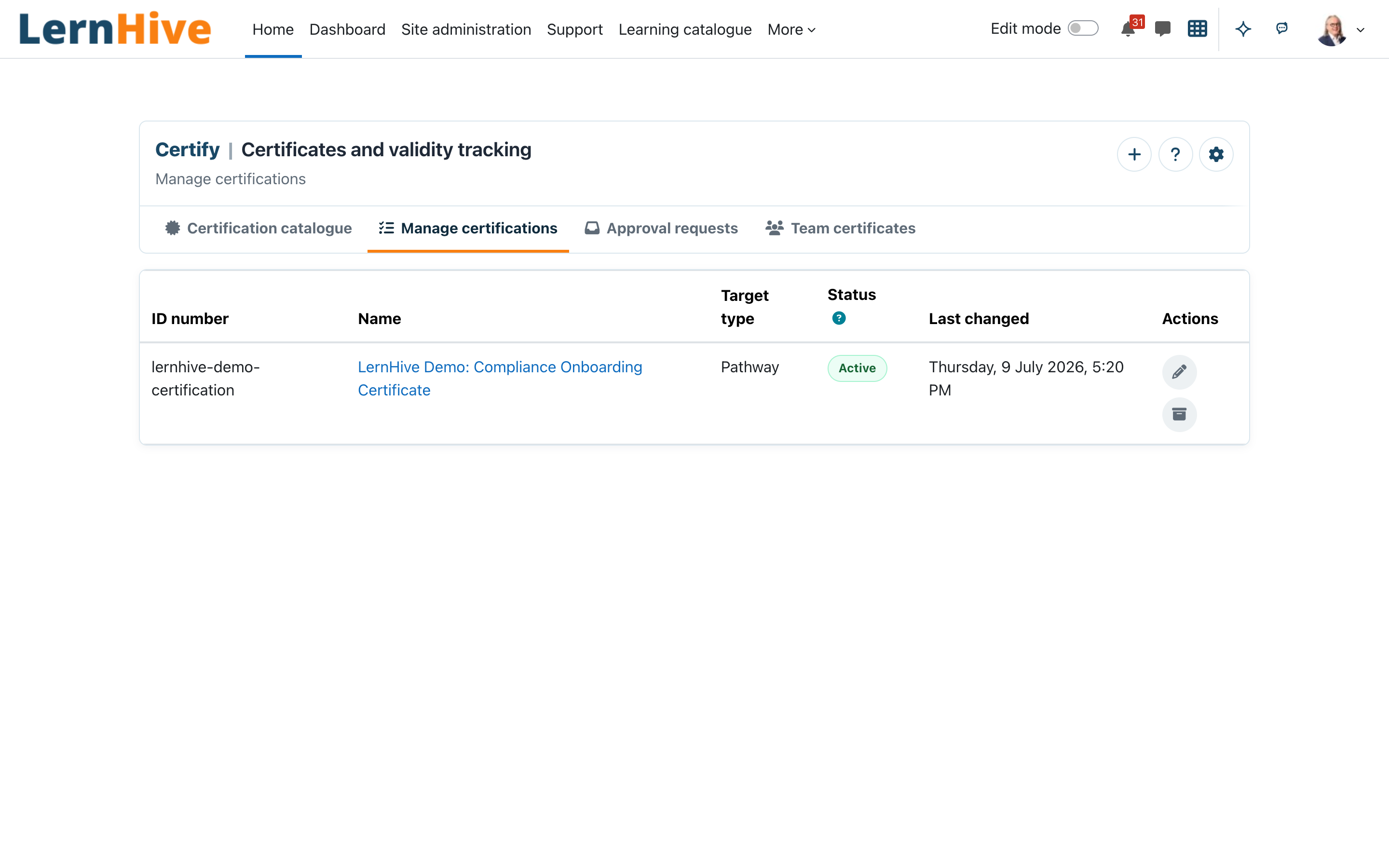
- Open Certify in the launcher (or Site administration → Plugins → Local plugins → Open LernHive Certify) and switch to the Manage tab.
- Click Create certification.
- Enter a title, description, and identifier.
- Choose the target learning path or course that leads to attainment.
- Define the validity cycle and recertification timing under the Validity & recertification heading. The three duration pickers — Validity duration, Recertification window, and Expiry reminder lead time — each take a number and a unit (for example 30 days) instead of raw seconds
. An in-form panel explains what each of the three deadlines does and gives a worked example: for a 3-day cycle set the validity to 3 days, the recertification window to 1 day, and the expiry reminder to 1 day — recertification then opens one day before expiry and the learner is reminded the same day.
- Save the template.
You can jump straight to this configuration from Certify settings (the Zone-A cog) → Recertification rules, which links to the Manage tab where each certification's validity and renewal timing is set.
When a tool_certificate visual template is selected, Certify shows an accessible mapping table directly below the selector. It lists each placeholder with its meaning and an example output, so the placeholders can be copied into the certificate editor without relying on a separate handbook. {{coursetitle}}, {{learningcontent}}, and {{userfullname}} cover the course or pathway title, the learning content, and the learner's name. The {{learningcontent}} value comes from the configured ContentHub learning objectives field and falls back to the course description when no field is configured. The {{validuntil}} value is calculated from the certification's validity duration at issuance; without a duration it shows the no-expiry label.
Platform administration: verify automatic re-enrolment
- Open the certification on the Manage tab.
- Select a recertification target and set a Recertification window greater than zero.
- Save the active certification.
- Let a test period reach its recertification window.
- Verify that Recertification window opened was processed, the learner was re-enrolled, and course completion, grades and quiz attempts were reset.
- Check course notifications if the invitation does not arrive.
When the recertification window opens, the learner's completion, grades and quiz attempts in the course are reset, so the course has to be completed again. The earned period keeps the old completion date and grades as evidence. Not every activity type can be reset for one person; see Limitations.
Platform administration: understand assignment sources
- Open cog → Assignment sources for a single overview of every source that can grant a certification. For each active certification it shows which sources are active — manual issuance, the course/pathway completion target, cohort membership, seminar attendance, and approval requests — each linked to its management surface.
- Use Open assignments for direct manual issue or period correction.
- Use Manage cohort sources when Moodle cohort membership should create or archive certification assignments.
- Enable public catalogue settings on the template when learners should self-assign or submit approval requests before completing the target.
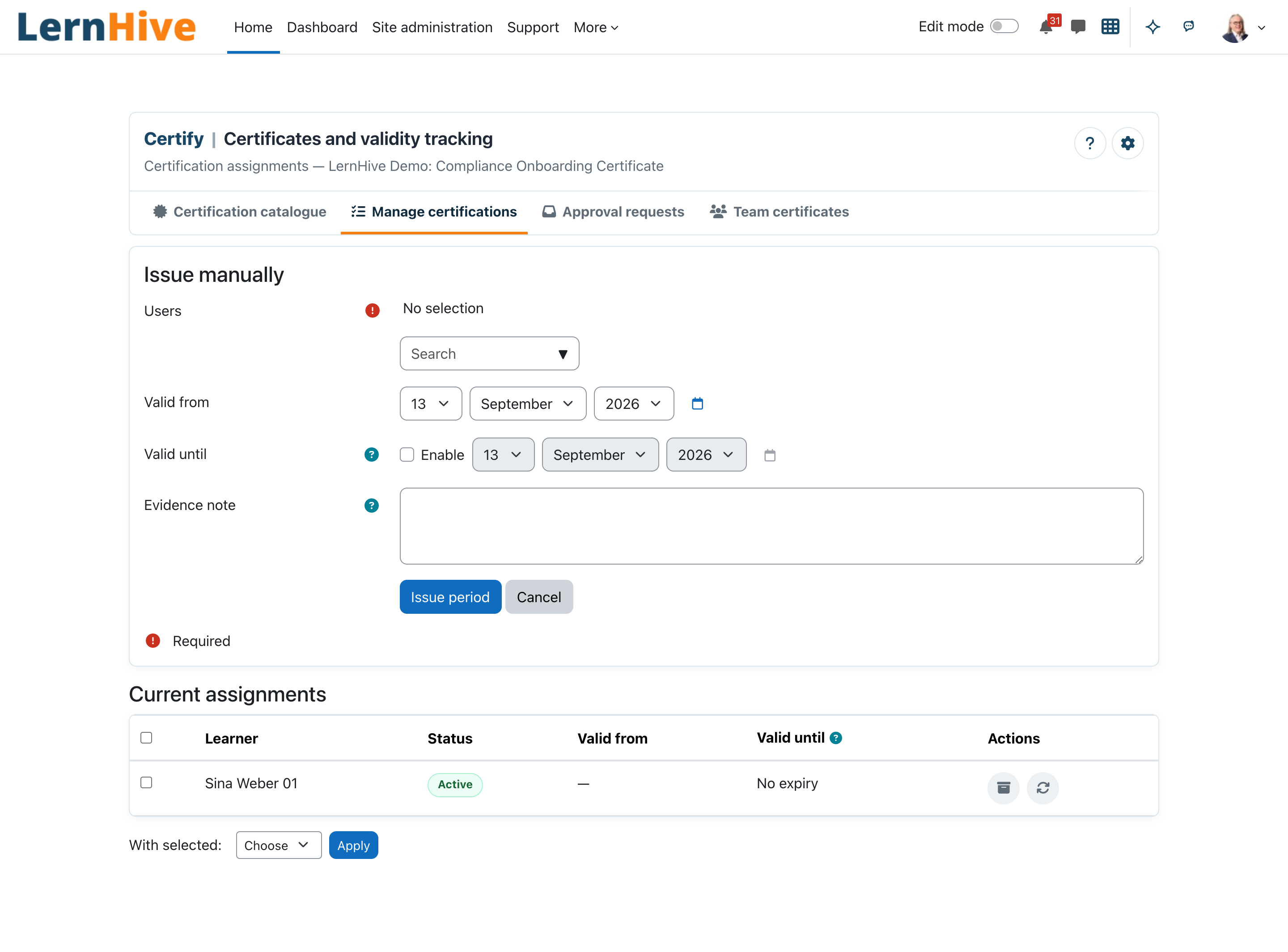
Platform administration: grant a certification manually
- Open the certification template.
- Click Open assignments, then Issue manually.
- Select the user.
- Enter issue date, validity end date, and optional evidence.
- Save — the user's certification becomes visible immediately.
Platform administration: re-send a certificate PDF
- Open the certification template and go to Open assignments.
- Find the learner row with an earned period.
- Use Re-send certificate PDF from the row action menu.
- Certify sends the stored PDF again; if the file is missing, it is regenerated from the period before dispatch.
Platform administration: review expiring certifications
- Open the management page for the certification.
- Filter by Expiring soon or Expired.
- Contact the affected users or trigger the linked renewal path.
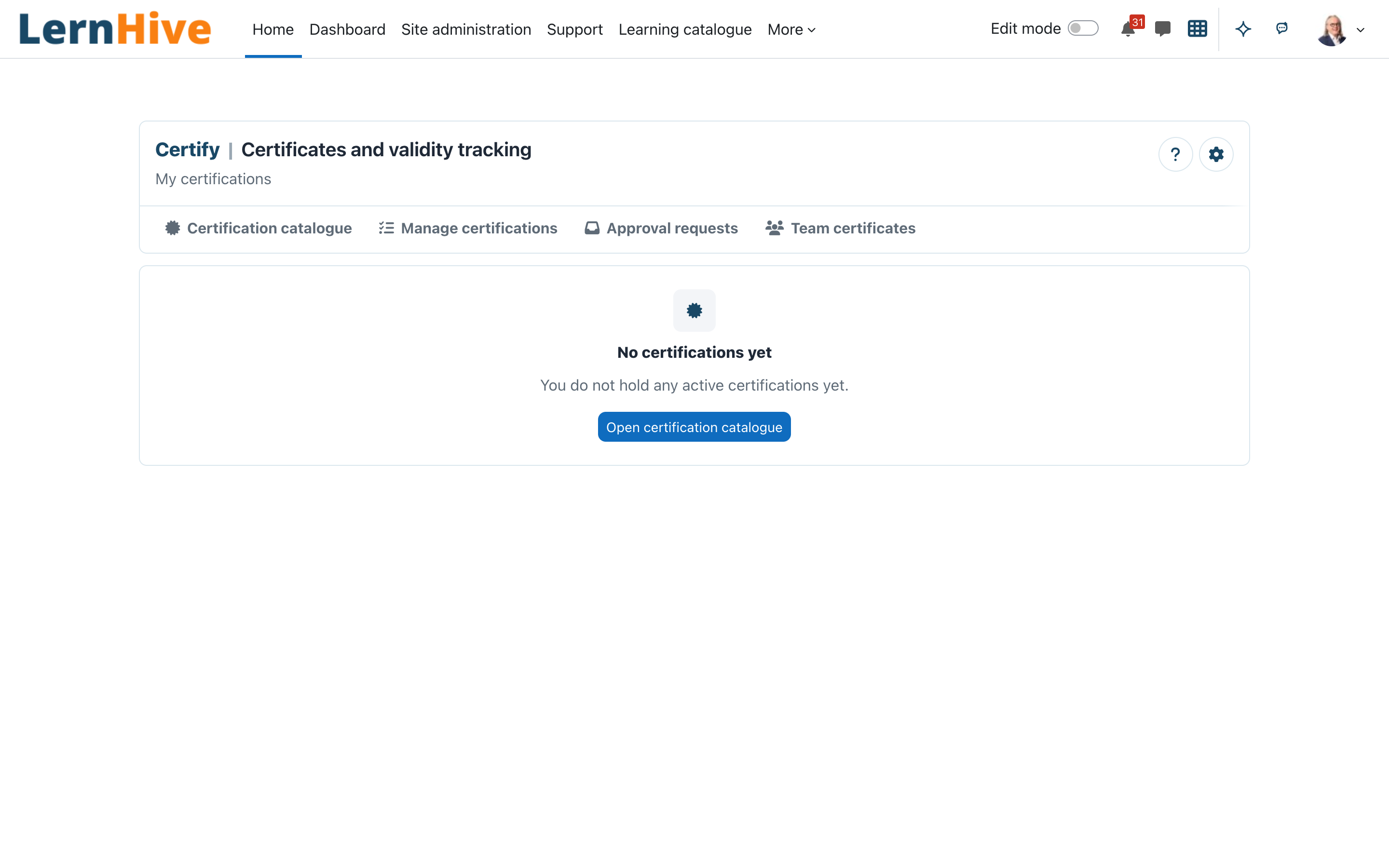
Learner: check own certification status
- Open your dashboard. The My certificates section shows up to five certificates with status and expiry: due recertifications first, then assignments you do not hold a certificate for yet ("Certification pending"), then expired, expiring and valid ones, revoked ones last. Show all certificates opens My certifications.
- My certifications groups your certifications in the same order and with the same terms as the dashboard. Use the status filters to switch between All, Recertification due, Certification pending, Expired, Expiring soon, Valid and Not certified. Recertification due lists certifications whose recertification window is open, with the date by which you have to renew them. Certification pending lists certifications you are assigned to but have never held. Not certified lists certifications you held once but no longer hold: every certificate was revoked, or it expired and the recertification window closed without a new certification. Neither shows a validity date.
- Review the grouped table, validity dates, and certificate PDF download.
- To download several certificates at once, tick the rows you want and choose Download selected (ZIP), or use Download all (ZIP) for the complete set.
Learner: export the personal learning history
- Open Learning record.
- Review current courses, completed courses, badges, certifications, and external records.
- Use Download PDF to export a printable learning history from the same evidence set.
- Use the record as the single audit view of evidence currently known to LernHive.
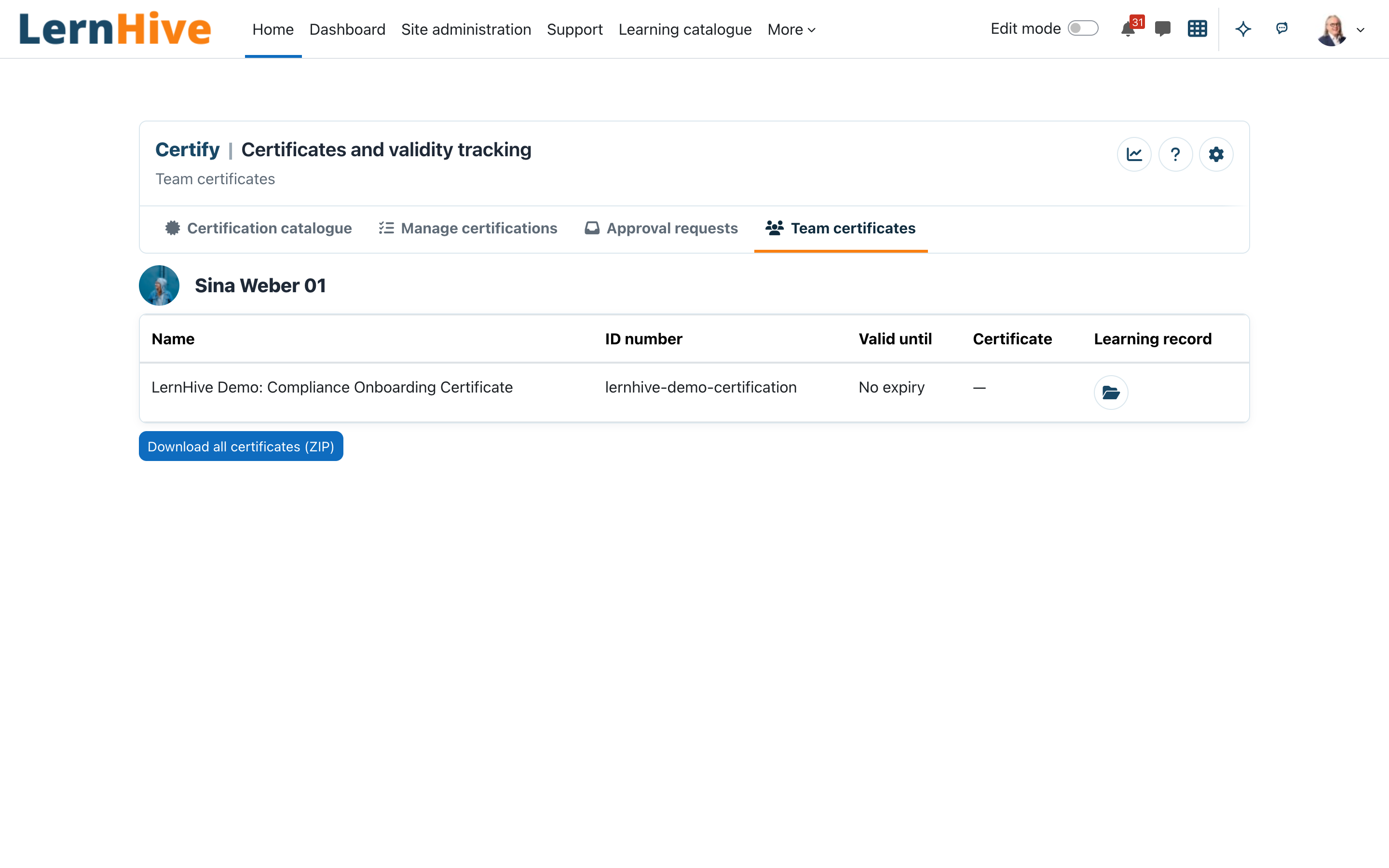
Manager: review team certificates
- Open the Team certificates tab in the Certify shell. It lists every learner in your Orgchart reporting scope with their certifications; site administrators see everyone.
- Download an individual certificate from a learner's row, or use Download all certificates (ZIP) to export that learner's full set.
- Visibility is scoped to your reporting line — you only ever see and download certificates for users you may report on.
Manager: review a user's learning record
- Open Team certificates and use Open record for the learner.
- Review completed learning and certification evidence.
- Use Download PDF to export the learner's learning history inside the same reporting scope.
- Use Team certificates or Certification reports when a filtered expiring-certificate view is needed.
Learner: continue after recertification
- Open the invitation from course notifications.
- Open the re-enrolled course.
- Complete the activities in the recertification path.
- Check the new period under My certifications.
Settings that matter
- Email certificates automatically (Site administration → Plugins → Local plugins → LernHive Certify): enabled by default. Certify emails the PDF certificate to the learner — with a supervisor CC where Orgchart is available — the moment a period is earned. Clear the checkbox to turn automatic dispatch off (store for download / manual re-send only).
The task that opens recertification windows runs regularly through Moodle Cron. The expiring soon notification task runs daily at approximately 03:00. Both tasks must be enabled.
Rollout checklist:
- [ ] Certification templates defined with clear validity rules
- [ ] Initial and renewal paths reviewed before activation
- [ ] Reminder timing agreed with compliance owners
- [ ] Learner-facing "My certifications" view enabled and communicated
- [ ] Learning record sources agreed: course completion, badges, Certify periods, external records
- [ ] External evidence upload policy agreed
Limitations
- The Team certificates views and the supervisor CC on certificate emails depend on
local_lernhive_orgchartreporting lines; without Orgchart data there is no team scope to display. - The learning record only shows evidence known to LernHive — external learning must be added as external records before it appears in exports.
- Recertification never rewrites history: corrections happen by issuing or archiving periods, not by editing past ones.
- Automatic re-enrolment resets course completion according to the recertification target; it does not edit course content or enrolment rules. It also resets the learner's grades and quiz, SCORM and H5P attempts. Known limitation: assignments, lessons, peer assessments (workshops), forum ratings and external tools (LTI) cannot be reset for one person. Only their gradebook grade is cleared; their submissions stay, and regrading the activity can bring the grade back.
Troubleshooting
A user appears as expired even though they recently completed the learning path. → Check whether the completion event reached Certify. → Verify that the certification points to the correct target pathway or course.
A certification was granted with the wrong dates. → Open the assignment and review the most recent period. → Use the admin correction flow instead of editing the learner profile manually.
The learner sees a certification but not the renewal action. → Confirm that a recertification target was configured. → Check whether the renewal window is already open.
Primary navigation
Learners open Certify in the primary navigation (Learn). The entry opens My certifications directly, including certificate downloads. People who manage Certify or view its reports open Certify from the launcher; it opens their Certify workspace.
Screenshots
The following screenshots show the current LernHive demo interface: