What this plugin does
The compliance module gives the people responsible for AI governance one place inside LernHive to work through their EU AI Act and GDPR duties as a deployer of AI systems. It provides an organisation-specific compliance checklist, a guided per-use-case risk assessment with a clear verdict, a registry of the configured AI providers, and a live status view of audit-log retention and tamper evidence. Everything it shows is a working aid — not legal advice.
Who this is for
| Role | What they do |
|---|---|
| Trainer | Run the three-question prohibited-practice pre-flight before piloting an AI use case |
| Platform administration | Use the compliance overview, work through the checklist, run and export risk assessments, review the AI transparency details, maintain the provider registry, monitor audit status |
| Site administrator | Set the organisation type, retention threshold and transparency toggles |
Learners do not interact with this plugin in the current release. The Article-50 transparency notices that will eventually be visible to learners are prepared in the code but not yet rendered on learner pages (see Limitations).
The module has no entry in the LernHive main navigation. Open it through the compliance card of the LernHive AI suite (when installed) or directly at /local/lernhive_compliance/index.php.
Core concepts
Checklist blocks A–E
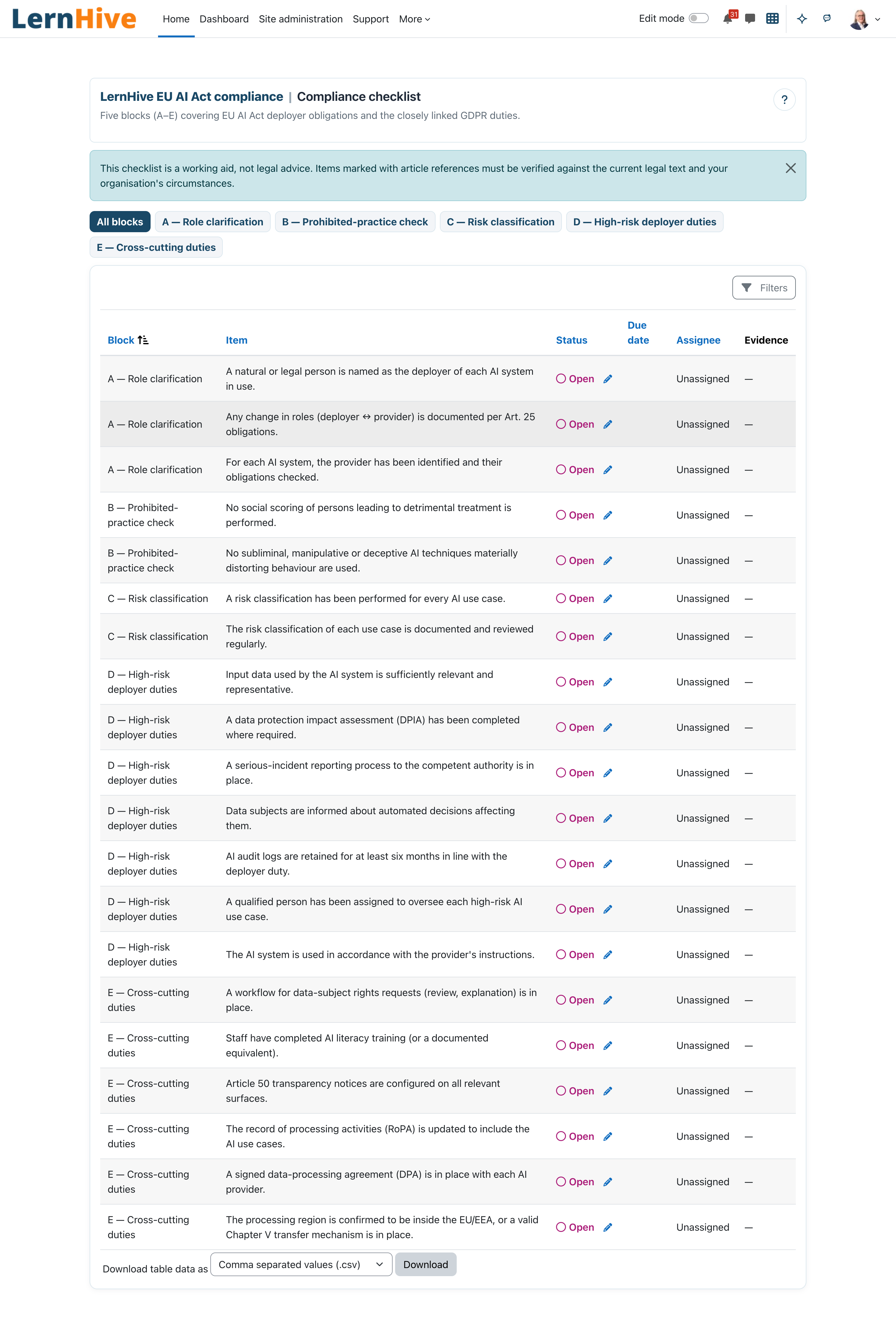
The operative checklist is grouped into five blocks: Role clarification (A), Prohibited-practice check (B), Risk classification (C), High-risk deployer duties (D) and Cross-cutting duties (E). Which items are seeded depends on the configured organisation type — for example, FRIA items appear for schools and public-sector organisations, worker-information items for companies.
Use case
A risk assessment is always recorded for one concrete use case: a combination of a plugin component (for example mod_aichat) and a strategy-matrix entry id (for example B2). The assessment page is therefore usually reached through a deep link that carries both.
Risk verdict
The guided assessment sorts a use case into one of five categories: Prohibited, High-risk, Limited risk, Minimal risk or Undetermined. The verdict is rule-based and reproducible — the answers are stored with the assessment, and a re-assessment date is set 12 months ahead automatically.
Pre-flight
A short Article-5 check with three questions (emotion recognition, manipulative AI, social scoring). A "yes" always wins: the use case is flagged Prohibited regardless of any other answer.
Provider registry
One row per configured AI provider plugin with region, data-processing-agreement (DPA) status, CE-marking and the last model observed in the audit log. When a provider starts answering with a different model, affected high-risk assessments are flagged Re-assessment due.
Retention and hash chain
Audit-log retention is enforced by the Moodle Privacy subsystem (tool_dataprivacy purposes), not by this plugin — the compliance module only surfaces the current state and warns when retention falls below the recommended minimum. Independently, an HMAC hash chain over the AI audit register provides tamper evidence.
Journeys by role
Platform administration: start from the compliance overview
- Open the Compliance overview (
/local/lernhive_compliance/index.php). - Each pillar card — Checklist, Risk assessment, Transparency notices — shows its state (for example Available, Not started, Configured) and a count; Open leads to the tool.
- Under Operational tools, open the AI provider registry and the Audit status. Site administrators also see LernHive compliance settings there.
The overview reports configuration and counts, not legal compliance.
Platform administration: work through the compliance checklist
- Open Checklist from the overview (page title Compliance checklist).
- On the very first visit the checklist is initialised for your organisation type — a notice reports Checklist initialised — {n} new items added.
- Use the block filter pills at the top (All blocks, or a single block such as D — High-risk deployer duties) to narrow the list.
- Review the table with the columns Block, Item, Status, Due date, Assignee and Evidence. The report also offers filters on block, status, assignee and due date, and can be downloaded.
- Click Edit status on an item. The Update checklist item dialog opens.
- Set Status to Open, In progress, Done or Not applicable, optionally add Evidence (link, file reference or short note), and save. The row updates and you are assigned as the item's assignee if it had none.
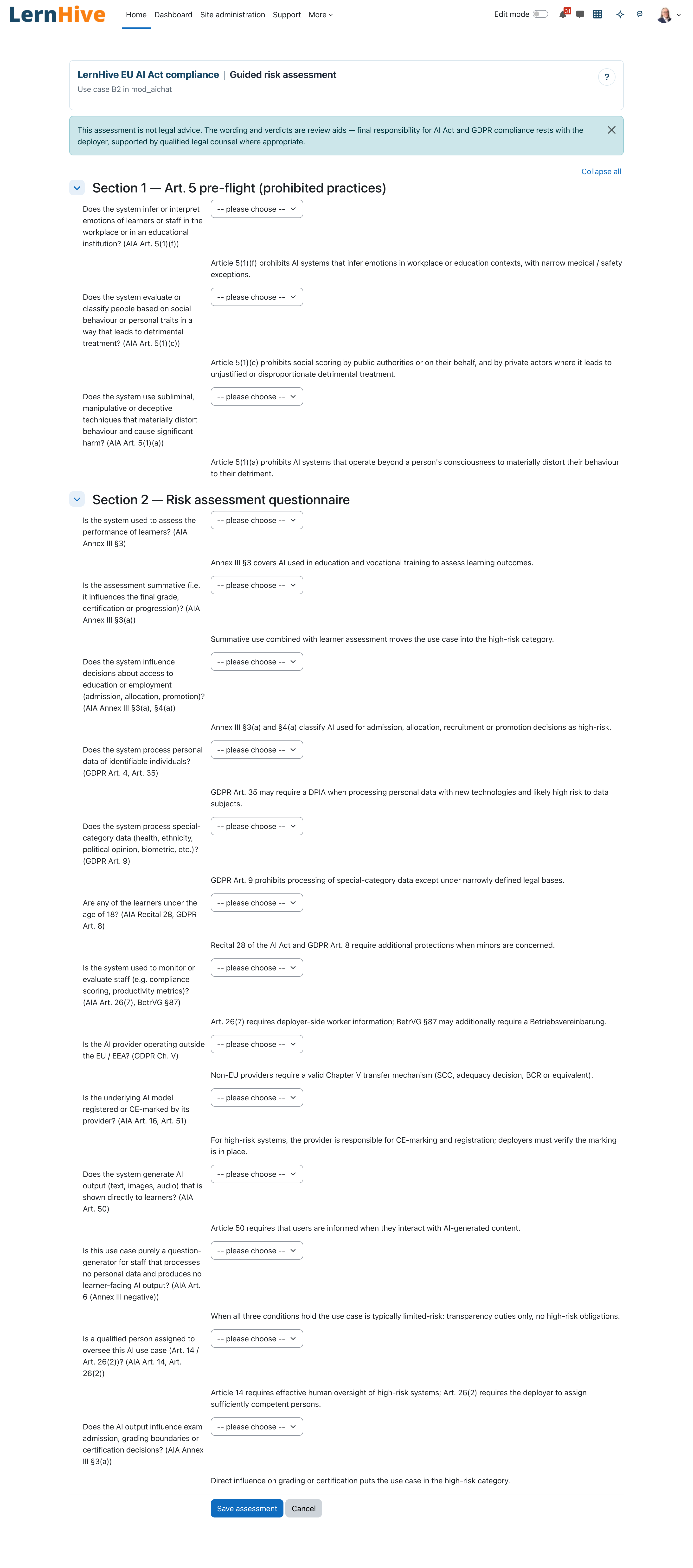
Platform administration: run a guided risk assessment
- Open the assessment for a specific use case — normally via a deep link (for example from the Strategy Helper), or manually:
/local/lernhive_compliance/risk.php?component=mod_aichat&usecaseid=B2. The page Guided risk assessment opens with the subtitle naming the use case and component. - Read the disclaimer — the assessment is a review aid, not legal advice.
- Answer Section 1 — Art. 5 pre-flight (prohibited practices): three yes/no questions on emotion recognition, manipulative techniques and social scoring.
- Answer Section 2 — Risk assessment questionnaire: yes/no questions on learner assessment, summative effect, access decisions, minors, personal and special-category data, provider location, human oversight and CE-marking.
- Click Save assessment.
- Review the result: a verdict badge (Prohibited, High-risk, Limited risk, Minimal risk or Undetermined), the reasoning, and — where applicable — additional duties under Additional duties identified: (for example a DPIA requirement or a non-EU transfer flag).
- For high-risk outcomes, click Open the high-risk follow-up checklist (Block D) to jump straight to the now-due checklist items.
- Archive the result with Download PDF or Download Markdown: a versioned document with date, assessor and verdict.
Platform administration: review the AI transparency details
- Open Transparency notices from the overview (page title AI transparency details). Without a course, the page shows the platform-wide inventory; with
?courseid=<id>it lists the active AI features of one course. - Review the columns AI feature, Provider, Model, Risk class and Responsible contact. The provider and model come from the latest observed AI action of that feature; features without a reliable relation (for example AI question types inside a quiz) show Unknown.
- Back to compliance overview returns to the overview.
Trainer: run the prohibited-practice pre-flight
- Open the pre-flight for the use case you plan to pilot:
/local/lernhive_compliance/risk.php?component=<component>&usecaseid=<id>&preflight=1. This mode is available to editing trainers without full compliance-management rights. - Answer the three Article-5 questions and click Save assessment.
- If nothing prohibited is detected, the page confirms: "The pre-flight did not detect a prohibited practice under Art. 5." — with the reminder to continue with the full risk assessment. In this advisory mode no risk record is stored.
- If a question is answered with yes, a Prohibited card explains why the use case must not be operated.
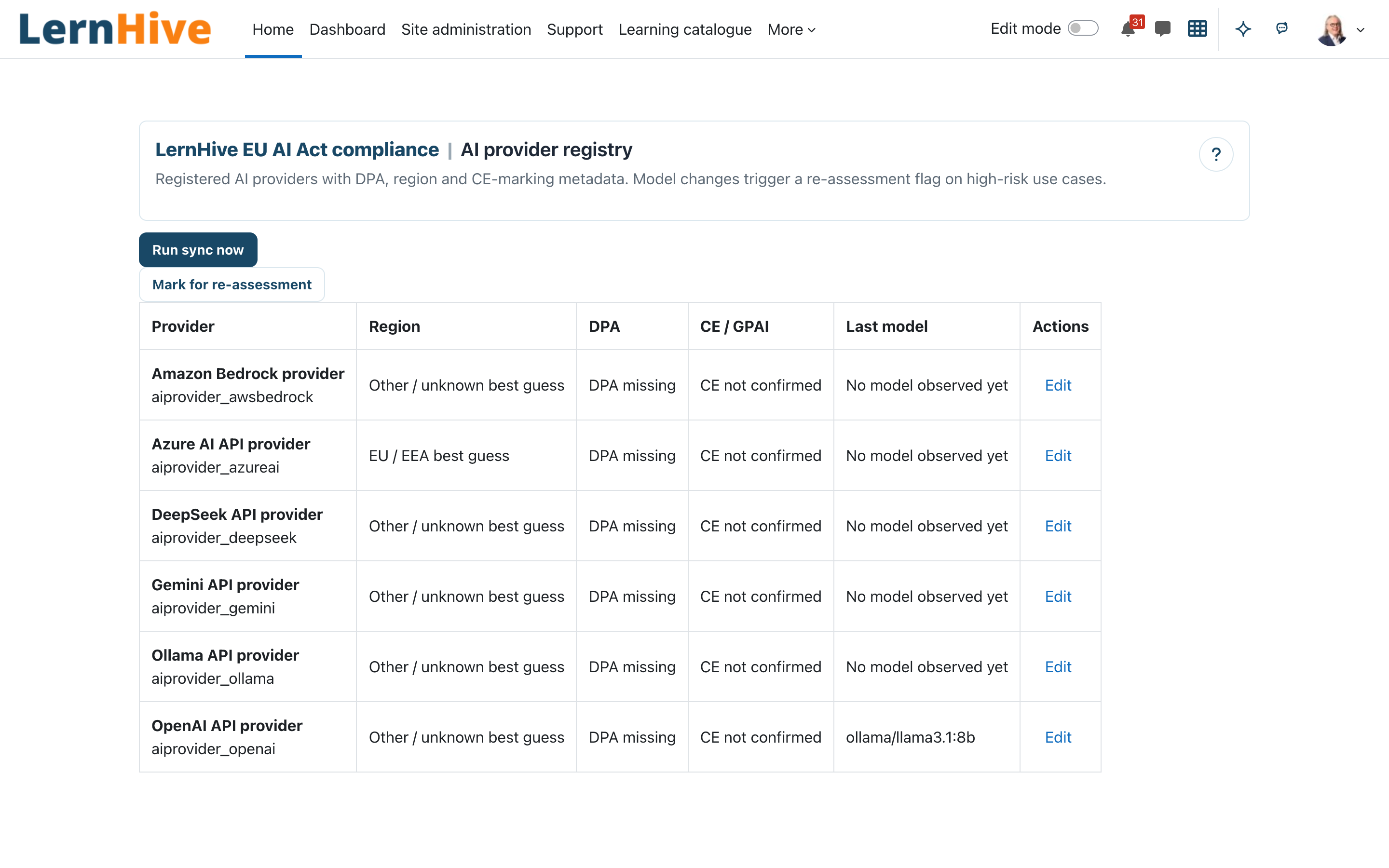
Platform administration: maintain the AI provider registry
- Open AI provider registry from the overview's Operational tools. The registry refreshes itself against the installed AI provider plugins at most once per hour when you open it.
- Review the table with the columns Provider, Region, DPA, CE / GPAI, Last model and Actions. Amber pills mark gaps (DPA missing, CE not confirmed); a best guess badge marks a region that was auto-derived and never confirmed by a human.
- Click Run sync now to force a refresh, for example right after installing a new provider plugin.
- Click Edit on a provider and maintain Processing region, Data processing agreement, DPA signed on, CE-marking / GPAI registration and Notes. Save with the standard form buttons.
- When the panel Re-assessment due appears, a provider has produced audit traffic with a model that differs from the registry. Click Mark for re-assessment to flag the affected high-risk assessments.
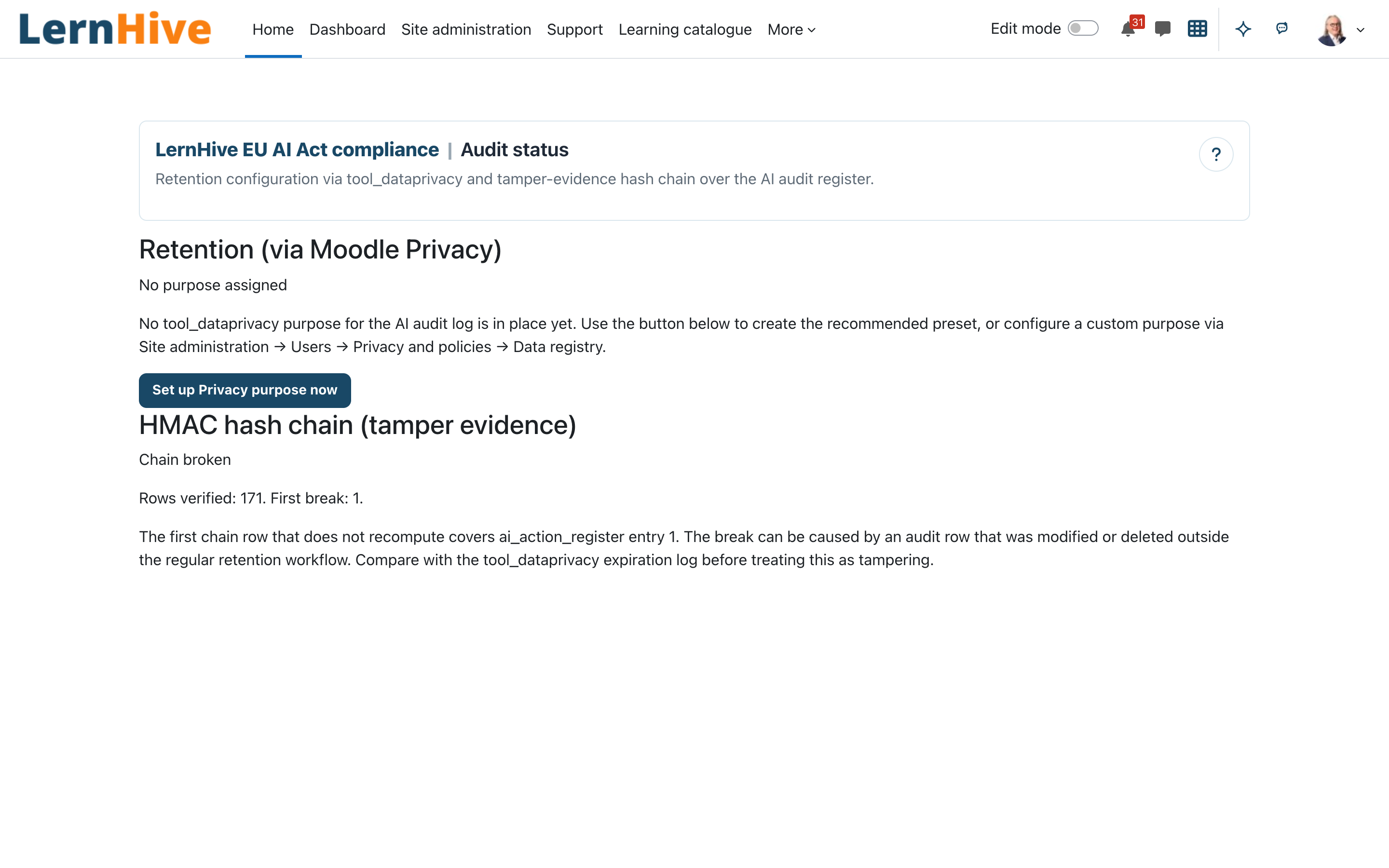
Platform administration: check audit retention and tamper evidence
- Open Audit status from the overview's Operational tools.
- Check the card Retention (via Moodle Privacy). It shows one of: OK, Below recommended minimum, No purpose assigned or tool_dataprivacy not available, together with the configured days versus the recommended minimum and the active purpose name.
- If no purpose is assigned yet, click Set up Privacy purpose now. This creates a preconfigured
tool_dataprivacypurpose ("AI Audit Logging", 180 days) that you can keep maintaining through the standard Privacy admin area — the link Open the Privacy admin area takes you there. - Check the card HMAC hash chain (tamper evidence). Chain intact is the expected state; Chain broken names the first mismatching audit entry and deserves immediate investigation. For very large chains, the page warns when only the first 50,000 rows could be checked in one pass; investigate the result and run verification again as needed. A daily scheduled task verifies the chain and sends an alert on a break.
Site administrator: configure the compliance module
- Open the Compliance overview and choose LernHive compliance settings under Operational tools. The link and the page are only available to site administrators (
moodle/site:config). - In Organisation profile, set Organisation type (School, Higher education, Company / corporate training, Public sector (other than school / university) or Not specified). This drives which checklist items are seeded.
- In AI audit retention (via Moodle Privacy), adjust Minimum retention period in days (recommended) if your organisation's policy differs from the 180-day default. This value only controls the warning threshold on the audit status page.
- In Transparency notices (Art. 50), toggle Show AI notice on activities, Show AI notice on course header and Show site-wide AI notice.
- Click Save settings.
Settings that matter
| Setting | Default | Effect |
|---|---|---|
| Organisation type | Not specified | Filters which checklist items are seeded (e.g. FRIA for schools/public sector, worker information for companies) |
| Minimum retention period in days (recommended) | 180 | Warning threshold for the retention card on the audit status page — it does not delete anything itself |
| Show AI notice on activities | on | Enables the activity-level Article-50 notice in the renderer API |
| Show AI notice on course header | on | Enables the course-level Article-50 notice in the renderer API |
| Show site-wide AI notice | on | Enables the site-footer Article-50 notice in the renderer API |
Note: the three transparency toggles control the notice-rendering API, but in the current release no learner page displays these notices yet (see Limitations).
Limitations
- Not legal advice. Checklist items, questions and verdicts are working aids; the legal texts and your organisation's circumstances always take precedence.
- No main navigation entry. The module is reached through the AI suite card or its URL.
- Transparency notices are not yet visible to learners. The renderer, the settings and the transparency detail page exist, but no activity, course header or site footer displays the notices yet (planned).
- No list view of saved risk assessments. An assessment is reached through its use-case deep link; the result is stored, but there is no browsable history page yet.
- Not in the current release: FRIA and DPIA templates, the serious-incident workflow (Art. 73), the AI-literacy course package, the human-oversight dashboard, authority mapping, and the data-subject-rights self-service workflow. All are planned for later releases.
- The plugin never deletes audit data itself. Retention is enforced exclusively by the Moodle Privacy subsystem.
Troubleshooting
The checklist is empty or shows items that do not fit our organisation. → Check Organisation type under LernHive compliance settings. → After correcting it, reopen the Compliance checklist page — missing items for the new type are added on that visit; existing items and their statuses are kept.
Opening the risk assessment page shows a "missing parameter" error. → The page requires a use case: both component and usecaseid must be in the URL. Follow the deep link from the calling plugin, or add the parameters manually.
A trainer cannot open the full risk assessment. → The full assessment requires compliance-management rights (Platform administration). Trainers can only use the advisory pre-flight mode (preflight=1).
The provider registry says "No AI providers detected yet." → Install or enable at least one aiprovider_* plugin, then click Run sync now.
The audit status page shows "tool_dataprivacy not available". → Install or enable the Moodle Privacy subsystem (tool_dataprivacy); then return and use Set up Privacy purpose now.
The hash chain card shows "Chain broken". → Note the first mismatching action id shown on the card. → Compare it with the tool_dataprivacy expiration log first — a legitimate retention deletion outside the regular workflow can break the chain — before treating the break as tampering.
Screenshots
The following screenshots show the LernHive demo interface before the main navigation was regrouped; the compliance pages themselves are unchanged: