Page layout
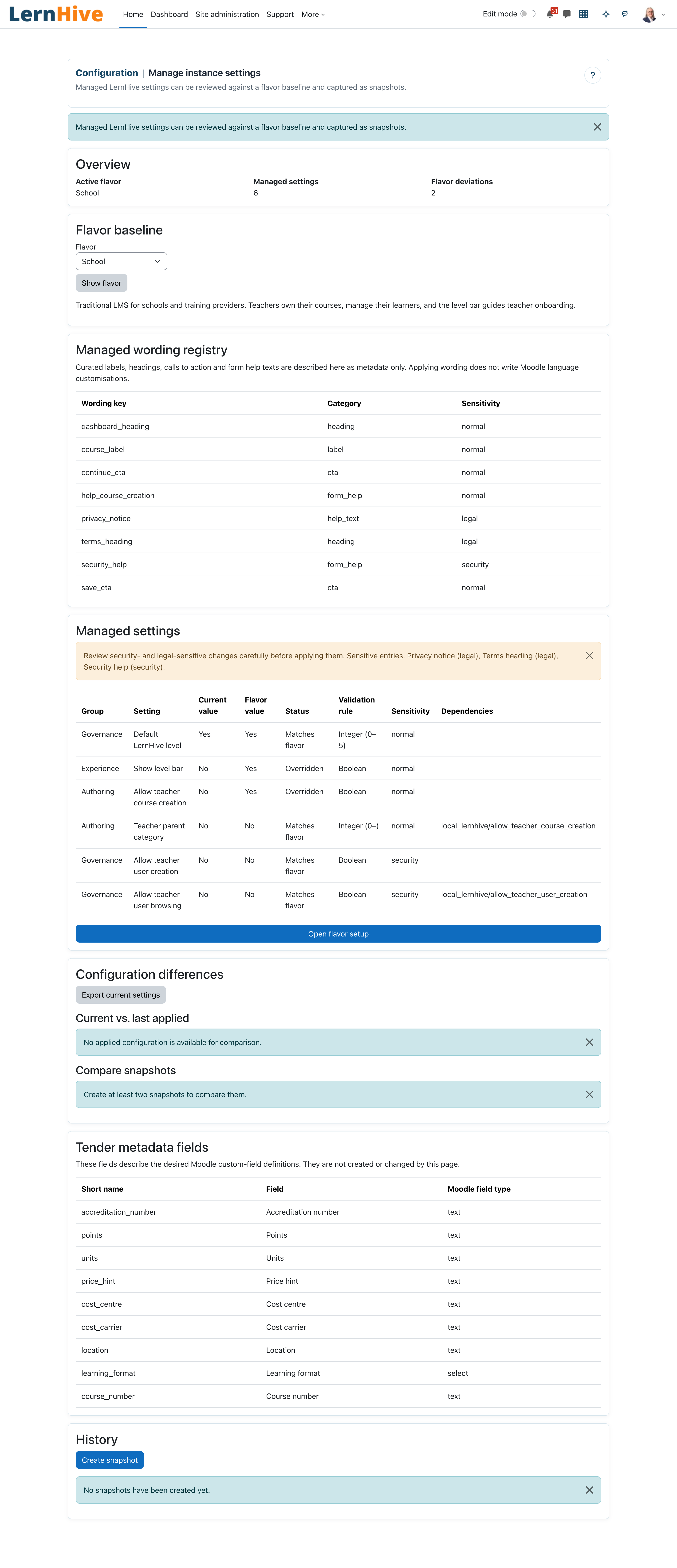
The cockpit opens as Configuration | Manage instance settings in the shared default-width shell. This keeps the page readable at narrow viewports while Moodle's native navigation remains available.
What this plugin does
The Configuration cockpit makes the LernHive-relevant settings of a site reviewable in one place. It shows the current values of a curated set of managed settings, compares them against a chosen flavour baseline, and lets an administrator capture a snapshot of those values for the record. Restoring a snapshot is the cockpit's only writing path; applying a flavour baseline happens on the dedicated Flavour setup page. Security-sensitive changes require explicit review confirmation.
Who this is for
| Role | What they do |
|---|---|
| Platform administration | Reviews managed settings against a flavour baseline, captures snapshots |
| Site administrator | Same, plus reaches the cockpit and its settings via site administration |
Access requires the capability local/lernhive_configuration:manage, granted to the manager archetype by default. The cockpit is listed in the site administration for everyone holding it: site administrators find Configuration cockpit under Site administration → Plugins → Local plugins → LernHive, Platform administration directly under Local plugins. The admin cockpit's Setup tile links it as well.
Core concepts
Managed setting
One of a fixed allowlist of local_lernhive settings the cockpit surfaces — currently: Default LernHive level, Show level bar, Allow teacher course creation, Allow teacher user creation, Allow teacher user browsing, Teacher parent category. Values are read from Moodle's normal config storage; there is no second source of truth.
Flavour
A named recommended baseline of values: School, LXP, Higher Ed, Corporate. Choosing a flavour changes what the comparison compares against; applying changes is a separate, selective action.
Deviation
A managed setting whose current value differs from the selected flavour's recommended value. The overview shows a Flavour deviations count.
Snapshot
A timestamped, attributed capture of the current managed values, stored for history. Snapshots have a label, a source type (manual, flavour apply, or rollback), and a creation time. A previous snapshot can be selected in the History section and restored; the rollback creates its own before/after snapshots and audit entry.
Journeys by role
Platform administration: review managed settings against a flavour baseline
- Open the Configuration cockpit (Site administration → Plugins → Local plugins → LernHive → Configuration cockpit, the Setup tile in the admin cockpit, or
/local/lernhive_configuration/manage.php). - The Overview card shows the Active flavour (the flavour applied through the flavour setup, whatever flavour you compare against below), the number of Managed settings, and the count of Flavour deviations from the compared flavour. The comparison starts with the active flavour.
- In Flavour baseline, pick a Flavour from the dropdown and click Show flavour. A short description of the selected flavour appears.
- The Managed settings table lists each setting with Group, Setting, Current value, Flavour value, and Status — Matches flavour, Overridden, or Not set by flavour. Boolean values render as Yes / No; missing values as Not set.
- To change deviations, open Flavour setup. Selective flavour applies and their security review are handled on that dedicated page.
Platform administration: capture a configuration snapshot
- On the same page, in History, click Create snapshot.
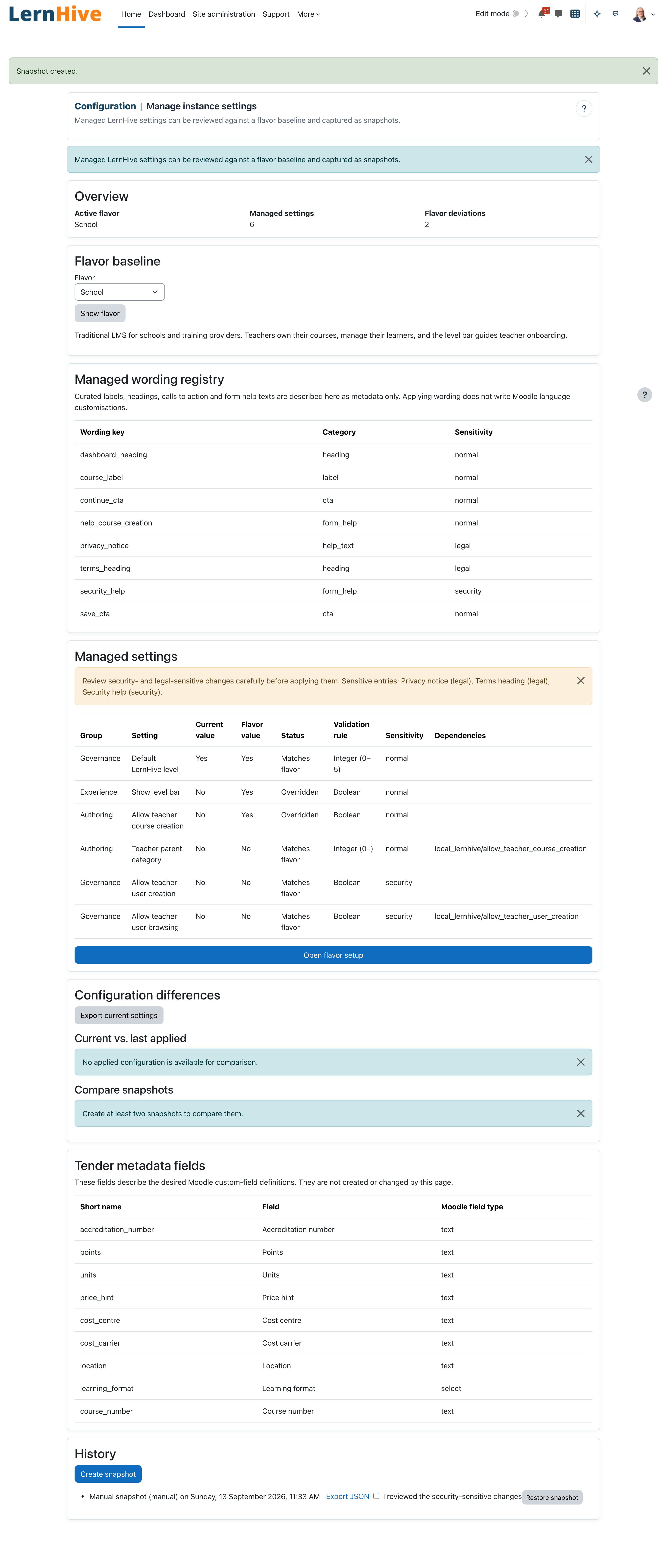
- The current managed values are stored as a Manual snapshot; the confirmation Snapshot created. appears.
- The latest five snapshots are listed underneath in the form "label (type) on date". Before the first capture the list reads No snapshots have been created yet.
Platform administration: restore a snapshot
- In History, find the snapshot you want in the list of the latest five.
- Click Restore snapshot in its row. A confirmation page names the snapshot and states that the managed settings will be overwritten with its values; confirm with Restore snapshot. The managed values are restored through the registry allowlist.
- Confirm security-sensitive changes through I reviewed the security-sensitive changes; without that confirmation a restore touching sensitive values is rejected. Security- and legal-sensitive values are restored only for site administrators (
moodle/site:config) — the same rule as the flavour setup; Platform administration sees Security- and legal-sensitive settings can only be changed by site administrators. Rollback history is retained; no existing snapshot is deleted. - The Applied changes table below the snapshot list records every operation with its time, kind (Flavour applied / Snapshot restored), the flavour involved, the changed settings, and the account that triggered it.
Platform administration: review managed wording and metadata fields
The Managed wording registry card lists curated labels, headings, calls to action, and form help text for future wording overrides, each with a Category and Sensitivity. This release is code-only: it documents the desired entries but does not write Moodle language customisation. Security and legal entries are identified for review before a future apply and are excluded from configuration exports and diffs.
The Course metadata fields card lists the desired Moodle custom-field definitions with Short name, Field, and Moodle field type. They are likewise described only — this page neither creates nor changes them.
Platform administration: compare differences and export
- The Configuration differences card shows, under Current vs. last applied, how today's values deviate from the state after the last recorded operation. Without a recorded operation it reads No applied configuration is available for comparison.
- Under Compare snapshots, pick two snapshots as Before and After and click Compare snapshots. Each row is marked Added, Removed, Changed, or Unchanged. With fewer than two snapshots it reads Create at least two snapshots to compare them.
- When Allow JSON export is enabled, Export current settings downloads today's state as JSON, and every snapshot in the history gets an Export JSON link. Settings classified as sensitive are excluded from both exports and from every diff.
Site administrator: review the cockpit's own settings
- Go to Site administration → Plugins → Local plugins → Configuration settings.
- The page holds one option, Allow JSON export. It is off by default; only with it enabled do the export links appear in the cockpit.
Settings that matter
| Setting | Where | Effect |
|---|---|---|
| Allow JSON export | Site administration → Plugins → Local plugins → Configuration settings | Unlocks the JSON export links in the cockpit; off by default. Only non-sensitive settings are included |
Limitations
- Applying a flavour and rolling back are limited to registered settings and are recorded with before/after snapshots.
- Only the six curated
local_lernhivekeys are managed; other Moodle settings never appear. - Snapshots can be compared in pairs and restored from the History section; opening a single snapshot in the UI is not a feature — the JSON export covers that.
- Diffs and exports always leave out settings classified as sensitive; those appear only in the Managed settings table.
- This plugin's flavour list is a static catalogue for comparison; it is independent of applying a flavour via LernHive Flavour.
Troubleshooting
A setting shows "Overridden" although I never changed it. → "Overridden" means the current value differs from the selected flavour's recommendation — including values set by installation defaults or another flavour. Switch the Flavour dropdown to the baseline your site actually follows.
A setting shows "Not set by flavour". → The selected flavour simply does not recommend a value for that key; this is informational, not an error.
I want to fix a deviation from within the cockpit. → The cockpit itself only reads. Use Open flavour setup to apply flavour deviations, or change the value on the LernHive admin settings pages (e.g. Level configuration), then reload the cockpit to confirm the status flipped to Matches flavour.
The cockpit page is not accessible for a user. → It requires the local/lernhive_configuration:manage capability (Platform administration / manager archetype and site admins by default).
Screenshots
The following screenshots show the current LernHive demo interface: