What this plugin does
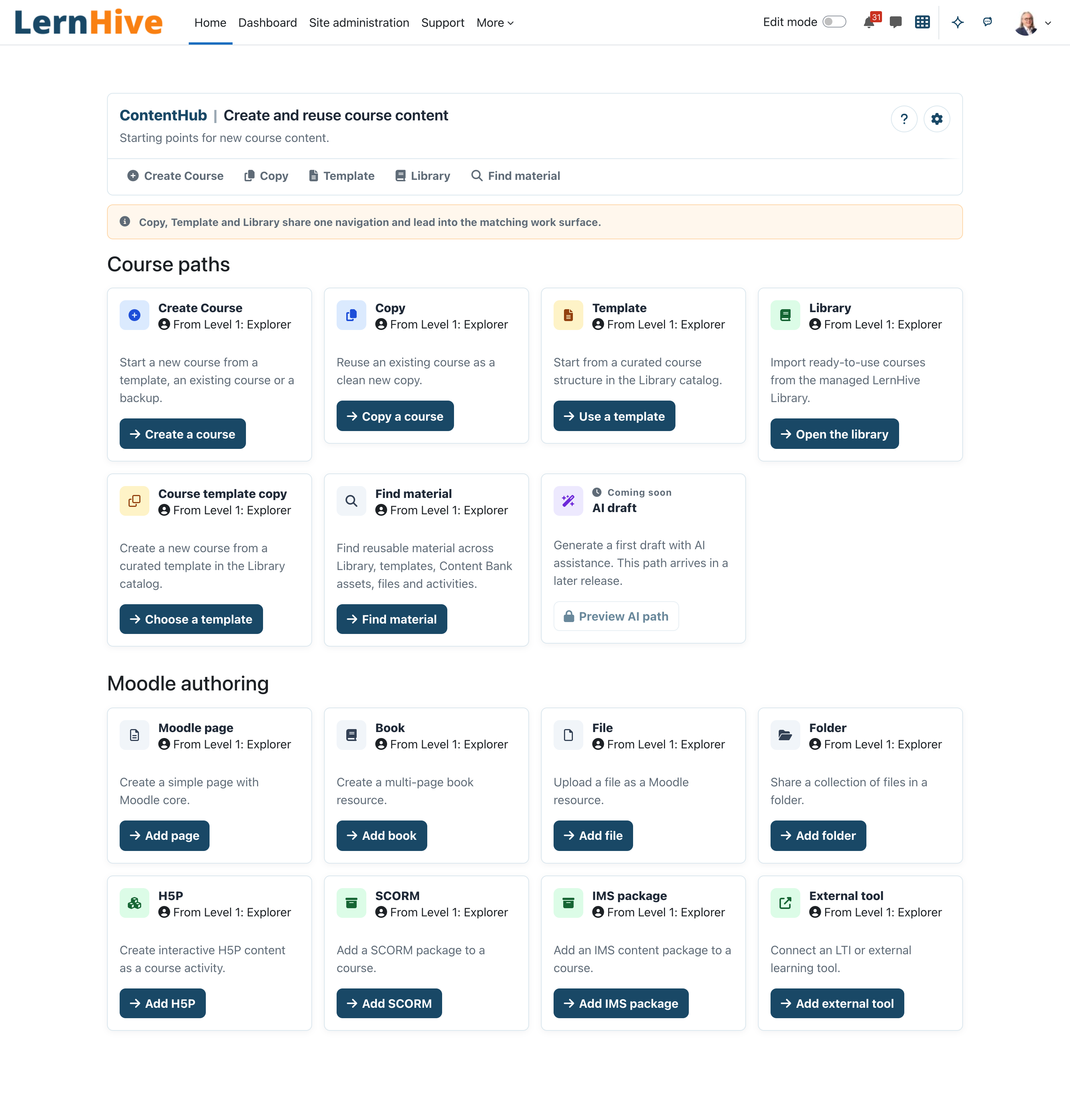
ContentHub answers the question "How do I start a new course or learning activity?" It is one entry page with cards for course paths — create, copy, use a template, import from the managed Library, or find reusable material — and a course-template copy path. Every ContentHub-owned path ends on the finished course with a success message, and the paths you use most float to the top of the hub.
Who this is for
| Role | What they do |
|---|---|
| Trainer | Create, copy and import courses; find reusable material |
| Platform administration | Everything a trainer can do; typically curates which ready-made Library courses the organisation imports |
| Site administrator (eLeDia) | Configure the Library catalog feed, telemetry and the Create Course flow |
Technically: all four plugin capabilities (view, copy, import, createcourse) are granted to the editingteacher, teacher and manager archetypes and mirror moodle/course:create. The Find material page additionally requires moodle/course:create itself. Learners and Orgchart managers do not interact with ContentHub — learner-facing course discovery belongs to Explore (local_lernhive_discovery).
Core concepts
- Card / path — each tile on the hub is one content-creation path. Cards carry status badges: Available, Coming soon, Unavailable — plugin not installed, plus Recently used for your last paths. A card that is not available shows only its status, without a button.
- Capability gating — cards you may not use are hidden entirely, never greyed out. What you see is what you can do.
- Library — the catalog of ready-to-use courses and competency frameworks curated and maintained by eLeDia, fed from a remote catalog feed or a manifest configured by the site administrator.
- Template — a Library entry mapped to a source course on your site; "using" a template copies that course.
- Material — anything reusable found by the discovery search: Library entries, templates, Moodle Content Bank assets, and items from third-party sources.
- Recently used — ContentHub remembers your three most recently completed paths (as a user preference) and floats those cards to the top.
- Moodle authoring — direct authoring cards are temporarily unavailable. A safe authoring flow with a Materials return path is planned in SUI-1994.
Journeys by role
Trainer: pick a content path on the hub
- Open ContentHub (
/local/lernhive_contenthub/index.php), for example from the launcher. - Scan the grouped cards: Course paths contain Create Course, Copy, Template, Library, Course template copy and Find material. If enabled by the administrator, AI draft appears as a preview card (always Coming soon in this release).
- Cards you used recently show the Recently used badge and sit first.
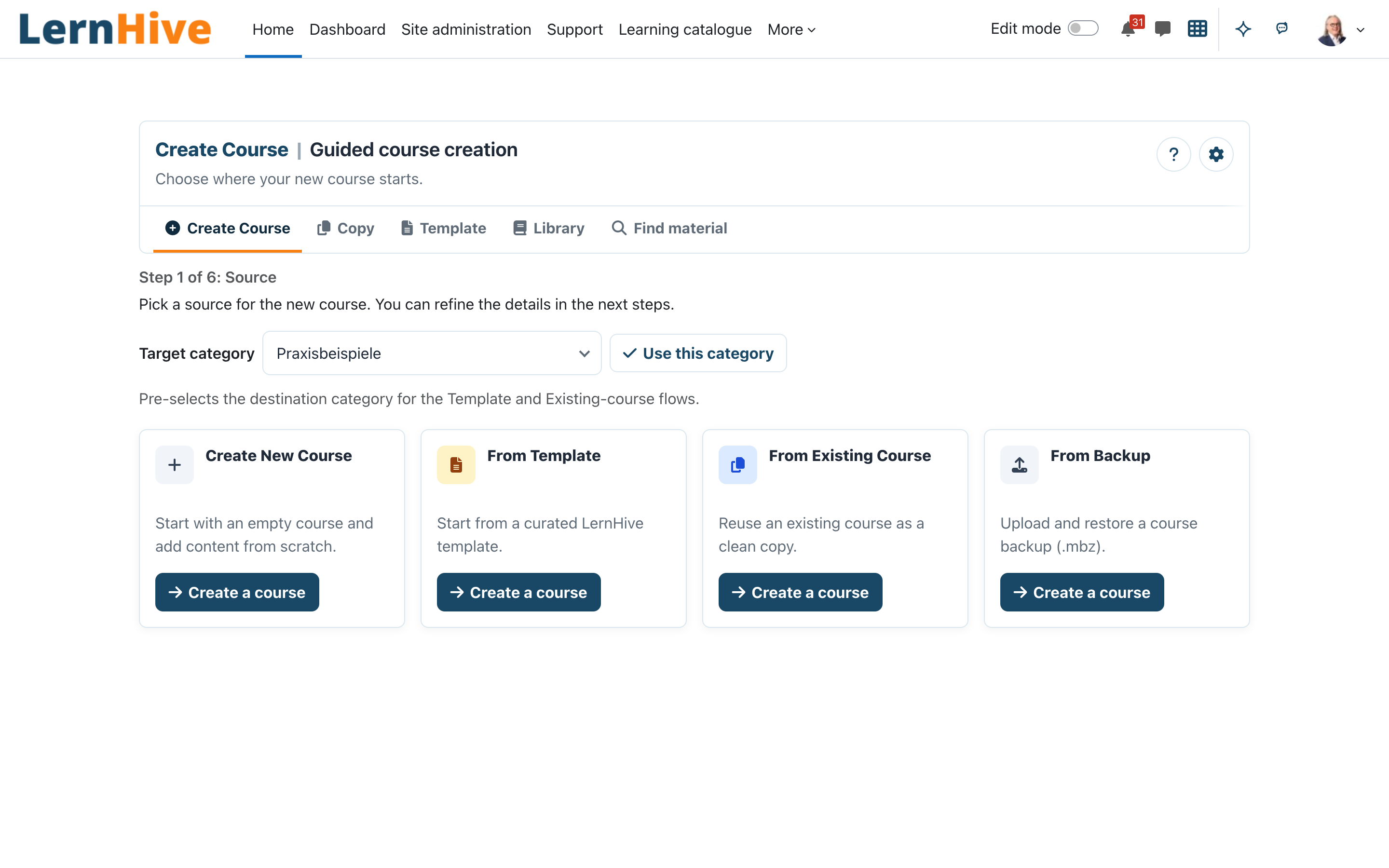
- Click a card's action (for example Copy a course) — the matching work surface opens in the same LernHive Plugin Shell, with a shared section navigation (Create Course · Copy · Template · Library · Find material) to switch paths. Create Course stays highlighted while you move through its source step and the guided course wizard.
- When a path finishes you land on the result with a toast like Done — created via the Copy path.
Trainer: create a course with the guided wizard
- On the hub, choose Create Course → Create a course.
- Step 1 (Source) offers equal-height tiles: Create New Course, Snack, From Template, From Existing Course and From Backup. Optionally pre-pick a Target category and confirm with Use this category — it pre-fills the Template and Existing-course forms.
- From Template and From Existing Course continue into the Template and Copy flows described below. Their copy progress stays inside the guided flow and opens the checklist when Moodle finishes the asynchronous copy.
- Snack (the only way to create a Snack): on Create a Snack, fill Snack title, Course short name, Category, Description and, optionally, Snack duration (minutes), then click Create Snack. The Snack has no structure steps: it is one list of at most three activities without sections (LernHive Snack format). The tile appears only in the LXP flavour and only if you may create Snacks — besides the course creation permission this is, where Discovery is installed, its permission to create Snacks. A Snack then opens a short checklist instead of the seven steps: Content available (at least one activity; Open Snack leads there), then Publish Snack.
- Teachers with a personal course area (School and HigherEd flavours, setting Allow teachers to create courses): without a course area yet, the page shows No course area yet and Set up course area. The button creates your personal course area, then the tiles appear and your courses go into it. Template and existing-course tiles appear only with the copy permission.
- From Backup: on Create from backup, fill Course full name, Course short name, Category, upload the Backup file (.mbz) and click Create course.
- A progress bar shows Creating your course from the backup... during the restore; you are enrolled in the new course with the administrator-defined creator role.
- Every other creation source opens the seven-step checklist. The new course remains hidden until all steps are complete and you publish it. Only then does the administrator's After publication destination apply: Open the course, Enrol participants or Add content (editing on).
Trainer: get a course ready and publish it with the Course wizard
- Open the Course wizard from the ContentHub card or its start page, which lets you pick the course first.
- The wizard shows a checklist of seven steps — course creation, content & objectives, description, reminders/mail, course formats, certificate and participants — each ticked or open depending on the course's real state, with a running count like 3 of 7 steps complete.
- Work through the open steps: most link straight to where the work is done in Moodle (add activities, set objectives, configure reminders, enrol participants). The description is the exception — you edit it inline on the checklist and saving it ticks the step without leaving the page.
- Once all seven steps are complete, the Publish action becomes available. Publishing makes the course visible and starts the invitation and reminder mails for participants (handled by LernHive Notifications). A course cannot be published while any step is still open. A course created or shown with Moodle's own course form gets the same invitations and reminders as soon as it is visible (within a few minutes, with the next cron run), just without the checklist.
Course administrator: archive a finished course (and restore it)
At the bottom of the Course wizard there is an Archive course action for users who may manage the course (editing teacher or manager). Archiving a course:
- hides it from participants (it disappears from their course list and they can no longer open it),
- stops the reminder mails for that course,
- suspends the participants' enrolments — it does not remove them, so nothing is lost.
Everything else stays exactly as it was: all grades, activity completion and progress remain, and the course still appears in reports, so administrators keep full reporting access to the archived course's data.
To bring the course back, open the wizard again and press Unarchive course. This restores the previous visibility, reactivates exactly the enrolments the archive had suspended (participants who were already suspended beforehand stay suspended) and restarts the reminder flow where it left off.
Trainer: copy an existing course
- On the hub, choose Copy → Copy a course (
/local/lernhive_contenthub/copy.php). - Pick the Source course — only courses you are allowed to copy are listed.
- Enter New course full name, New course short name, choose the Target category and whether the copy is Visible.
- Click Start copy. The page confirms: Copy queued. Moodle will finish the copy in the background; you can follow progress here.
- The copy is produced by Moodle backup/restore as a background task — large courses take a while before the new course appears.
Trainer: start a course from a template
- On the hub, choose Template → Use a template (
/local/lernhive_contenthub/templates.php). - The Templates catalog lists curated Library entries with Version, Last updated and Language.
- Click Use template on an entry; the copy form opens pre-filled with the template's source course, then proceed as in the Copy journey.
- Entries tagged Unavailable (no button) are listed in the catalog but have no source-course mapping yet and cannot be used.
Trainer: find reusable material for a course
- On the hub, choose Find material (
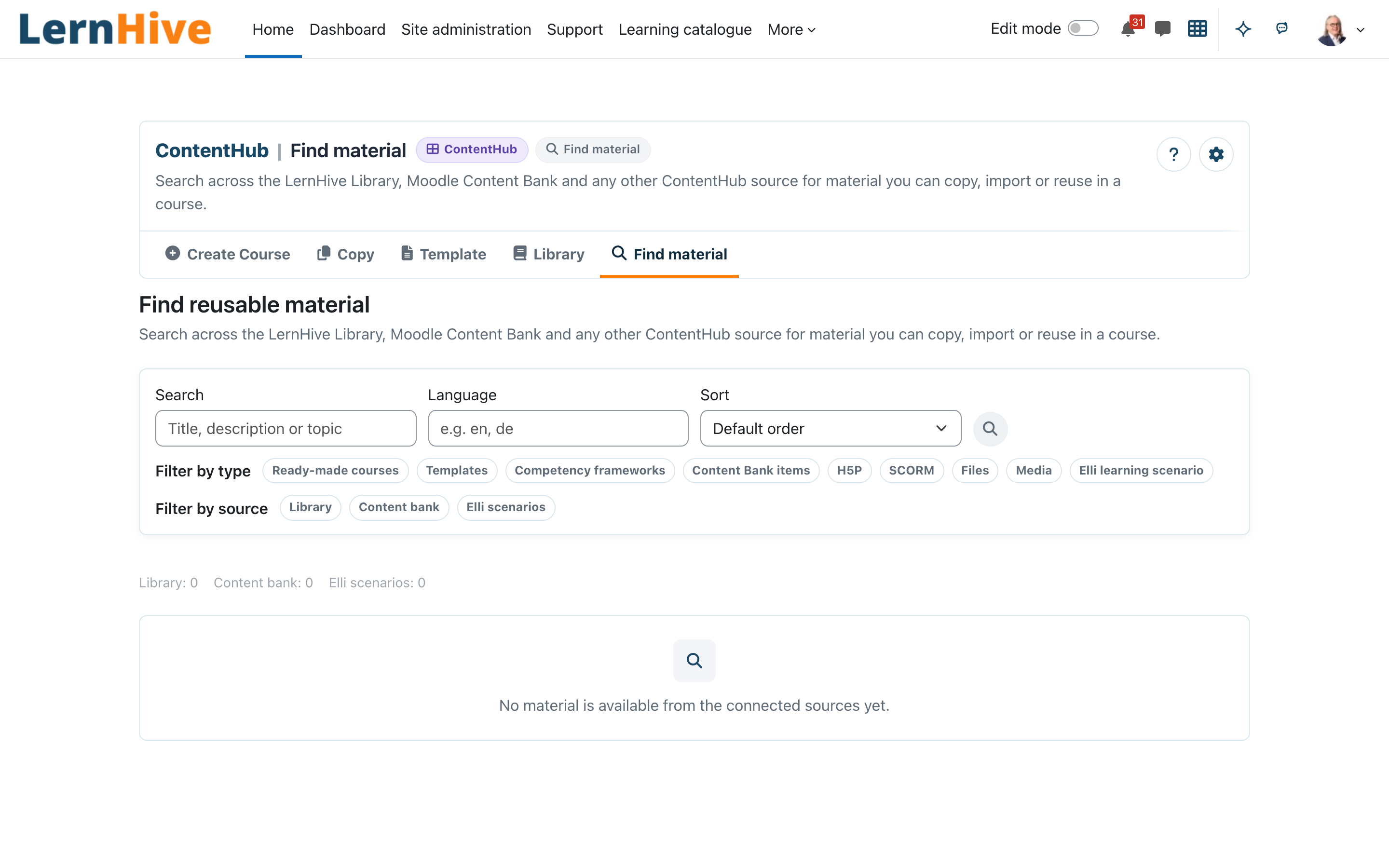
/local/lernhive_contenthub/materials.php). This page requires the right to create courses. - Search by Title, description or topic, narrow by Language, and use the chip rows Filter by source, Filter by type (Ready-made courses, Templates, Competency frameworks).
- Change the Sort between Default order, Title (A–Z) and Last updated. Results are paginated (24 per page) with a per-source count line.
- Each result offers the handoff its source supports: Use as template, Import, Open in editor or Open.
- For shared activities, the Import activity page lets you review owner and licence, search and pick the Target course and Continue, then pick the Target course section and confirm with Add activity — Activity added successfully. Choose another course goes back to the course search. A Snack takes at most three activities and no subsection: once it holds three, the page says so before the import and offers no Add activity; choose another course. In a Snack the activity goes to the Snack list (no section choice).
Trainer: generate learning units from a competency
- In the course, open More → Learning units from a competency (or the card of the same name in ContentHub). You need to be able to edit the course and review its content tags, and LernHive Skills must have a starter competency model.
- Choose the section, the skill and the proficiency level, then click Show proposal. ContentHub shows what the level means, how it shows, which evidence it needs and its learning objectives.
- The learning functions are preselected: Explain, Example and Practice always; Check for knowledge levels; Apply for application levels. Learning functions without a generator on your site are greyed out with the reason. Choose a learning objective per learning function and, if you like, a source text the units should be based on (no personal data).
- Click Generate units. The units are generated in the background; the progress page shows each unit. Every unit is created hidden and marked Generated by AI.
- Open Review the units (the content tag review). Check and edit each unit in Moodle as usual. Approve makes it visible to learners and records its competency level; Reject deletes the hidden activity after a confirmation. A unit flagged Refers to other units should be edited first, so it works on its own.
Platform administration: import ready-made courses and frameworks from the Library
- On the hub, choose Library → Open the library (
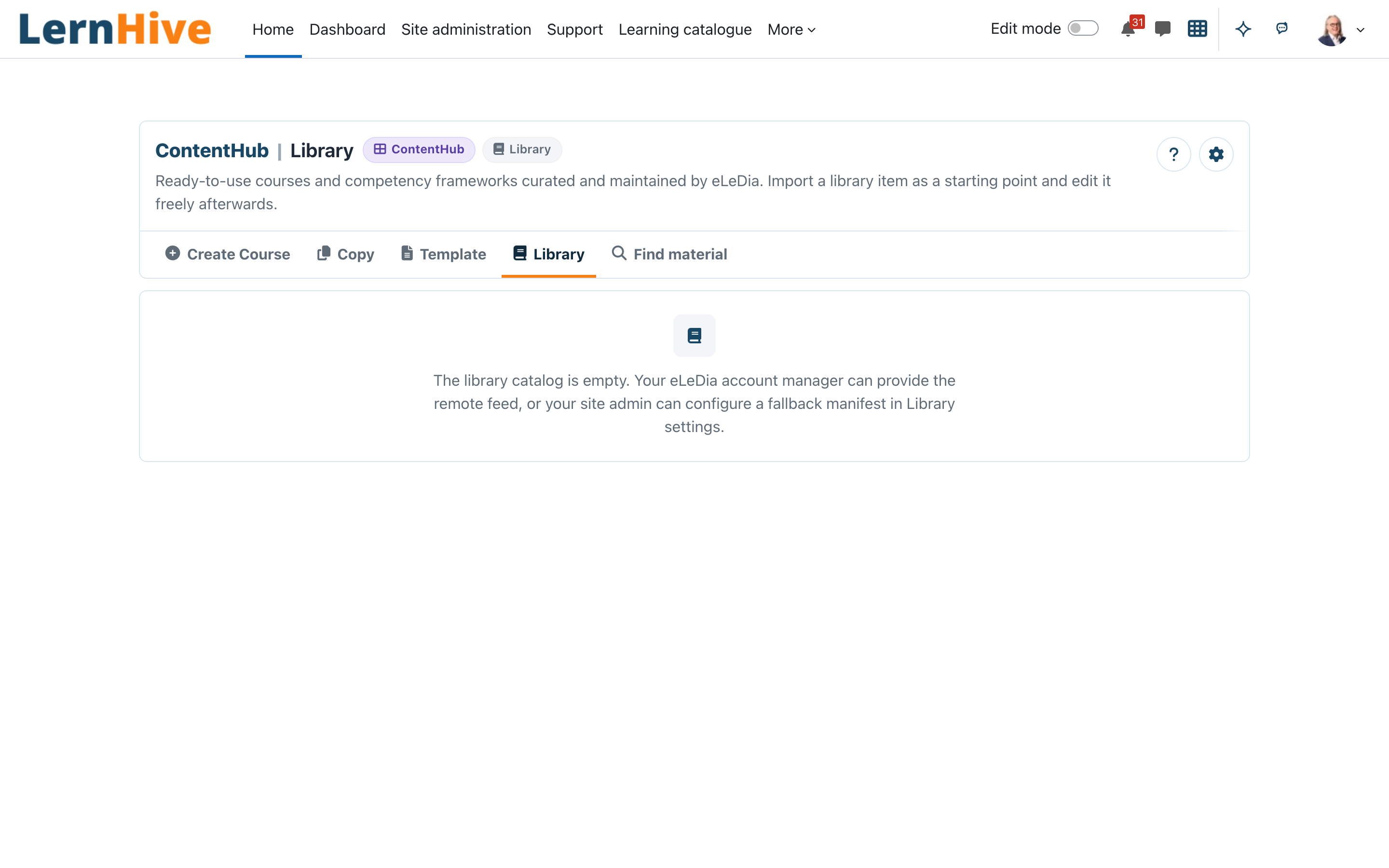
/local/lernhive_contenthub/library.php). - The LernHive Library lists ready-to-use courses and competency frameworks curated and maintained by eLeDia. Use Search library, Filter by language and Filter by topic to narrow the catalog.
- For course entries, click Import, review the details, pick the Target category and confirm with Import now — Course imported successfully. The imported course is yours to edit freely.
- For competency framework entries, click Import framework, review the details and confirm. The framework opens in Moodle's competency management page after import. Entries the catalog offers no download for yet show No download available instead of an import button; the help icon next to it explains why.
- When a newer catalog version exists for a course entry, the entry shows Update available and offers Update safely: it lists What is new, Release highlights and Detected changes, then creates a new course copy from the newer version — existing imported courses are never touched.
(Trainers with import rights follow the same steps; in practice Platform administration decides what enters the site.)
Platform administration: curate a collection for Explore
- Open ContentHub → Collections. You need Manage curated collections (Manager role).
- Select Create collection (plus icon). Enter a Name and, if you like, a Description.
- Under Audience keep Everybody or choose an Audience: then only its members see the collection.
- Under Courses pick courses, Snacks and Communities in the order learners should see them.
- Keep Visible to learners ticked and select Save changes. Learners see the collection in Explore as its own section with at most six entries, only those they may open.
- In the list you can edit a collection, hide or show it (eye icon) or delete it. Deleting removes the selection only; the courses stay.
Trainer: review content tags
LernHive suggests for each activity and course its format, learning function (explain, example, practice, check, apply), roles and areas, duration and whether it works on its own. Only tags you approve are used for learners.
- Open Content tags in the ContentHub section navigation, or in a course under More → Content tags (that course only).
- Under To review, check a suggestion. Approve accepts it as it is; Edit opens the form; Reject drops it.
- In the form, set Duration (minutes) to about how long learners need, or leave it empty. Tick Works on its own only when learners can understand and complete the content without any other part of the course. The rules never tick it for you; an AI suggestion may, but it still waits for your approval.
- Save and approve stores your values and approves them. Review again sends approved tags back to To review; until you approve them again, LernHive uses none of them.
Site administrator: configure ContentHub
- Go to Site administration → Plugins → Local plugins → LernHive ContentHub.
- ContentHub settings (
configuration.php) holds the customer-facing path switches Show AI card and Show Find material path. The latter hides the Find material card and section-navigation link; direct access is also blocked while it is disabled. - Managed catalog feed holds the operator settings listed below.
Settings that matter
All settings require site-administrator rights (moodle/site:config); there are no customer-adjustable settings below that level.
| Setting | Effect |
|---|---|
| Show AI card | Shows/hides the AI draft preview card on the hub (default: hidden) |
| Show Find material path | Shows/hides the Find material card and navigation link (default: shown) |
| Catalog feed URL / Catalog feed token | HTTPS endpoint (plus optional bearer token) for the managed Library catalog feed |
| Catalog manifest (JSON) | Fallback catalog used when no remote feed URL is configured |
| Record card clicks | Opt-in card-click telemetry (OFF by default); rows are GDPR-exported and purged daily |
| Retention (days) | How long click rows are kept (floor 30, ceiling 3650) |
| Creator role | Role the creator is enrolled with when a course is created from a backup (default: editing teacher) |
| After publication | Where the creator lands after the guided wizard publishes the course: Open the course, Enrol participants or Add content (editing on) |
Limitations
- The AI draft path is a preview card only — it always renders Coming soon and starts no flow in this release.
- The Library is empty until eLeDia provides a catalog feed or the site administrator pastes a manifest; ContentHub ships no content of its own.
- A Template entry only works once its catalog entry has a source-course mapping on your site; unmapped entries show Unavailable.
- Course copies run as Moodle background tasks — there is no in-page progress for the Copy/Template paths (only the From-Backup step shows a live progress bar).
- ContentHub is not a learner course catalogue, not a navigation menu and not a settings page; it is reached through the launcher and hands off to Moodle for actual editing.
- Card-click telemetry records nothing unless the administrator explicitly enables it.
Troubleshooting
A trainer does not see a card (e.g. Create Course) on the hub. → Cards are capability-filtered: check local/lernhive_contenthub:createcourse (or :copy, :import) for the user's role. Find material additionally requires moodle/course:create.
The Library page says "The library catalog is empty." → No remote feed and no manifest is configured. Set Catalog feed URL (or paste a Catalog manifest (JSON)) under Site administration → Plugins → Local plugins → LernHive ContentHub → Managed catalog feed, or contact the eLeDia account manager for the feed.
A Library import fails with a download or integrity error. → "Could not download the course file": the feed's mbz_url is unreachable — retry later or check the URL/token. "The expected checksum did not match": the feed content is inconsistent — contact the feed provider before retrying. For framework entries, check framework_url; the file must be a Moodle tool_lpimportcsv competency-framework CSV.
A template shows "Unavailable" although it is in the catalog. → The entry has no sourcecourseid mapping to a course on this site yet (hint text: This template is listed in the catalog but has no source-course mapping yet). Import the library course first or fix the manifest mapping.
"No material discovery sources are available to your account yet." → The user reaches the page but no source accepts their access: verify local/lernhive_contenthub:import (Library source) and Content Bank access in at least one course or category.
A queued copy never seems to finish. → Copies run via Moodle ad-hoc tasks; make sure cron is running. Check Site administration → Server → Tasks for failing copy_helper tasks.
Screenshots
The following screenshots show the current LernHive demo interface: