What this plugin does
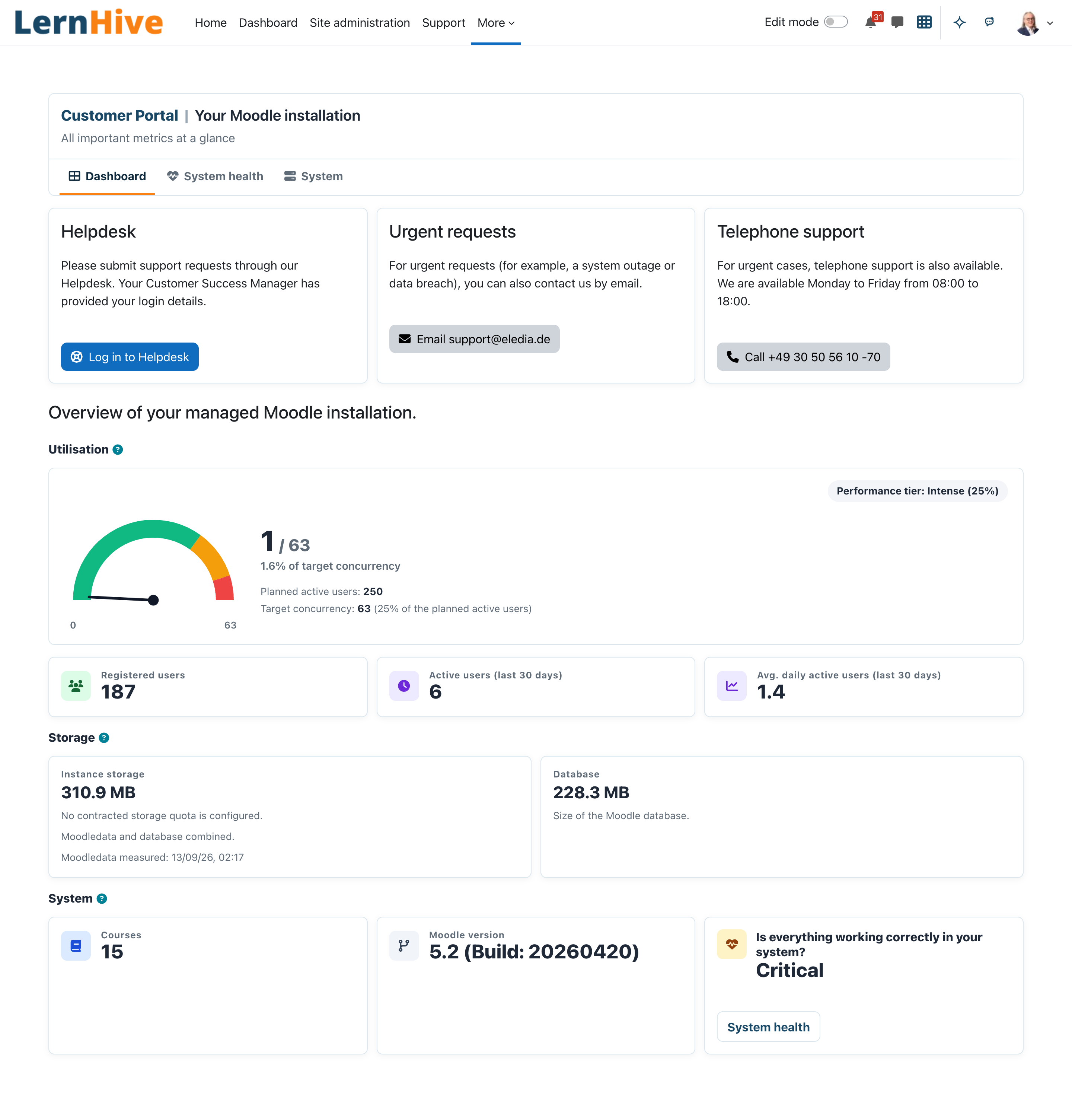
The Customer Portal gives site administrators one place to see how their Moodle installation is doing: users and load, storage, Moodle version, system health and the installed additional plugins. It also shows the support routes of your hosting partner and which commercial additional products are purchased or can be booked. Everything is calculated locally in your Moodle site.
Who this is for
| Role | What they do |
|---|---|
| Site administrator | Uses the portal, contacts support, checks system health and additional products, configures the portal settings |
Only site administrators can open the portal. Other roles, including Platform administration, see neither the navigation entry nor the pages.
Core concepts
- User Tier: the contracted number of active users. Together with the Performance tier it defines the target concurrency shown in the utilisation gauge.
- Instance storage: Moodledata plus database, compared with the contracted storage quota. Moodledata is measured once a day.
- Additional products: commercial plugins your hosting partner manages. Their purchase status decides whether you can manage them in Moodle's plugin administration.
- Locked settings: your hosting partner can fix individual values; locked values cannot be changed in the settings.
Journeys by role
Site administrator: check the installation
- Choose Customer Portal in the main navigation. The Dashboard tab opens.
- Under Utilisation compare the users currently online with the target concurrency of your Performance tier, and read the registered, active (last 30 days) and average daily active users.
- Under Storage read Instance storage (Moodledata and database combined) against your contracted quota, and the database size.
- Under System read the number of courses, the Moodle version and the overall health status. System health opens the details.
Site administrator: contact support
- Open Customer Portal.
- Use one of the support cards at the top of the Dashboard: Log in to Helpdesk (support requests), the email button under Urgent requests (for example a system outage or data breach) or the call button under Telephone support.
A card without a configured target is not shown.
Site administrator: check system health
- Open Customer Portal and choose the System health tab.
- The status shows a traffic light for Background tasks (cron and failing tasks) and for the Moodle system checks.
- Critical and failed tasks lists every background task Moodle is retrying, with severity, retry delay and next attempt.
- Use Open system status or Open performance overview to go to the full Moodle reports.
Site administrator: see additional products and request one
- Open Customer Portal and choose the System tab.
- The platform section shows Moodle release, PHP version, database and site URL; quote these values in support requests.
- Additional products lists the commercially managed products with Installation, Purchase status (Purchased, Trial, Included or Available to book) and Deployment (Available, Pending or Not available).
- For a product that is Available to book, choose Request product to open the helpdesk. For an available product, Manage opens its settings.
- Installed plugins lists all other additional plugins with version, release and state.
Site administrator: configure the portal
- Go to Site administration → Plugins → Local plugins → eLeDia Customer Portal.
- Adjust the installation profile, the support routes, the capacity gauge, the user exclusions or the AI gateway connection and save.
Settings that matter
| Setting | Effect |
|---|---|
| Helpdesk URL, Urgent request email, Telephone support | Targets of the three support cards; empty hides the card |
| Support URL | Target of the help icon in the portal header; empty hides it |
| User Tier, Performance tier | Contracted active users and capacity tier for the utilisation gauge; 0 hides the gauge |
| Storage quota (GB) | Contracted storage for the instance storage card |
| Exclude user accounts | Usernames, email addresses or ID numbers (one per line) excluded from all user counts, for example service or test accounts |
| AI gateway connection | Gateway URL, key and model mapping exported to compatible Moodle AI providers |
Your hosting partner may lock some of these values.
Limitations
- The portal works only with data of this Moodle site; it has no catalogue, invoices, purchase requests, ticket mirror or AI shop.
- Only site administrators can use the portal.
- The additional-products control applies to Moodle's plugin administration. It does not hide activities in the activity chooser or blocks in the block picker.
- Moodledata is measured once a day; the storage value can be up to a day old.
- The portal provides no monitoring endpoints for external uptime checks.
Troubleshooting
| Symptom | Check | Resolution |
|---|---|---|
| The utilisation gauge is missing | User Tier | Set the contracted number of active users; 0 hides the gauge |
| The first measurement is pending. It runs automatically with cron. | Cron | Wait for the next cron run after 02:17, or ask your hosting partner to run the storage task |
| No contracted storage quota is configured. | Storage quota (GB) | Enter the contracted quota |
| A support card is missing | Its setting | Enter the target, or ask your hosting partner if the value is locked |
| A purchased product cannot be managed | Deployment column | Pending means the code is not deployed yet; contact your hosting partner |
| Request product is missing | Helpdesk URL | Configure the helpdesk URL |
| A setting cannot be changed | Locked value | Ask your hosting partner |
Screenshots