What this plugin does
Flavour starts a LernHive site with sensible defaults in one step instead of configuring every plugin by hand. A site administrator picks the profile that matches the organisation — school, learning experience platform, higher education, or corporate academy — and Flavour writes the matching managed defaults across LernHive plugins, recording every application in an audit trail.
Who this is for
| Role | What they do |
|---|---|
| Site administrator | Chooses and applies the flavour, reviews the diff before overwriting settings |
Flavour is a go-live and rollout tool. Platform administration does not operate the picker; the resulting defaults are what it experiences in the other LernHive plugins.
Core concepts
Flavour
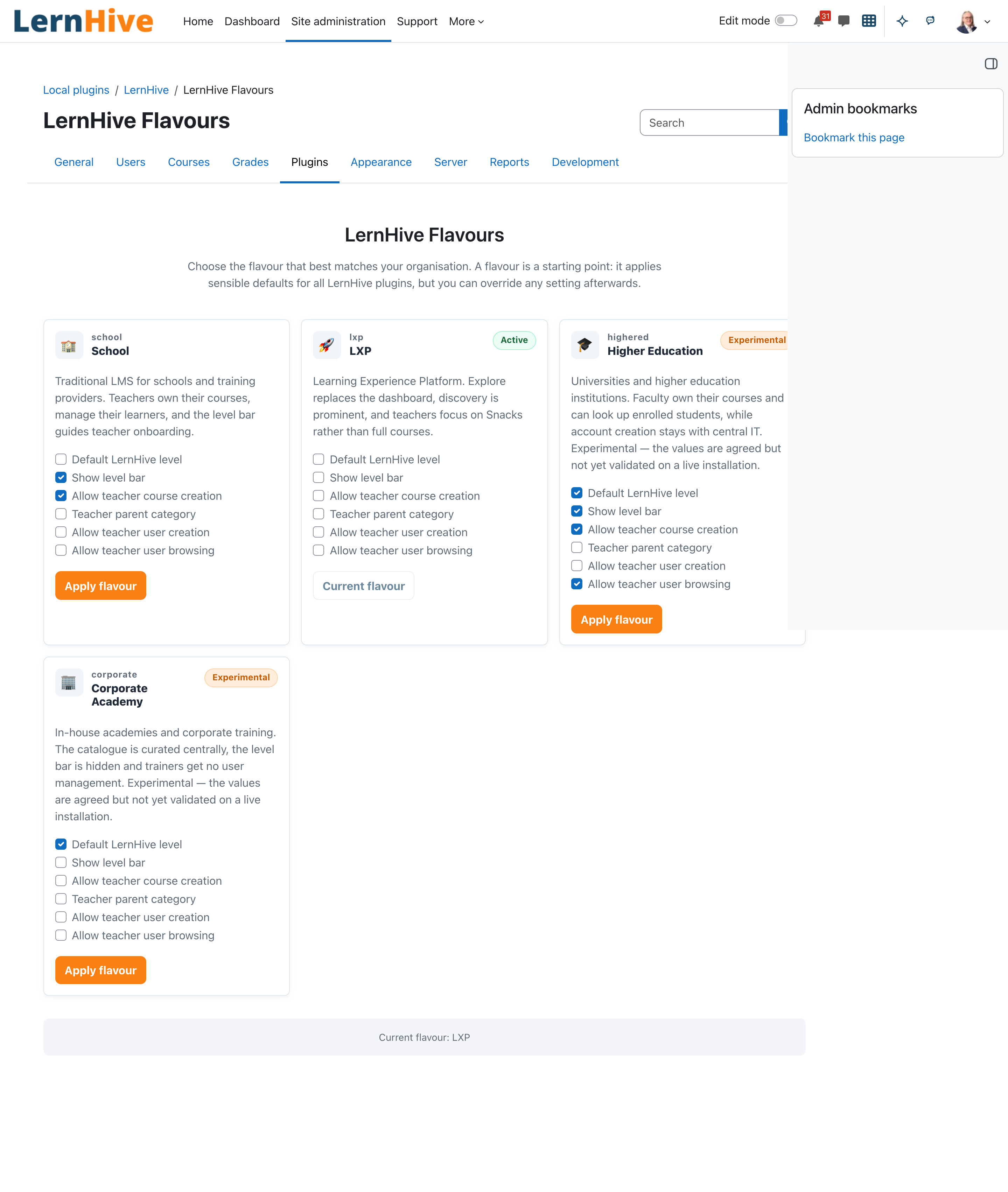
A named profile of recommended starting defaults. Four profiles ship:
| Flavour | UI label | Status | Best suited for |
|---|---|---|---|
school | School | stable (default) | "Traditional LMS for schools and training providers. Teachers own their courses, manage their learners, and the level bar guides teacher onboarding." |
lxp | LXP | stable | "Learning Experience Platform. Explore replaces the dashboard, discovery is prominent, and teachers focus on Snacks rather than full courses." |
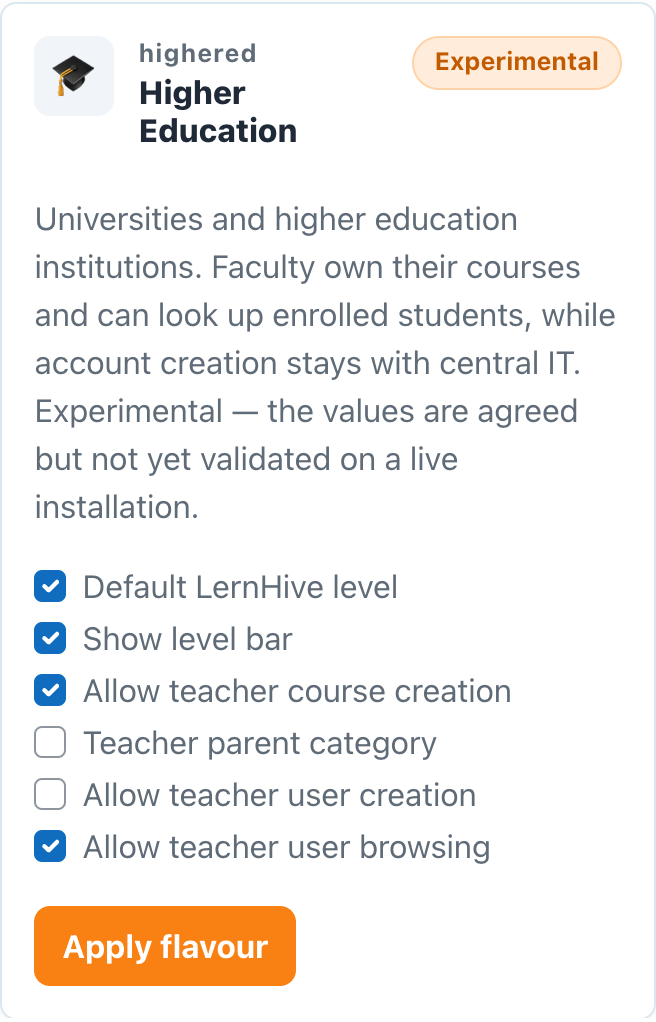
highered | Higher Education | Experimental | Universities. Faculty own their courses; Engage, Care and Appointments start switched on, and the start page shows Appointments, Who is here and Care first |
corporate | Corporate Academy | Experimental | In-house academies; currently inherits the School defaults |
Experimental flavours render with a dashed border and an Experimental badge so mature defaults are visually distinct from placeholders.
Managed configuration keys
Applying a flavour writes configuration values only — for example the local_lernhive teacher self-service and level settings. It never migrates user data or content, and it is a starting point: every setting can be overridden afterwards.
Audit trail
Every apply writes exactly one row (with full before/after snapshots) to the local_lernhive_flavour_apps table and logs a Flavour applied event in the standard Moodle logs.
Journeys by role
Site administrator: first start
LernHive never applies a flavour on its own. After installation, and after an upgrade of a site where no flavour has been applied yet, every site administrator sees the notice LernHive is not set up yet. Choose a flavour as the starting point. once, on the next page. Choose a flavour opens the flavour setup; the notice can also be closed. As soon as somebody opens the flavour setup or applies a flavour, nobody sees it again. Later the setup stays reachable through the Setup tile of the admin cockpit.
Site administrator: apply a flavour on a clean site
- Go to Site administration → Plugins → Local plugins → LernHive Flavour → Flavour Setup.
- Read the intro: "Choose the flavour that best matches your organisation. A flavour is a starting point: it applies sensible defaults for all LernHive plugins, but you can override any setting afterwards."
- Review the cards. The active profile shows an Active badge. While all its settings are in effect its button reads Current flavour. If some are not — right after installation School is marked active but was never applied — the card says Not every setting of this flavour is in effect. and offers Apply flavour with those settings preselected.
- Select the settings that should be changed on the target card. Settings that differ from the current values are selected by default.
- Click Apply flavour on the target card.
- On a clean site no confirmation dialog appears; the success message Flavour "…" has been applied successfully. confirms the write.
- Purge caches so the new defaults are visible everywhere.
Site administrator: switch flavours on a customised site
- Open Flavour Setup and click Apply flavour on the new profile.
- Because existing customised settings would be overwritten, the Confirm flavour change dialog appears: "Applying … will change the following settings. Review the diff below and confirm if you want to proceed. All existing values will be overwritten."
- Review the diff table — Component, Setting, Current value, New value. It lists only settings that will actually change; values never set before show (not set). If there is no conflict, a no-conflict message is shown instead of an empty table.
- If a selected setting grants broad teacher user-management rights, review it explicitly in the confirmation step; it cannot be applied without confirmation.
- Click Apply … anyway to proceed, or Cancel to keep your current values.
- After a confirmed overwrite the message reads: Flavour "…" has been applied. Previously customised settings were overwritten — see the audit log for details.
Site administrator: audit past flavour applications
- The picker page shows the currently active flavour (Current flavour: …).
- The full apply history — who, when, which flavour, before/after snapshots — is stored in the
local_lernhive_flavour_appstable; each apply is also visible as a Flavour applied event in the standard Moodle logs (Site administration → Reports → Logs). - A history UI inside the plugin is planned for
local_lernhive_configuration, not part of the current release.
Settings that matter
Flavour deliberately has no plain settings form. Switching profiles always goes through the Flavour Setup picker so the diff-confirm flow cannot be bypassed. The picker page (/local/lernhive_flavour/admin_flavour.php) requires the Manage LernHive flavour profiles capability, which managers hold by baseline, and is registered in the site administration tree for everyone holding it. Site admins reach it under LernHive; a manager without site configuration rights finds it directly under Local plugins, because the LernHive category itself is site-admin-only.
LXP features switch
Explore, Communities and Snack creation follow one setting of their own, LXP features (local_lernhive_flavour/lxp_enabled), under Site administration → Plugins → Local plugins → LernHive → LernHive Flavour settings. It is independent of the active flavour:
- Applying the LXP flavour turns it on, applying any other flavour turns it off. In the picker it is the managed setting Enable LXP features, so it can be left out of an apply like any other setting.
- An apply that does not select it leaves it unchanged, even though the applied flavour becomes the active one.
- A site administrator can switch it on or off directly, without changing the flavour.
On upgrade the switch was set on where LXP was the active flavour, so existing sites keep their behaviour.
Who may change which setting
Two managed keys — Allow teacher user creation and Allow teacher user browsing — hand teachers broad user-management powers. They are flagged sensitivity: security and stay with the site configuration capability:
| Pick a flavour | Apply normal settings | Apply the two security settings | |
|---|---|---|---|
| Site administrator | yes | yes | yes, after explicit confirmation |
| Manager | yes | yes | no — checkbox is disabled and labelled Site administrator only |
The restriction is enforced on the server, not only in the form: a hand-crafted POST containing those keys is rejected before anything is written, with no configuration change and no audit row.
Limitations
- No rollback UI — to undo, apply a different flavour or adjust the affected settings manually.
- Only configuration is written; no user data, courses, or content are migrated.
- Higher Education and Corporate Academy are experimental stubs that inherit the School defaults until product decisions land.
- No per-flavour terminology overrides.
- The apply history has no in-plugin UI yet (see the audit journey above).
- Flavour does not replace Moodle's Admin Presets; the two are complementary — Flavour handles LernHive product semantics.
Troubleshooting
The site still looks unchanged after applying a flavour. → Purge all caches; many LernHive settings and rendered outputs are cached. → Confirm the apply was recorded: a success notification appeared and a Flavour applied event is in the Moodle logs.
The apply action wants to overwrite settings I changed manually. → Expected when the target flavour manages the same keys. Use the Confirm flavour change diff as the decision point; Cancel keeps your values.
Applying failed with "The flavour could not be applied." → The generic error hides internal details on purpose; check the server logs (developer debugging) for the actual cause and try again.
I need a fully custom higher-ed or corporate profile. → Apply the experimental stub as a starting point, then adjust the resulting settings manually.
Screenshots
The following screenshots show the current LernHive demo interface: