Page layout and navigation
Notification management pages use the shared shell at default or reading widths. The course-level invitation/reminder page navigates through the section nav; use the course's own navigation to return to the course. Since SUI-995 the course invitations, automation rules and delivery log pages left Site administration for the Plugin Shell: they are reached from the in-shell Configuration hub (/local/lernhive_notifications/configuration.php), which Mails in the launcher opens. Each page's Zone-A settings cog returns to the Configuration hub. Only the operator/integration settings (send windows, digest mode, retention, profile-field mappings) stay in Moodle's Site administration.
What this plugin does
LernHive Notifications keeps learners informed without flooding them. It bundles notifications into daily or weekly digest e-mails and lets administrators set up no-code automation rules such as "when someone is added to an audience, send them a welcome message". Moodle's built-in messaging remains the delivery engine — this plugin adds scheduling, bundling and automation on top.
Who this is for
| Role | What they do with Notifications |
|---|---|
| Learner | Reads notifications on Moodle's Notifications page, receives instant messages and digest e-mails, chooses delivery channels in Moodle's notification preferences |
| Platform administration | Creates, edits and disables automation rules that send messages when platform events happen |
| Site administrator | Sets the digest schedule, the default digest mode and the inbox retention period |
Core concepts
Rule
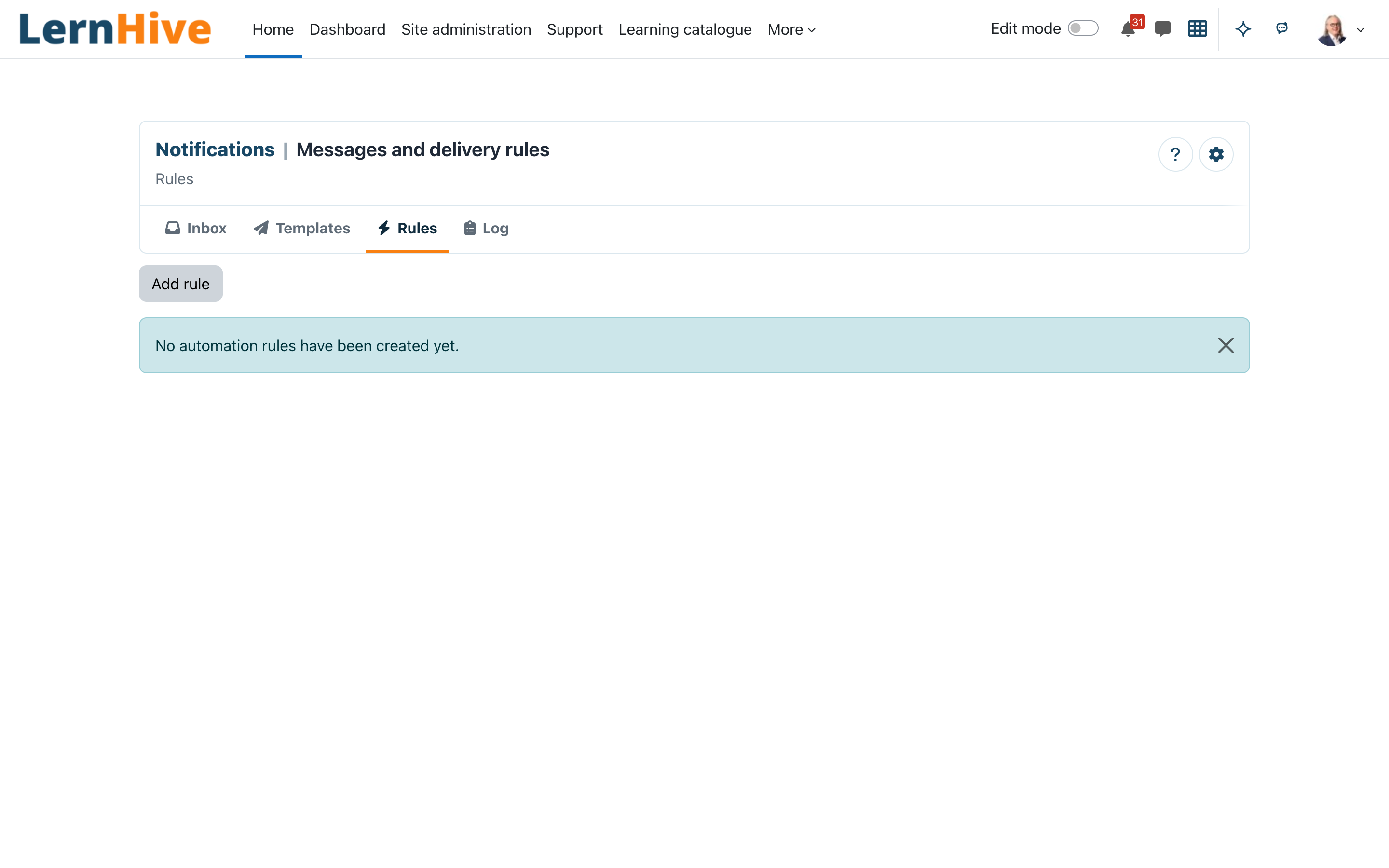
An automation rule connects a Trigger (a platform event) to an Action with an optional Audience scope. Rules are managed on the Notification automation rules page. A disabled rule is kept but never fires.
Trigger
The event that starts a rule. Five triggers are available in the current release:
- User enrolled in a course
- User completed a course
- New content published in a course — fires when an activity is added; every enrolled user of that course is a candidate recipient
- User added to an audience
- User removed from an audience
Action
What the rule does for each matching user. In the current release only Send a message actually executes. The options Enrol into a course (coming soon), Assign a role (coming soon) and Add to a cohort (coming soon) can be selected and saved, but they are placeholders and do nothing yet.
Message provider
The Moodle notification category a message is sent under. Six providers appear in Moodle's notification preferences: Notification digest, Audience changes, Pathway deadlines, Certification cycles, New courses and Seminar bookings. Recipients control the delivery channels (web/e-mail) per provider through Moodle's standard preferences page.
Digest mode
Per provider, delivery can be Instant (sent immediately), Daily digest or Weekly digest (collected and sent as one grouped e-mail at the configured time), or Off (suppressed). In the current release the mode comes from the site-wide Default digest mode setting for all users — a personal digest-mode editor is planned, not in the current release.
Notifications page
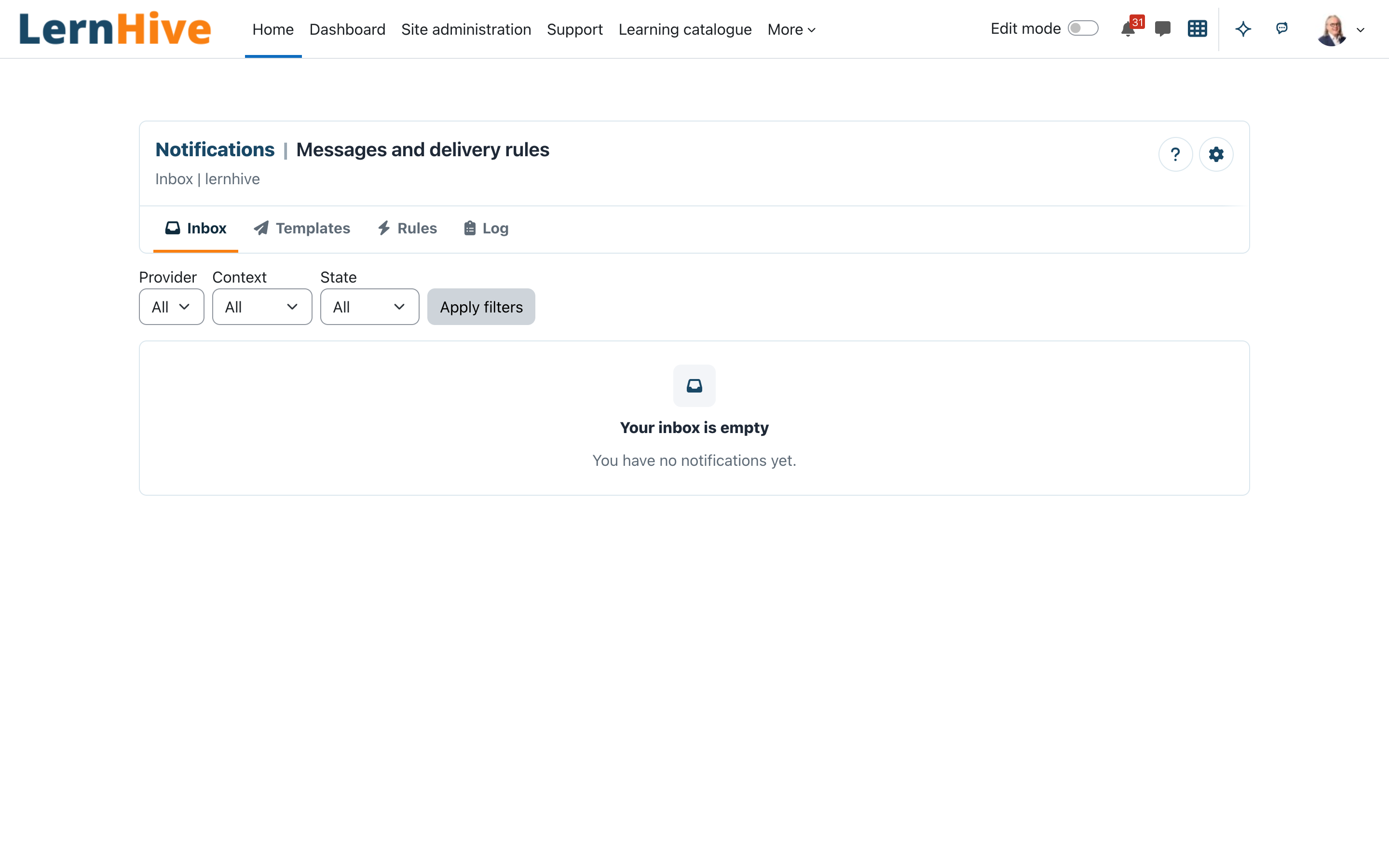
Your notifications are listed on Moodle's own Notifications page (bell icon in the navigation bar → See all). The former LernHive inbox is switched off for this release: old inbox links open Moodle's page instead. The main navigation has no Notifications entry for learners; the bell leads there. People who manage notifications or templates open the configuration with Mails in the launcher.
Journeys by role
Learner: read your notifications
- Click the bell icon in the navigation bar and choose See all, or pick Notifications in the section navigation of a Notifications page.
- Moodle's Notifications page lists your notifications; open one to read it. Read and unread states are Moodle's own.
Learner: choose how notifications reach you
- Open your Moodle Preferences → Notification preferences.
- Find the LernHive Notifications section with its six providers, for example Notification digest and Seminar bookings.
- Enable or disable the web and e-mail channels per provider. Web notifications are enabled by default; e-mail can be switched on per provider.
Note: this page controls the delivery channels. Whether a notification arrives instantly or inside a digest is currently governed by the site-wide Default digest mode (see Settings); a per-user digest-mode picker is planned, not in the current release.
Platform administration: create an automation rule
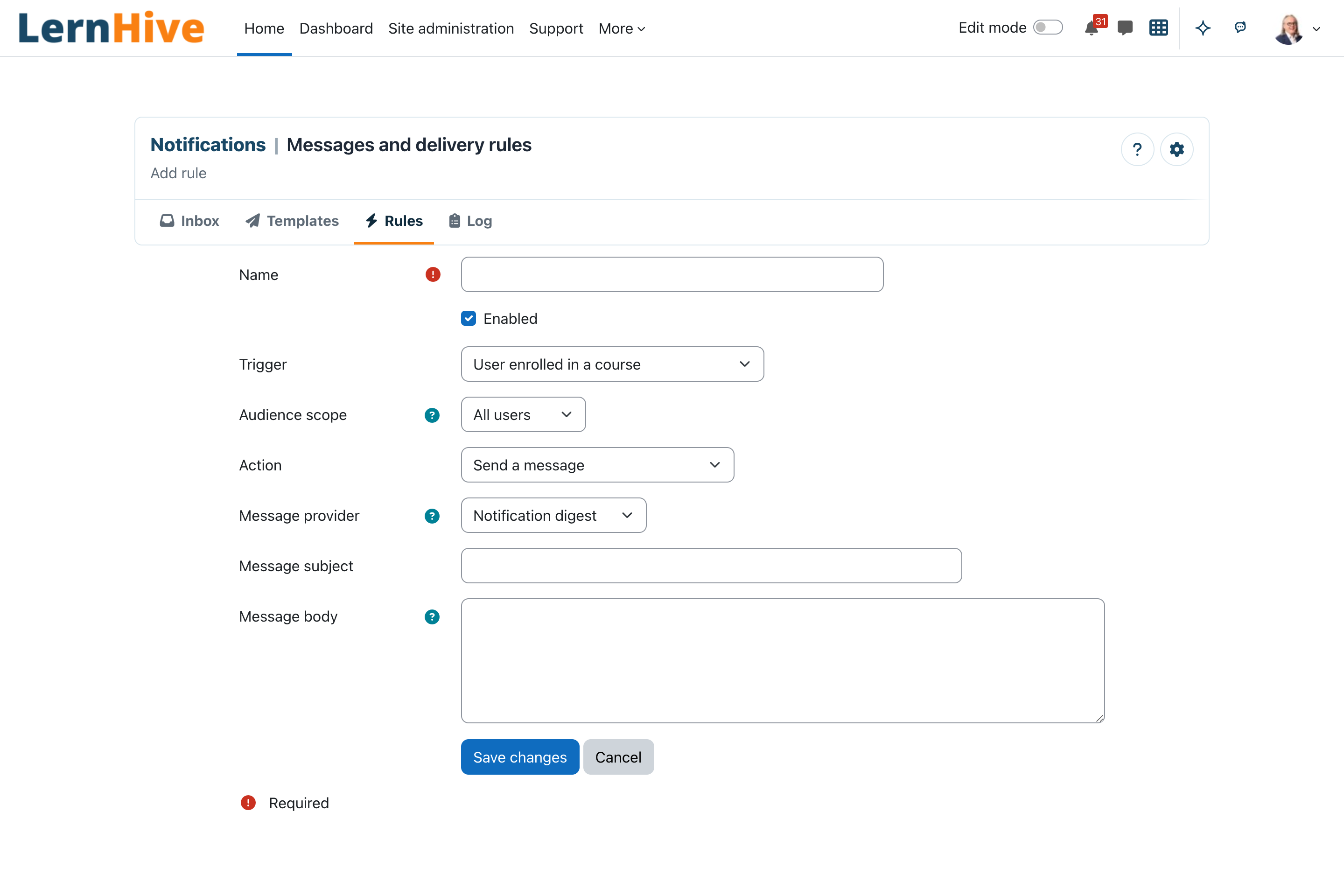
- Open Mails in the launcher; it opens the in-shell Configuration hub. Choose Notification automation rules (
/local/lernhive_notifications/rules.php). - Click the Add rule icon (plus) in the page header.
- Enter a Name and leave Enabled ticked.
- Pick a Trigger, for example User added to an audience.
- Optionally restrict the Audience scope — leave it on All users to act on every user the trigger matches.
- Keep the Action on Send a message (the "coming soon" actions do not execute yet).
- Choose the Message provider the message is sent under — this decides which preference category and digest grouping applies for recipients.
- Enter the Message subject and Message body. If the body is empty, the subject is used as the body.
- Save. The confirmation Rule saved. appears and the rule is listed.
When a matching event fires, the engine resolves the affected users, applies the audience scope and — depending on the effective digest mode — sends the message immediately or queues it for the next daily/weekly digest.
Platform administration: scope a rule to an audience
- Create the audience first in LernHive Audience (optional — rules also work for All users).
- In the rule form, set Audience scope to the audience.
- Only trigger-matched users who are members of that audience receive the action. If the audience cannot be resolved (for example it was deleted), the rule skips safely and sends nothing.
Platform administration: edit, disable or delete a rule
- Open Notification automation rules. The list shows Name, Enabled, Trigger, Action and Message provider for every rule.
- Use the edit (pencil) icon to change a rule; untick Enabled to pause it without losing its configuration.
- Use the delete icon and confirm with Delete to remove it permanently — the notice Rule deleted. appears.
Site administrator: set the digest schedule and inbox retention
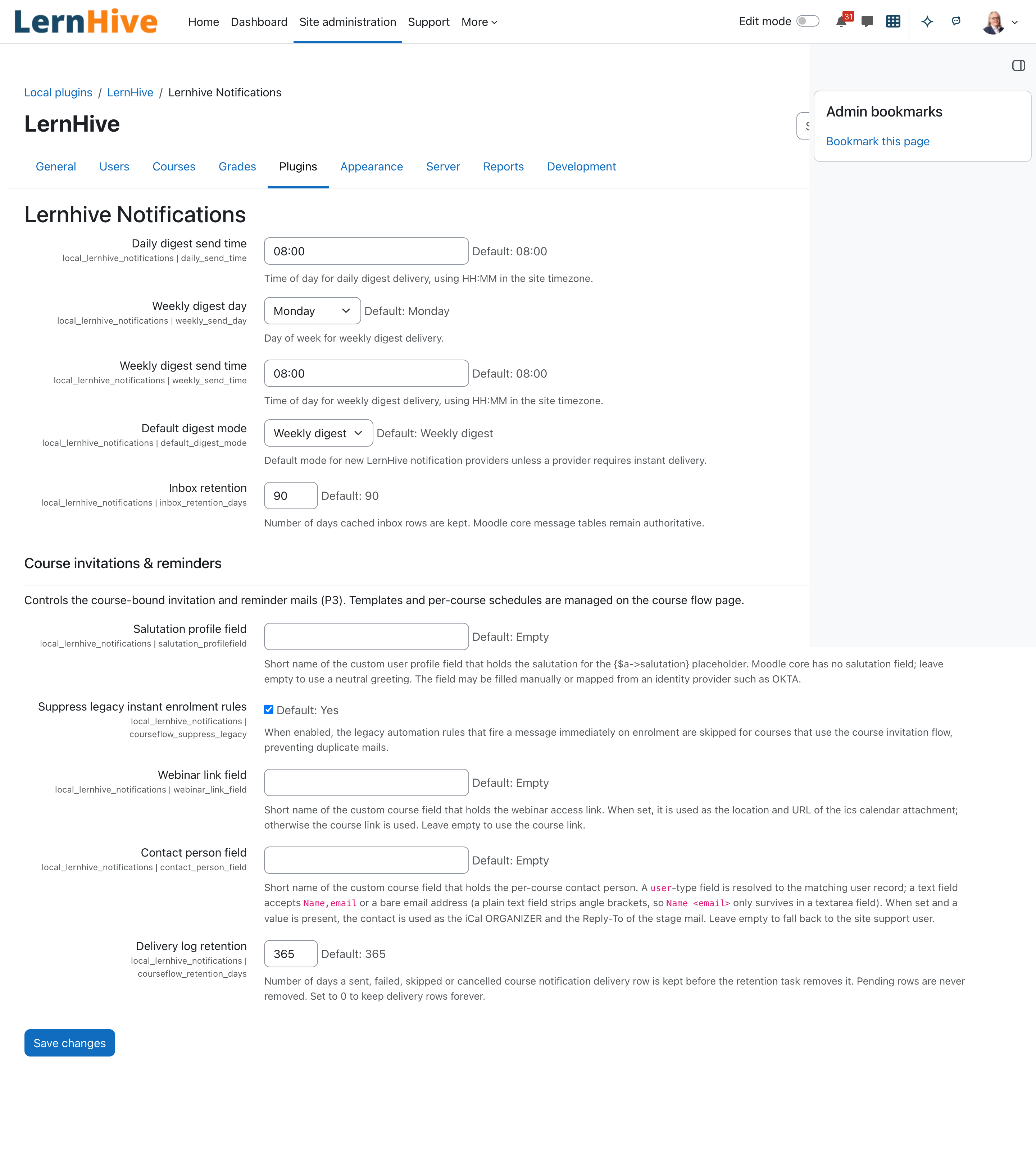
- Go to Site administration → Plugins → Local plugins → LernHive Notifications.
- Set Daily digest send time (HH:MM, site timezone).
- Set Weekly digest day and Weekly digest send time.
- Choose the Default digest mode (Instant, Daily digest, Weekly digest or Off) — this is the effective mode for all users in the current release.
- Set Inbox retention — the number of days cached inbox rows are kept.
Digests are delivered by the scheduled task Send notification digests, which runs hourly and sends when the configured hour is reached; old inbox rows are removed nightly by Purge old inbox cache rows.
Course invitation and reminder mails
Beyond the event-driven automation rules, Notifications runs a dedicated course invitation and reminder subsystem ("courseflow") for scheduled participant communication around a course.
Manage invitation and reminder templates
- Administrators maintain a set of global-default templates — one invitation plus two reminders — that apply to every course, and can add a per-course override that replaces the defaults for a single course.
- Each of the three stages (invitation, reminder 1, reminder 2) has its own subject and body, a send schedule (a day offset counted from the participant's course assignment or from the course start date) and an optional calendar attachment (an
.icsfile the recipient can add to their calendar).
When the mails start
Invitation and reminder mails begin only after the course is published — publication is done in the ContentHub guided course wizard once all its steps are complete. Until a course is published, no invitation or reminder is sent for it, even if its templates and schedule are configured.
Track deliveries — Log
Administrators reach the Log (sentlog.php) from the in-shell Configuration hub. Each row shows the course, recipient, stage and send time. The list is filterable by course, stage, status and sent date (inclusive Sent from / Sent to fields) and can be downloaded as CSV or Excel for reporting. A date filter applies to timesent, so pending rows without a send time are omitted. Old delivery rows are subject to a retention window.
Settings that matter
All settings live under Site administration → Plugins → Local plugins → LernHive Notifications and are site-administrator only.
| Setting | Effect | Default |
|---|---|---|
| Daily digest send time | Hour at which daily digests go out (HH:MM, site timezone; matched on the hour) | 08:00 |
| Weekly digest day | Weekday for the weekly digest | Monday |
| Weekly digest send time | Hour at which the weekly digest goes out | 08:00 |
| Default digest mode | Instant / Daily digest / Weekly digest / Off — applies to every user and provider unless a stored per-user preference exists | Weekly digest |
| Inbox retention | Days after which cached inbox rows are deleted | 90 |
Limitations
Academy/category inheritance
Administrators can select an Academy/course category in the courseflow editor and define inherited communication defaults. Course administrators can still override them per course. Scheduled mail resolves the category profile explicitly, including sender identity and HTML/plain layouts; it does not infer mail branding from the active Moodle theme.
- No personal digest-mode editor. Users cannot yet choose instant vs. digest vs. off per provider themselves; the site-wide default applies (planned, not in the current release).
- No LernHive inbox in this release. Notifications are read on Moodle's Notifications page; there is no LernHive grouping by provider or context.
- Only "Send a message" executes. The enrol, role and cohort actions are visible in the rule form but are placeholders that do nothing when they fire.
- No producer events for four providers. Pathway deadlines, Certification cycles, New courses and Seminar bookings exist as preference categories and can be chosen as a rule's message provider, but the plugin does not yet generate notifications for those domains on its own.
- No throttling on "New content published". Every new activity in a course notifies all enrolled users matched by the rule.
- Plain message text. Rule subject and body are fixed text — no placeholders or variables are substituted.
- Delivery channels are Moodle core only (web notification and e-mail). There is no Microsoft Teams delivery.
- Digest e-mails are not yet branded with the LernHive theme.
- No arbitrary rule graph. Courseflow exposes the supported enrolment, reminder and completion stages with relative anchors and a not-started condition; more complex cross-domain rules remain in the automation engine.
Troubleshooting
A rule is saved but recipients get nothing. → Check the rule is Enabled and its Trigger matches the event you expect. → Check the Default digest mode: with Daily digest or Weekly digest, messages wait in the queue until the next configured send time; with Off, nothing is sent at all. → If the rule uses an action marked "(coming soon)", it does nothing by design — switch it to Send a message.
A rule with an audience scope never fires. → Verify the audience still exists and has members. An unresolvable or empty audience makes the rule skip safely. → Remember the scope filters the trigger's users: a "User enrolled in a course" rule scoped to audience X only fires for enrolled users who are also in X.
Digest e-mails arrive late or not at all. → Compare Daily digest send time / Weekly digest day + time with the site timezone; sending happens in the run of the hourly task within the configured hour. → Ask the site administrator to confirm the scheduled task Send notification digests is running (Moodle cron).
An old inbox link opens Moodle's Notifications page. → Intended: the LernHive inbox is switched off for this release. Moodle's Notifications page shows the same notifications.
A digest was expected but a single instant message arrived (or vice versa). → The effective mode is the site-wide Default digest mode unless a stored per-user preference overrides it. Check the setting first.
Screenshots
The following screenshots show the current LernHive demo interface: