What this plugin does
People Org navigation
When multiple frameworks are available, use the Framework selector in the People Org toolbar to switch organisations. Search results can be cleared with “Reset search”. On large organisations, deeper branches start collapsed; use the canvas expand control when a full overview is needed. Select a person card to open the Inspector, then select a manager or direct report to navigate within the organisation. The profile link remains available as a secondary action.
OrgChart mirrors the real organisation inside LernHive so enrolment, visibility, and reporting follow the structure automatically. Administrators author Frameworks, Departments, Positions, and Jobs once; managers, trainers, and learners then get the right courses, team views, and approval routes without manual bookkeeping.
Who this is for
| Role | What they do |
|---|---|
| Learner | Experiences the org chart indirectly: the Dashboard shows the courses relevant to the current job(s); can request enrolment into eligible courses, routed to the Manager for approval |
| Manager | A user whose Position is senior within their Department subtree (the Orgchart reporting line). Sees the team's progress, enrols team members into courses, approves team members' course-enrolment requests |
| Trainer | Tags courses with a Department or Position subtree so the right users get enrolled automatically (via cohorts driven by the plugin) |
| Platform administration | Sets up frameworks, authors Department + Position hierarchies, imports or manages Job assignments, delegates subtree admin rights |
| Site administrator | Connects the structure to the identity provider (Keycloak / SAML / OIDC / LDAP attribute mapping) and maintains the plugin settings |
Access is capability-first: authoring requires local/lernhive_orgchart:manageframework / :managesubtree / :managejobs (granted to the manager archetype and therefore to the Manager (Moodle role) by default). The team surfaces (:viewreports, :enrolteam, :approverequests) are additionally granted to the editingteacher archetype for delegated team-lead reporting; the plugin scopes them per department via the delegation model below.
Core concepts
Subtree administrator (delegation)
A subtree administrator is any user to whom Platform administration has delegated administration of their own Department subtree: CRUD departments + jobs inside it, optionally delegate further down. Delegation is recursive and traceable — every admin action is logged; the delegation chain (who made whom admin of what) is inspectable. A delegation does not cover suspended or deleted people: subtree administrators no longer see their data, but can still revoke their delegations. Subtree administration is a delegation relation, not one of the standard roles: the delegate may be a Manager, a Trainer, or any other user.
Reports to
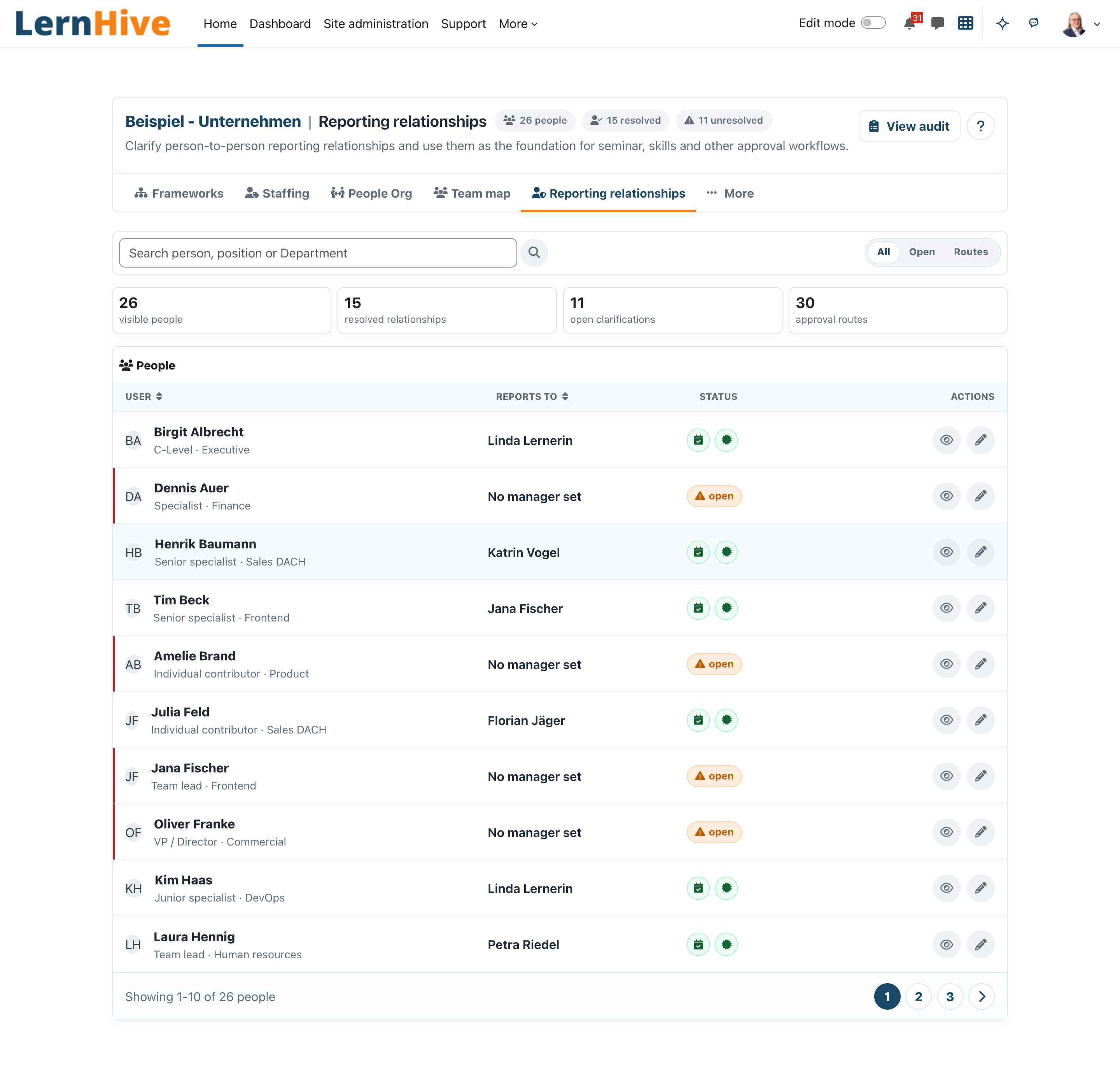
People Org, Reporting relationships and Team Map name the same manager for a person. A manager set by hand (Set manager, or an external source) always wins. Otherwise the manager follows the department: the people holding the nearest higher position in the same department; a vacant level in between is skipped. Suspended people count like deleted ones: a suspended manager is not shown, and the department line or the next held level applies instead. The hand-set manager applies to all jobs of that person. People Org can only draw a manager who appears on the same canvas (same framework, within your view). Approvals and learning-progress visibility follow the same rule: when a person has a hand-set manager, that manager (and their deputy) approves and sees the person, no longer the managers of the person's department line. Above the hand-set manager the line continues with that manager's own managers, i.e. their department line or their own hand-set manager; they approve and see the person too. Suspended people are skipped here as well. Without a hand-set manager the whole department line applies, including the higher levels. When a manager of the department line, such as the department head, has a hand-set manager, the line continues with them: that manager and the line above them approve and see the department's people too. The setting Manager of a manager sees their team (on by default) decides whether these higher levels count at all. When it is off, only the direct manager approves and sees the person: the hand-set manager, or the nearest held level of the department line, i.e. the manager shown as "reports to".
Approval state model
Course-enrolment requests move through these states:
- requested → approved → enrolled
- requested → rejected
- requested → closed
Experience principles
- Workplace-aligned terminology that industry users recognise: Framework, Department, Position, Job, Reporting line.
- Minimal-effort onboarding for the flat staffing case via a one-click Staffing Level preset — no need to configure profile fields, cohorts, and dynamic-rules by hand.
- Interactive tree authoring for Department + Position hierarchies — drag-to-reparent, keyboard pickup, inline rename via
core/inplaceeditable, kebab fallback for touch / screen-reader use. (Original R1 forms remain as the create / edit detail pages.) - Traceable delegation — every admin action is logged; the delegation chain (who made whom admin of what) is inspectable.
- Lightweight manager surface — enrol-a-team-member or approve-a-request works without leaving a single page.
- Progressive disclosure — the flat case never sees hierarchy complexity; the hierarchy case never sees flat-only limitations.
Terminology in the UI
| Canonical term | Shown in UI as | Do not use |
|---|---|---|
| Framework | Framework | "Organisation" alone (ambiguous) |
| Department | Department | "Unit", "Office", "Branch" (customer-specific; use custom display names per framework) |
| Position | Position | "Role" — "Role" means something else in Moodle (capabilities) |
| Job assignment | Job | "Assignment" — "Assignment" is a Moodle activity type |
| Reporting line | Reporting line / Reports to / Manager of | "Role" when the meaning is person-to-person supervision |
| Staffing Level | Staffing Level | "Role Type" — use only inside the flat-mode preset where the Kurzkonzept term is established |
| Subtree admin | Subtree administrator | "Local admin" (ambiguous with Moodle local plugins) |
| Delegation chain | Delegation chain | "Permission chain", "Admin chain" |
Release scope
Release 1 (the substantive plugin) covers:
- Full data model (Framework, Department, Position, Job) with forms-based authoring and CSV import.
- Staffing Level preset for the flat case.
- Multi-job per user, multiple managers per user.
- Reporting-line derivation (Workplace-pattern).
- Recursive subtree-admin delegation with audit log and delegation-chain view.
- Person-centred reporting-relationship view for clarifying manager relationships and approval routes, including a direct "Set manager" action for people whose requests cannot yet be routed automatically.
- Manager surfaces: reporting visibility, enrol authority, approval workflows.
- Organisation unit as a report dimension. When building a custom report in Reports → Report builder, an Organisation unit (and Position) column and filter is available in the user- and completion-centric sources — so you can, for example, list course completions filtered by department, and combine them with certification status in one report and export it to CSV/Excel.
- Projection to cohorts via
tool_dynamic_cohorts(hard dependency). - Privacy API coverage; Events API for integration into other LernHive plugins.
Shipped in v0.2.0 (2026-04-25):
- Interactive tree authoring UI (drag-to-reparent Department + Position hierarchies, keyboard pickup, kebab fallback,
core/inplaceeditableinline rename) — the named competitive differentiator. Implementation reusescore/sortable_list. - Manager "team map" visualisation with progress tiles.
- Plugin Shell §3 + UX-System v0.1.11 compliance across all 17 entry points.
Journeys by role
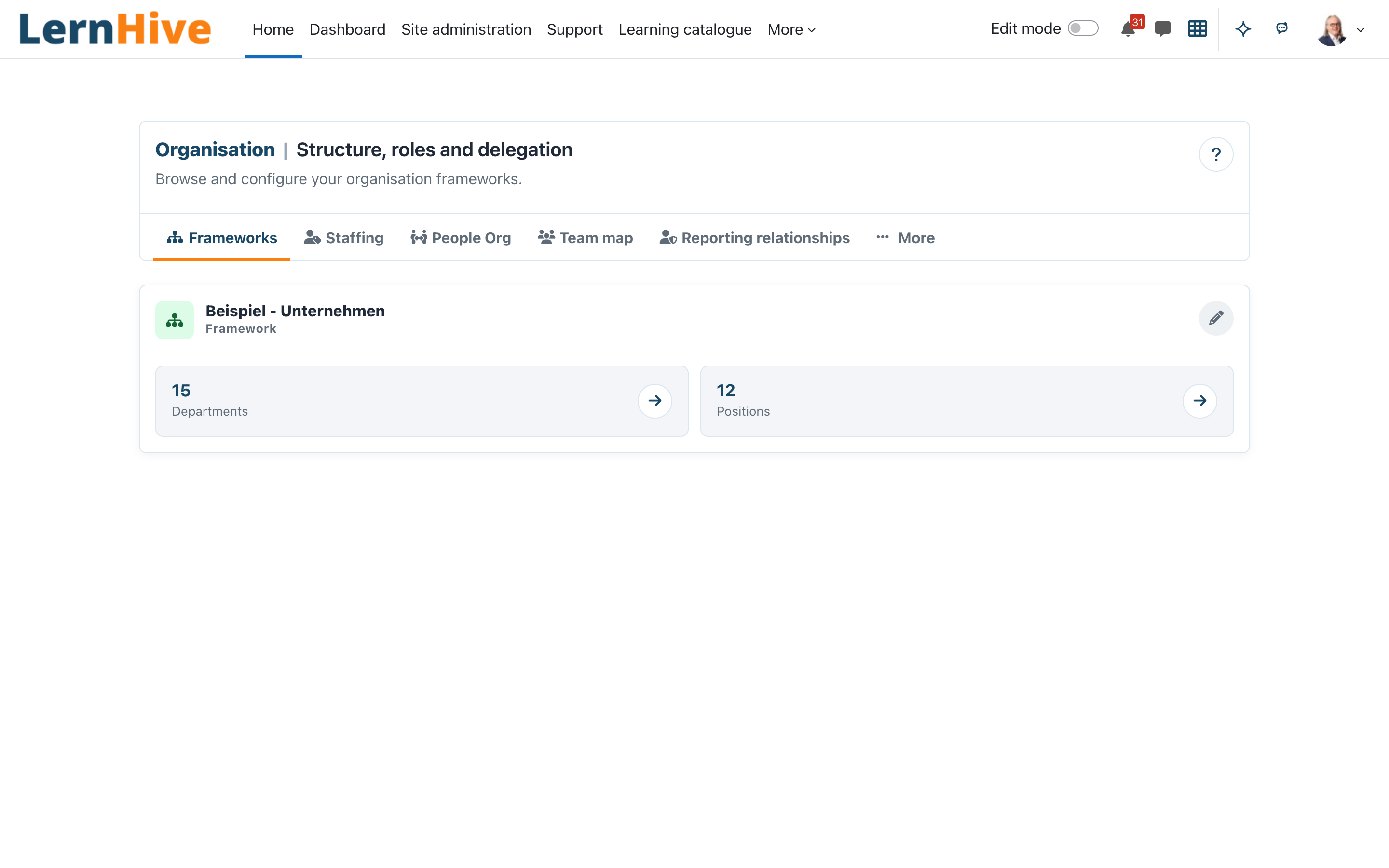
Every administrative journey below starts from the central Organisation structure page: Site administration → LernHive → Organisation structure.
Learner: request course enrolment
- Open a course's landing page.
- If the course is tagged as request-gated and the learner's job matches the eligibility rule, a Request enrolment button is shown.
- Add an optional note, submit.
- Request lands with the learner's manager(s) (multiple if the learner has multiple jobs). First approver wins.
- The learner sees My enrolment requests on their Dashboard with live status.
Learner: normal learning (unchanged)
The learner sees no new UI beyond the optional Request enrolment button. Their Dashboard continues to list the courses they are enrolled in. The difference: enrolment now follows the job structure automatically, instead of being maintained by hand.
Manager: view team and enrol
- Open the My team block / tab.
- See direct + indirect reports (descendants in the position hierarchy inside each shared department). A user who manages two subtrees sees both. Indirect reports appear only while Manager of a manager sees their team is on.
- Click a report to drill into their learning progress (surfaced via
local_lernhive_reporting). - Enrol a report into a course inline — pick a course the subtree is eligible for, confirm, done. The plugin creates a manual enrolment using Moodle's enrol API.
Manager: approve an enrolment request
- Open Pending team requests.
- Each row: requester, course, requester's note, subtree context.
- Approve or Reject with an optional note.
- Approve → plugin enrols the requester; both sides see the state transition.
- Reject → request closes; requester is notified via Moodle's notification pipeline.
Daily routine:
- Open Pending team requests.
- Review requester, course, and subtree context.
- Approve or reject with a short note.
- Confirm updated status in request lists.
Trainer: tag a course
- Open the course's Settings → Organisation structure.
- Pick a Department subtree and / or a Position subtree. Example: "all users in Care North at position Registered Nurse or below".
- Save. The plugin creates the matching cohort binding and registers a
tool_dynamic_cohortsrule. Existing manual enrolments stay untouched.
> R1 note: the course-level "intended audience" selector is an R2 item. In R1, course owners attach the pre-existing cohorts via Moodle's built-in enrol_cohort method.
Platform administration: first-time setup (recommended order)
- Decide setup mode:
- Flat staffing case: use the Staffing Level preset.
- Full hierarchy case: create Framework, Department tree, and Position tree manually.
- Create a framework with a stable idnumber.
- Build Department and Position hierarchies with clear names and validated parent selection.
- Add job assignments.
- Confirm projection chain:
- OrgChart writes derived profile-field values.
tool_dynamic_cohortsmaps values to cohorts.enrol_cohortapplies course enrolments.
- Delegate subtree administration with minimal required capabilities.
German helper note:
- If customer language is "nur Rollentypen", start with the Staffing Level preset.
Platform administration: initial setup (flat staffing case)
- Open Site administration → LernHive → Organisation structure.
- Open the More tab and choose Staffing-Level preset.
- Enter the list of role-type values (e.g. "Pflegefachkraft", "Pflegehilfskraft", "Leitung", "Auszubildende:r") and click Create Staffing-Level preset.
- Plugin provisions:
- a Framework
- a single-level Position hierarchy
- a custom user profile field
- a cohort per role type
tool_dynamic_cohortsrules that map profile values to cohorts
- Have the Site administrator connect the profile field to the identity provider (Keycloak / SAML / OIDC / LDAP attribute mapping) so each login sets the correct value automatically.
- Done. Users land in the right cohorts within one
tool_dynamic_cohortssync cycle.
Platform administration: initial setup (full hierarchy case)
- Open Site administration → LernHive → Organisation structure.
- Create a Framework (e.g. "Care Facility Group").
- Author the Department hierarchy in the interactive tree:
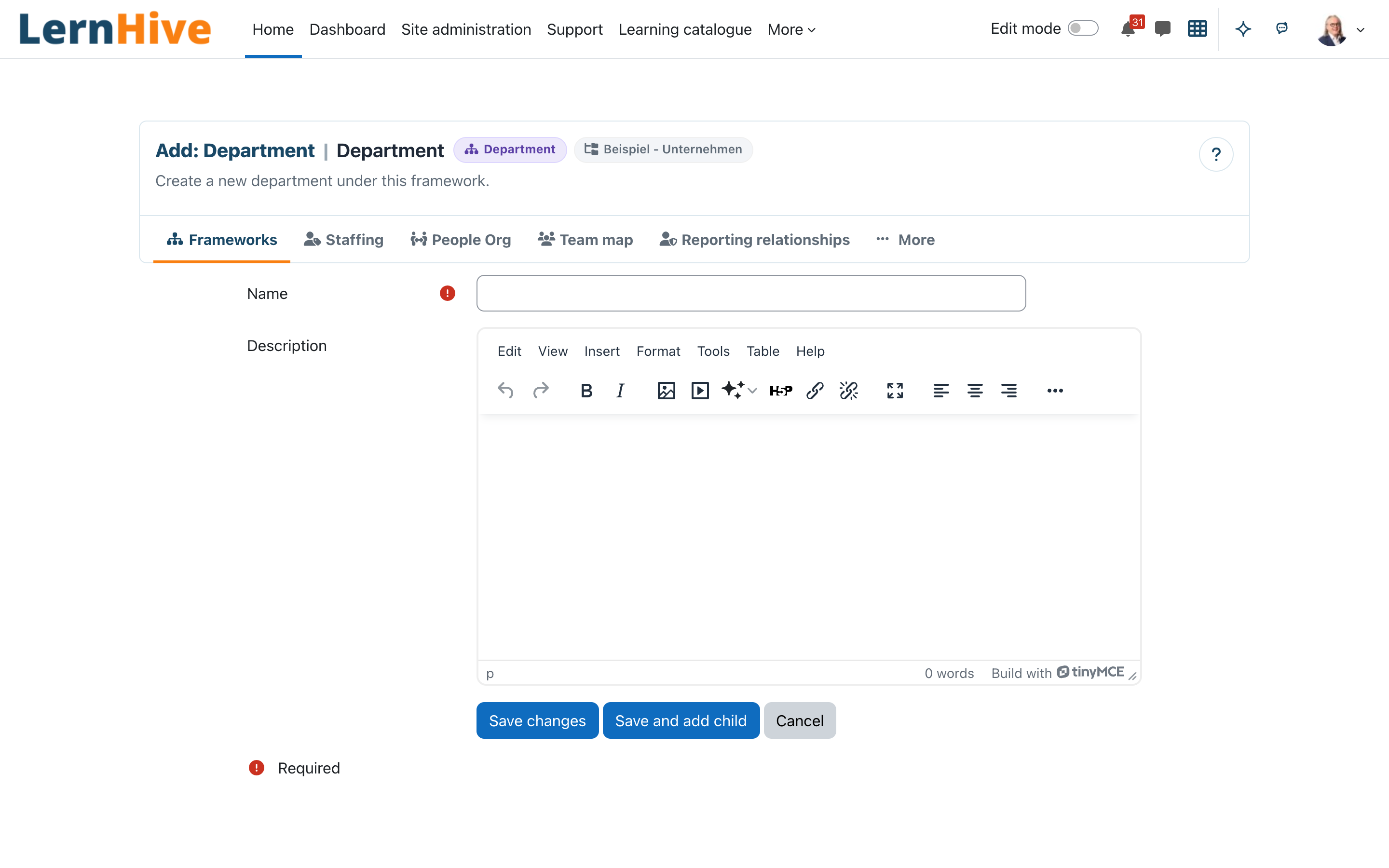
- Add a department via the plus icon Add department in the page header (opens a LernHive form).
- Reparent or reorder by dragging a row by its grip handle (the dotted column on the left). The row drops in place; an accent line shows where it will land.
- Keyboard alternative: focus a row's drag handle and press Space / Enter: Moodle's move dialog lists every valid target by name ("After …", "To the top of …"); choose one with Tab and Enter, or close the dialog with Escape.
- Kebab fallback: the Verschieben… item on each row's
⋮menu opens the same keyboard Move-Picker — useful on touch devices or with a screen reader. - Inline rename: click the pencil next to a name to rename without leaving the page (powered by Moodle's
core/inplaceeditable).
- Author the Position hierarchy in the same way on the Positions page.
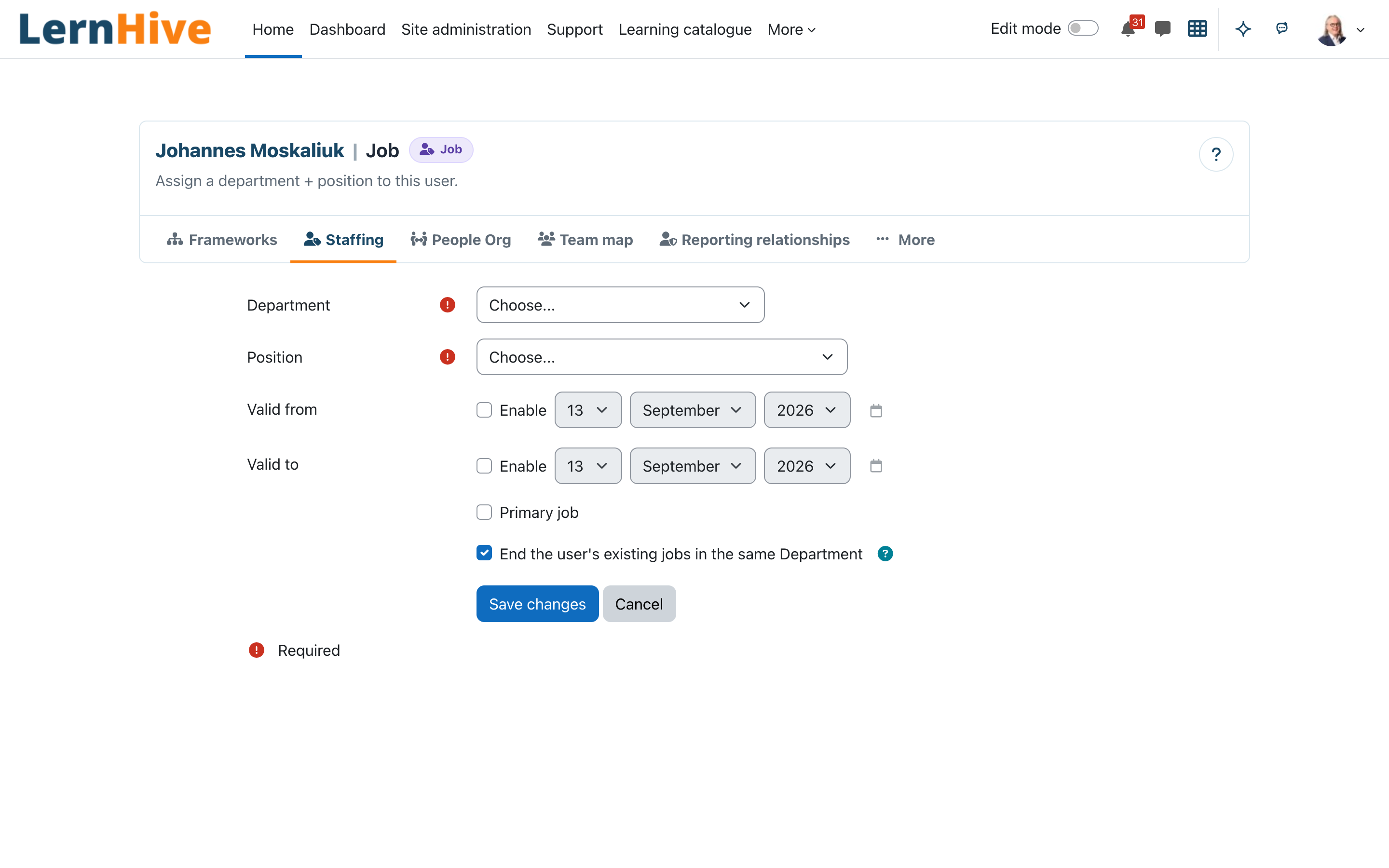
- Assign Jobs:
- either one user at a time via a "Jobs" tab on the user profile,
- or bulk via CSV import (download the template, fill in
username, department_idnumber, position_idnumber, validfrom, validto, upload).
- Review the derived Reporting lines — shown as a read-only overlay; managers fall out of the position hierarchy automatically.
Platform administration: load a sample organigram for evaluation
- Open Site administration → LernHive → Organisation structure.
- Click Sample organigrams.
- Pick the LernHive Flavour that matches your context — School, Learning Experience Platform, Higher education, or Corporate — and press Load sample.
- Plugin creates a dedicated
Sample - …Framework with the full Department + Position tree plus demo users and job assignments. The sample becomes immediately useful for reporting, Team Map, and screenshots because managers and reports already exist. - Press Remove sample on the same page when you no longer need it. Removal cleans up the structure entirely so the next load starts from a fresh state.
> Sample organigrams are demo-ready rather than structure-only: they create tagged demo users and job assignments so reporting and people views are meaningful immediately. Remove the sample again when you no longer need it; cleanup removes the sample-owned users and jobs as well.
Use samples for demos, admin training, and smoke checks before modelling a real customer structure. Operational rules:
- Samples create Framework, Department tree, Position tree, demo users, and demo job assignments.
- Sample-owned users and jobs are disposable and are removed again with the sample.
- Reinstall is blocked until the existing sample is removed.
Platform administration: delegate subtree administration
- Open the department whose subtree you want to delegate (e.g. Region North).
- In the Administrators panel, add a user → select capabilities:
managesubtree,managejobs,viewreports,enrolteam,approverequests. - The delegated admin (e.g. Frau Weiß) can now CRUD everything inside Region North and its descendants, but cannot reach Region South. They may also delegate further down — e.g. grant Herr Blau admin of Team A.
- The delegation-chain view shows:
Site-Admin → Frau Weiß → Herr Blau. - Every action is logged; filter the audit log by subtree or by actor.
When granting rights:
- The person search lists only people you are responsible for: your reporting line and the people in departments you administer (a site administrator searches everybody). E-mail addresses appear only where Moodle's identity-field settings show them to you. The deputy picker on Absence deputy works the same way and lists your reporting line.
- Grant only required capabilities.
- Validate subset-only logic with a delegated account.
- Record the reason in your team runbook.
When revoking rights:
- Remember cascade revoke for mid-chain delegates.
- Review impacted delegated admins before confirming.
Platform administration: manage a delegated subtree
This journey is executed by the subtree administrator — the user who received the delegation (see Core concepts); they act as Platform administration scoped to their subtree.
- Open Organisation and the Departments tab. The tree shows only the subtrees delegated to you (with grants in several frameworks, switch the framework above the tree).
- Each department offers Edit (name and description; Save and add child creates a sub-department) and Delegate; up to three actions appear as icons, from four in the ⋮ menu. Move departments inside your subtree with the drag handle or Move…. Saving and cancelling return to this tree.
- Add / edit positions and jobs inside the subtree.
- (If
managesubtreewas granted) further delegate a nested subtree to a team lead with Delegate. Departments where you hold other capabilities only show Delegate and cannot be edited or moved. - Cannot: edit departments outside Region North, delete departments (framework managers only), grant a capability you don't hold yourself, reach sibling subtrees.
Platform administration: run daily operations
Department and position maintenance — before editing a node, check:
- Is this a rename-only change or a structural change?
- Does the change affect reporting lines?
- Are downstream cohort rules affected?
After editing:
- Verify sample users in the affected subtree.
- Verify manager visibility and pending approvals.
Job lifecycle management — use forms for single-user changes and CSV import for bulk changes. Hybrid validity rule:
- Checkbox "End the user's existing jobs in the same Department" is default-on.
- Keep it on for standard position changes.
- Turn it off only for intentional concurrent assignments.
- Start and end dates take effect on their own: an hourly task refreshes the derived profile fields (and with them cohorts and cohort-based course access) once a job has started or ended, so a fixed-term deputy loses access after the end date without further action.
Platform administration: run the governance routine
Weekly:
- New departments and positions validated.
- Spot-check of job assignments in each major branch.
- Delegation changes reviewed.
- Pending approvals older than three days processed.
Monthly:
- Cohort projection spot-check completed.
- CSV template and process reviewed.
- Terminology consistency check completed.
Quarterly:
- Governance review with admin and manager representatives.
- Training screenshots updated.
- Lessons learned merged into this handbook section.
Settings that matter
These settings live under Site administration → Plugins → Local plugins and are applied by the Site administrator:
- Manager of a manager sees their team — on (default): the managers above a manager also see that manager's team, act for them and approve their requests; this covers the higher levels of the department line and the line above a hand-set manager, also above a department head with a hand-set manager. Off: only the direct manager does. Delegations to subtree administrators are not affected.
- Courses that require approval — the list of courses whose enrolment is request-gated through the approval workflow.
- Backup approval persons — fallback approvers for requests that cannot be routed to a reporting-line manager. Suspended or deleted accounts in the list are skipped.
Limitations
What the orgchart plugin is not:
- Not a replacement for Moodle's Roles & Capabilities. A Position is a label for organisational function, not a Moodle role. Capabilities remain assigned via the usual Moodle role system.
- Not a multi-tenant layer. The entire org chart belongs to a single Moodle site (confirmed single-tenant).
- Not a Workplace clone. It covers the Workplace Organisation structure concept only — not Programs, Certifications, Appraisals, or other Workplace modules.
- Not an HR system. No hiring, contracts, payroll, performance reviews.
- Not a content-authoring tool. SCORM, xAPI, and course content remain Moodle's responsibility.
Planned, not in the current release (R2 list):
- Dotted-line managers (explicit multi-manager outside the position-hierarchy derivation).
- Course-level "intended audience" selector that auto-attaches cohorts.
availability_orgchartsubplugin for first-class "in department subtree" conditions.- Job-assignment history layer (audit of past jobs).
- SCIM companion plugin for HRIS provisioning (separate plugin, separately scoped).
- People Org View — small-org people-first surface alongside the structure tree.
Troubleshooting
User is not enrolled as expected. Check in order:
- User has a current job assignment.
- Department and position path values exist in profile fields.
- Matching
tool_dynamic_cohortsrule exists (containscondition). - Cohort membership has synced.
- Course has correct cohort enrolment setup.
Manager cannot see team requests. Check:
- Manager relation is correctly derived from current jobs and position hierarchy.
- Manager has
approverequestsin the relevant subtree. - Request belongs to a subtree the manager can administer.
Delegated admin cannot edit expected nodes. Check:
- Grant points to the correct department.
- Capability set includes the required action.
- Target node is inside the subtree (not sibling/ancestor).
- No accidental revoke exists in the delegation chain.
Reference
product/ux/orgchart.mdfor R1 form-based UX surfaces.
Consolidated German User Handbook
The following material was consolidated from legacy DevFlow side documents so this plugin keeps exactly the five standard Markdown files in docs/.
> Hinweis: Der englische Teil oben wurde auf den LernHive-Doku-Standard > (kanonische fünf Rollen, Abschnittsreihenfolge) umgestellt; dieser deutsche > Anhang folgt strukturell noch der Vorfassung. Rollen-Mapping: > „Administrator/in der Website" → Plattform-Administration > (technisch: Manager (Moodle-Rolle); IdP-Anbindung bleibt Site administrator), > „Direkte/r Vorgesetzte/r (Line Manager)" → Manager (Orgchart-Berichtslinie), > „Kursverantwortliche/r / Trainer/in" → Trainer.
German User Handbook
local_lernhive_orgchart — Benutzerhandbuch
> Sprache: Diese Übersetzung folgt der englischen Originalfassung > the English section above, die als Source of Truth gilt. > Begriffe folgen the product string inventory. > Framework, Staffing Level, Job, Move-Picker bleiben als > Brand- bzw. UI-Begriffe auf Englisch.
##### User value
OrgChart spiegelt die reale Organisation in LernHive, sodass Einschreibung, Sichtbarkeit und Reporting der Struktur automatisch folgen.
##### Wer dieses Plugin verwendet
- Administrator/in der Website — legt Frameworks an, modelliert die Hierarchien für Abteilungen und Positionen, importiert oder verwaltet Job-Zuordnungen, verbindet die Struktur mit dem Identity-Provider, ernennt Abteilungsadministrator/innen.
- Abteilungsadministrator/in — eine delegierte Administration, die ihre eigene Abteilung mit untergeordneten Abteilungen verwaltet: Abteilungen und Jobs darin anlegen, ändern und löschen, optional weiter nach unten delegieren.
- Direkte/r Vorgesetzte/r (Line Manager) — eine Person, deren Position in der Abteilung mit untergeordneten Abteilungen höher steht. Sieht den Lernfortschritt des Teams, kann Teammitglieder in Kurse einschreiben und Anträge auf Kurseinschreibung genehmigen.
- Kursverantwortliche/r / Trainer/in — versieht Kurse mit einer Abteilung oder Position samt untergeordneten Abteilungen bzw. Positionen, sodass die richtigen Personen automatisch eingeschrieben werden (über die vom Plugin gesteuerten globalen Gruppen).
- Teilnehmer/in — erlebt das Organigramm indirekt. Im Dashboard erscheinen die Kurse, die zu den aktuellen Jobs passen; Teilnehmer/innen können Einschreibungen für berechtigte Kurse beantragen, die zur Genehmigung an die zuständige Führungskraft geleitet werden.
##### Was die Nutzer/innen erleben sollen
- Arbeitsplatznahe Begriffe, die Praktiker/innen wiedererkennen: Framework, Department (Abteilung), Position, Job, Reporting line (Berichtslinie).
- Onboarding mit minimalem Aufwand für den flachen Personalfall mit dem Werkzeug Rollentypen einrichten (ein Schritt) — kein händisches Konfigurieren von Profilfeldern, globalen Gruppen und dynamischen Regeln.
- Interaktive Baumbearbeitung für Abteilungs- und Positionshierarchien — per Drag & Drop umordnen, Tastatur-Pickup, Inline-Umbenennen via
core/inplaceeditable, Kebab-Menü als Fallback für Touch- und Screenreader-Nutzung. (Die ursprünglichen R1-Formulare bleiben als Detailseiten zum Anlegen / Bearbeiten erhalten.) - Nachvollziehbare Delegation — jede administrative Aktion wird protokolliert; die Delegationskette (wer wen wofür zur Administration ermächtigt hat) ist einsehbar.
- Schlanke Manager-Oberfläche — ein Teammitglied einschreiben oder einen Antrag genehmigen funktioniert ohne Seitenwechsel.
- Progressive Disclosure — der flache Fall sieht nie die Komplexität der Hierarchie, der Hierarchiefall stößt nie an die Grenzen des flachen Modells.
##### Wichtige Workflows
Alle Workflows unten starten auf der zentralen Seite Organisationsstruktur.
###### Workflow 1 — Administrator/in: Erstkonfiguration (flacher Personalfall)
- Öffnen Sie Website-Administration → LernHive → Organisationsstruktur.
- Öffnen Sie den Reiter Mehr und dort Rollentypen einrichten.
- Tragen Sie die Liste der Rollentypen ein (z. B. „Pflegefachkraft", „Pflegehilfskraft", „Leitung", „Auszubildende") und klicken Sie auf Rollentypen anlegen.
- Das Plugin legt automatisch an:
- ein Framework
- eine einstufige Positionshierarchie
- ein eigenes Profilfeld
- eine globale Gruppe je Rollentyp
tool_dynamic_cohorts-Regeln, die Profilwerte auf globale Gruppen abbilden
- Verknüpfen Sie das Profilfeld mit dem Identity-Provider (Keycloak / SAML / OIDC / LDAP-Attribut-Mapping), damit beim Login automatisch der richtige Wert gesetzt wird.
- Fertig. Nutzer/innen landen innerhalb eines
tool_dynamic_cohorts-Sync-Zyklus in den richtigen globalen Gruppen.
###### Workflow 2 — Administrator/in: Erstkonfiguration (vollständige Hierarchie)
- Öffnen Sie Website-Administration → LernHive → Organisationsstruktur.
- Legen Sie ein Framework an (z. B. „Pflegeverbund").
- Modellieren Sie die Abteilungshierarchie im interaktiven Baum:
- Abteilung anlegen über die Schaltfläche Abteilung hinzufügen im Seitenkopf (öffnet ein LernHive-Formular).
- Reihenfolge oder Eltern ändern: ziehen Sie eine Zeile am Ziehgriff (gestrichelte Spalte links). Die Zeile springt in Position; eine farbige Linie zeigt das Ziel.
- Tastatur-Alternative: Fokussieren Sie den Ziehgriff einer Zeile und drücken Sie Leertaste / Enter: Der Verschieben-Dialog von Moodle listet alle gültigen Ziele mit Namen („Nach …“, „An den Anfang von …“); wählen Sie eines mit Tab und Enter oder schließen Sie den Dialog mit Escape.
- Kebab-Fallback: Der Punkt Verschieben… im Dreipunkt-Menü
⋮jeder Zeile öffnet denselben Tastatur-Move-Picker — nützlich auf Touchgeräten oder mit Screenreader. - Inline-Umbenennen: Klicken Sie auf das Stiftsymbol neben einem Namen, um ohne Seitenwechsel umzubenennen (Moodle
core/inplaceeditable).
- Modellieren Sie die Positionshierarchie auf dieselbe Weise auf der Seite Positionen.
- Weisen Sie Jobs zu:
- entweder einzeln über den Tab „Jobs" im Profil einer Person,
- oder per CSV-Import in Massen (Vorlage herunterladen,
username, department_idnumber, position_idnumber, validfrom, validtoausfüllen, hochladen).
- Prüfen Sie die abgeleiteten Berichtslinien — sie werden als schreibgeschützte Überlagerung angezeigt; Vorgesetzte ergeben sich automatisch aus der Positionshierarchie.
###### Workflow 2a — Administrator/in: Beispiel-Organigramm zur Evaluation laden
- Öffnen Sie Website-Administration → LernHive → Organisationsstruktur.
- Klicken Sie auf Beispiel-Organigramme.
- Wählen Sie die LernHive-Flavour, die zu Ihrem Kontext passt — Schule, Learning Experience Platform, Hochschule oder Unternehmen — und klicken Sie auf Beispiel laden.
- Das Plugin legt ein eigenes Framework
Sample - …mit vollständigem Abteilungs- und Positionsbaum plus Demo-Nutzer/innen und Job-Zuordnungen an. Das Beispiel ist sofort nützlich für Reporting, Team-Karte und Screenshots, weil Vorgesetzte und Berichtende bereits existieren. - Klicken Sie auf Beispiel entfernen, sobald Sie es nicht mehr benötigen. Die Bereinigung räumt die Struktur vollständig ab, sodass das nächste Laden bei einem sauberen Zustand startet.
> Beispiel-Organigramme sind demo-fähig, nicht nur strukturell: Sie erzeugen markierte Demo-Nutzer/innen und Job-Zuordnungen, sodass Reporting und Personensichten sofort sinnvoll sind. Entfernen Sie das Beispiel wieder, wenn Sie es nicht mehr brauchen; die Bereinigung entfernt auch die zum Beispiel gehörenden Nutzer/innen und Jobs.
###### Workflow 3 — Administrator/in: Abteilungsadministration delegieren
- Öffnen Sie die Abteilung, die Sie mit ihren untergeordneten Abteilungen delegieren wollen (z. B. Region Nord).
- Im Bereich Administrator/innen fügen Sie eine Person hinzu → wählen Sie die Capabilities:
managesubtree,managejobs,viewreports,enrolteam,approverequests. - Die delegierte Administration (z. B. Frau Weiß) kann nun innerhalb von Region Nord und ihren Nachfolgern alles verwalten, kommt aber nicht an Region Süd. Sie kann auch weiter nach unten delegieren — z. B. Herr Blau zur Administration von Team A ermächtigen.
- Die Ansicht der Delegationskette zeigt:
Site-Admin → Frau Weiß → Herr Blau. - Jede Aktion wird protokolliert; das Audit-Log ist nach Abteilung oder Akteur/in filterbar.
###### Workflow 4 — Abteilungsadministrator/in: eigene Abteilungen verwalten
- Öffnen Sie Meine Administration → Region Nord.
- Legen Sie Abteilungen, Positionen und Jobs in der Abteilung und ihren untergeordneten Abteilungen an, ändern Sie sie oder löschen Sie sie.
- (Wenn
managesubtreeerteilt wurde) delegieren Sie eine untergeordnete Abteilung weiter an eine Teamleitung. - Nicht möglich: Abteilungen außerhalb von Region Nord bearbeiten, eine Capability vergeben, die Sie selbst nicht haben, oder benachbarte Abteilungen erreichen.
###### Workflow 5 — Kursverantwortliche/r / Trainer/in: einen Kurs taggen
- Öffnen Sie die Kurs-Einstellungen unter Einstellungen → Organisationsstruktur.
- Wählen Sie eine Abteilung und/oder Position; untergeordnete Abteilungen bzw. Positionen sind eingeschlossen. Beispiel: „alle Personen in Pflege Nord an der Position examinierte Pflegekraft oder darunter".
- Speichern. Das Plugin legt die passende Cohort-Bindung an und registriert eine
tool_dynamic_cohorts-Regel. Bestehende manuelle Einschreibungen bleiben unangetastet.
> R1-Hinweis: Der Kurs-Auswahlbereich „intended audience" ist ein R2-Item. In R1 hängen Kursverantwortliche die vorhandenen globalen Gruppen über die eingebaute Moodle-Methode enrol_cohort an.
###### Workflow 6 — Direkte/r Vorgesetzte/r: Team einsehen und einschreiben
- Öffnen Sie den Block / Tab Mein Team.
- Sie sehen direkte und indirekte Berichtende (Nachfolger/innen in der Positionshierarchie innerhalb derselben Abteilung). Wer zwei Abteilungen führt, sieht beide. Indirekte Berichtende erscheinen nur, solange Führungskraft der Führungskraft sieht deren Mitarbeitende aktiv ist.
- Klicken Sie auf eine Person, um deren Lernfortschritt aufzurufen (über
local_lernhive_reporting). - Eine berichtende Person inline in einen Kurs einschreiben — wählen Sie einen Kurs, für den die Abteilung berechtigt ist, bestätigen Sie, fertig. Das Plugin legt eine manuelle Einschreibung über die Moodle-Enrol-API an.
###### Workflow 7 — Direkte/r Vorgesetzte/r: einen Antrag genehmigen
- Öffnen Sie Offene Team-Anträge.
- Jede Zeile zeigt: Antragsteller/in, Kurs, Notiz der antragstellenden Person, Abteilungskontext.
- Genehmigen oder ablehnen, optional mit Notiz.
- Genehmigen → das Plugin schreibt die Person ein; beide Seiten sehen den Statuswechsel.
- Ablehnen → Antrag schließt; die antragstellende Person wird über die Moodle-Mitteilungspipeline informiert.
###### Workflow 8 — Teilnehmer/in: Kurseinschreibung beantragen
- Öffnen Sie die Landingpage eines Kurses.
- Wenn der Kurs als antrags-pflichtig markiert ist und Ihr Job die Berechtigungsregel erfüllt, erscheint eine Schaltfläche Einschreibung beantragen.
- Optional eine Notiz hinzufügen, abschicken.
- Der Antrag landet bei Ihrer Führungskraft (oder mehreren, falls Sie mehrere Jobs haben). Wer zuerst genehmigt, gewinnt.
- Auf dem Dashboard sehen Sie unter Meine Einschreibungs-Anträge den aktuellen Status in Echtzeit.
###### Workflow 9 — Teilnehmer/in: regulärer Lernbetrieb (unverändert)
Teilnehmer/innen sehen keine neue UI über die optionale Schaltfläche Einschreibung beantragen hinaus. Im Dashboard erscheinen weiterhin die Kurse, in die sie eingeschrieben sind. Der Unterschied: die Einschreibung folgt jetzt automatisch der Job-Struktur, statt manuell gepflegt zu werden.
##### Begriffe in der Oberfläche
| Kanonischer Begriff | Anzeige im UI | Nicht verwenden |
|---|---|---|
| Framework | Framework | „Organisation" allein (mehrdeutig) |
| Department | Abteilung | „Bereich", „Standort", „Niederlassung" (kundenspezifisch; nutzen Sie Anzeigenamen pro Framework) |
| Position | Position | „Rolle" — „Rolle" bedeutet in Moodle etwas anderes (Capabilities) |
| Job assignment | Job | „Zuordnung" — „Assignment" ist in Moodle eine Aktivität |
| Reporting line | Berichtslinie / Berichtet an / Vorgesetzte/r von | „Rolle", wenn eine personenbezogene Führungskraft-Beziehung gemeint ist |
| Staffing Level | Rollentyp | „Staffing Level" (englischer Fachbegriff aus dem Kurzkonzept) |
| Subtree admin | Abteilungsadministrator/in | „Lokale/r Admin" (mehrdeutig mit Moodle Local Plugins) |
| Delegation chain | Delegationskette | „Berechtigungskette", „Adminkette" |
##### Release 1 — was ausgeliefert wird
Das substanzielle Plugin. R1 deckt ab:
- Vollständiges Datenmodell (Framework, Abteilung, Position, Job) mit formularbasierter Pflege und CSV-Import.
- „Rollentypen einrichten“ für den flachen Fall.
- Mehrere Jobs pro Person, mehrere Vorgesetzte pro Person.
- Ableitung der Berichtslinien (Workplace-Muster).
- Rekursive Delegation an Abteilungsadministrator/innen mit Audit-Log und Delegationsketten-Ansicht.
- Personenzentrierte Ansicht der Vorgesetztenverhältnisse zur Klärung von Führungskraft-Beziehungen und Genehmigungsrouten, inklusive direkter Aktion „Vorgesetzte/n setzen" für Personen, deren Anfragen noch nicht automatisch geroutet werden können.
- Manager-Oberflächen: Reporting-Sichtbarkeit, Einschreibe-Befugnis, Genehmigungs-Workflows.
- Projektion in globale Gruppen über
tool_dynamic_cohorts(harte Abhängigkeit). - Datenschutz-API; Events-API für die Integration in andere LernHive-Plugins.
##### Release 2 — UX-Politur und Nice-to-haves
Ausgeliefert in v0.2.0 (2026-04-25):
- Interaktive Baumbearbeitung (Drag-to-reparent für Abteilungs- und Positionshierarchien, Tastatur-Pickup, Kebab-Fallback,
core/inplaceeditablefür Inline-Rename) — der genannte Wettbewerbsvorteil. Die Implementierung nutztcore/sortable_list. - Manager-„Team-Karte" mit Fortschrittskacheln.
- Plugin Shell §3 + UX-System v0.1.11 Konformität für alle 17 Einstiegspunkte.
Weiterhin auf der R2-Liste:
- Dotted-line manager (explizite Mehrfach-Vorgesetzte außerhalb der Positionshierarchie-Ableitung).
- Kurs-Auswahlbereich „intended audience", der globale Gruppen automatisch anhängt.
- Sub-Plugin
availability_orgchartfür erstklassige „in Abteilung (mit untergeordneten Abteilungen)"-Bedingungen. - Verlauf der Job-Zuordnungen (Audit vergangener Jobs).
- Begleitendes SCIM-Plugin für HRIS-Provisionierung (eigenes Plugin, eigenes Scope).
- People Org View — Personen-zentrierte Sicht für kleine Organisationen, parallel zum Strukturbaum.
##### Was das Orgchart-Plugin nicht ist
- Kein Ersatz für Rollen & Capabilities in Moodle. Eine Position ist ein Etikett für eine organisatorische Funktion, keine Moodle-Rolle. Capabilities werden weiterhin über das übliche Moodle-Rollensystem vergeben.
- Keine Mandantenfähigkeit. Das gesamte Organigramm gehört zu einer einzigen Moodle-Site (bestätigt single-tenant).
- Kein Workplace-Klon. Es deckt ausschließlich das Workplace-Konzept Organisation structure ab — nicht Programs, Certifications, Appraisals oder andere Workplace-Module.
- Kein HR-System. Kein Recruiting, keine Verträge, keine Lohnabrechnung, keine Performance-Reviews.
- Kein Autorenwerkzeug für Inhalte. SCORM, xAPI und Kursinhalte bleiben Aufgabe von Moodle.
##### Betriebshandbuch für Administration und Management
Dieser Abschnitt ist das kanonische Betriebshandbuch für Orgchart. Primärsprache ist Englisch. Kurze deutsche Hinweise stehen nur dort, wo sie Missverständnisse im Tagesbetrieb reduzieren.
###### Erstkonfiguration (empfohlene Reihenfolge)
- Setup-Modus festlegen:
- Flacher Personalfall: „Rollentypen einrichten“ verwenden.
- Vollständige Hierarchie: Framework, Abteilungsbaum und Positionsbaum manuell anlegen.
- Framework mit stabiler
idnumberanlegen. - Abteilungs- und Positionshierarchien mit klaren Namen und validierter Eltern-Auswahl bauen.
- Job-Zuordnungen anlegen.
- Projektionskette bestätigen:
- Orgchart schreibt abgeleitete Profilfeldwerte.
tool_dynamic_cohortsmappt Werte auf globale Gruppen.enrol_cohortführt die Kurseinschreibungen aus.
- Abteilungsadministration mit minimal nötigen Capabilities delegieren.
Hilfe-Hinweis:
- Wenn das Kunden-Vokabular „nur Rollentypen" lautet, mit „Rollentypen einrichten“ starten.
###### Schnellstart mit Beispiel-Organigrammen
Nutzen Sie das für Demos, Admin-Schulungen und Smoke-Tests, bevor Sie eine echte Kundenstruktur modellieren.
- Öffnen Sie Website-Administration → LernHive → Organisationsstruktur.
- Klicken Sie auf Beispiel-Organigramm laden.
- Wählen Sie ein Beispiel passend zur Flavour:
- Schule
- Learning Experience Platform
- Hochschule
- Unternehmen
- Klicken Sie auf Beispiel laden und prüfen Sie, dass Framework, Abteilungen und Positionen in den Verwaltungsansichten erscheinen.
- Nutzen Sie Beispiel entfernen, wenn Sie aufräumen wollen.
Betriebsregeln:
- Beispiele erzeugen Framework, Abteilungsbaum, Positionsbaum, Demo-Nutzer/innen und Demo-Job-Zuordnungen.
- Vom Beispiel angelegte Nutzer/innen und Jobs sind temporär und werden mit dem Beispiel wieder entfernt.
- Eine Neu-Installation ist gesperrt, bis das vorhandene Beispiel entfernt wurde.
###### Tagesbetrieb
####### Pflege von Abteilungen und Positionen
Vor jeder Änderung prüfen:
- Reine Umbenennung oder strukturelle Änderung?
- Sind Berichtslinien betroffen?
- Sind nachgelagerte Cohort-Regeln betroffen?
Nach der Änderung:
- Stichproben-Nutzer/innen in der betroffenen Abteilung und ihren untergeordneten Abteilungen prüfen.
- Manager-Sicht und offene Anträge prüfen.
####### Lebenszyklus von Jobs
Formulare für Einzeländerungen, CSV-Import für Massenänderungen.
Hybride Gültigkeitsregel:
- Die Checkbox „Bestehende Jobs der Person in derselben Abteilung beenden" ist standardmäßig aktiviert.
- Für Standard-Positionswechsel angeschaltet lassen.
- Nur bei bewussten parallelen Zuordnungen abschalten.
####### Delegationsbetrieb
Beim Erteilen von Rechten:
- Nur die wirklich nötigen Capabilities erteilen.
- Subset-only-Logik mit einem delegierten Test-Account validieren.
- Begründung im Team-Runbook festhalten.
Beim Entziehen von Rechten:
- Den Cascade-Revoke für mittlere Delegierte beachten.
- Vor dem Bestätigen die betroffenen delegierten Administratoren/innen prüfen.
####### Genehmigungs-Routine (Manager/in)
Statusmodell:
- requested → approved → enrolled
- requested → rejected
- requested → closed
Manager-Routine:
- Offene Team-Anträge öffnen.
- Antragsteller/in, Kurs und Abteilungskontext prüfen.
- Mit kurzer Notiz genehmigen oder ablehnen.
- Aktualisierten Status in den Antragslisten bestätigen.
###### Troubleshooting-Playbook
####### Eine Person ist nicht eingeschrieben, obwohl sie es sein sollte
In dieser Reihenfolge prüfen:
- Person hat eine aktuelle Job-Zuordnung.
- Pfadwerte für Abteilung und Position existieren in den Profilfeldern.
- Es gibt eine passende
tool_dynamic_cohorts-Regel (Bedingungcontains). - Die Mitgliedschaft in der globalen Gruppe ist synchronisiert.
- Der Kurs hat die korrekte Cohort-Einschreibung konfiguriert.
####### Manager/in sieht keine Team-Anträge
Prüfen:
- Die Manager-Beziehung wird korrekt aus aktuellen Jobs und Positionshierarchie abgeleitet.
- Die Manager-Person hat
approverequestsin der relevanten Abteilung. - Der Antrag gehört zu einer Abteilung, die die Manager-Person verwalten kann.
####### Delegierte Administration kann erwartete Knoten nicht bearbeiten
Prüfen:
- Die Delegation zeigt auf die korrekte Abteilung.
- Das Capability-Set umfasst die erforderliche Aktion.
- Der Zielknoten liegt in der delegierten Abteilung oder einer ihrer untergeordneten Abteilungen (nicht in einer Geschwister- oder übergeordneten Abteilung).
- In der Delegationskette gibt es keinen versehentlichen Entzug.
###### Governance-Checkliste
Wöchentlich:
- Neue Abteilungen und Positionen validiert.
- Stichprobe der Job-Zuordnungen je Hauptzweig.
- Delegationsänderungen geprüft.
- Offene Genehmigungen, die älter als drei Tage sind, abgearbeitet.
Monatlich:
- Stichprobe der Cohort-Projektion abgeschlossen.
- CSV-Vorlage und -Prozess geprüft.
- Konsistenzprüfung der Begriffe abgeschlossen.
Vierteljährlich:
- Governance-Review mit Vertreter/innen aus Administration und Management.
- Schulungs-Screenshots aktualisiert.
- Lessons Learned in diesen Handbuchabschnitt eingepflegt.
Referenz:
product/ux/orgchart.mdfür die R1-Formular-basierten UX-Oberflächen.
People Org als PDF drucken
In der People-Org-Ansicht wählen Sie in der Canvas-Leiste Drucken / als PDF speichern. Moodle öffnet den Druckdialog des Browsers. Die Druckansicht enthält das vollständige Framework mit Datum, blendet Toolbar und Inspector aus und klappt alle Äste nur für den Ausdruck auf. Ihr interaktiver Auf-/Zuklappzustand bleibt nach dem Druck erhalten.
Screenshots
The following screenshots show the current LernHive demo interface: