What this plugin does
Pathways turns scattered courses, seminars and tasks into structured learning journeys. A pathway lists the steps a learner should complete, can carry due dates and shows progress in one place. Pathways are assigned manually, through cohorts, self-enrolment, approval requests, pathway chaining or an external data feed, and followed up with reports and automatic notifications.
Who this is for
| Role | What they do |
|---|---|
| Learner | Browse the catalogue, join or request pathways, follow progress under My pathways and in the pathway view |
| Manager | Decide enrolment requests of their team; receive copies of pathway notifications for their team |
| Platform administration | Create and publish pathways, define steps, configure visibility and allocation sources, allocate learners, record evidence, import and export definitions, review reports |
| Site administrator | Set the notification lookahead; reset learner progress |
Finding your way around
Open Pathways in the primary navigation. It sits under Learn; people who manage pathways open it from the launcher. The entry opens the Pathways dashboard with one card per area you may use.
Inside Pathways, the section navigation shows only what you are allowed to reach: Dashboard, Catalogue, Mine, Manage, Requests, Reports, Cohort allocation sources and Tools. At most five items are visible; the rest are in the overflow menu.
Core concepts
Pathway
A reusable learning journey with a name, a stable ID number, a description and a status: Draft (editable), Active (in the catalogue and open for allocation) or Archived (frozen, history kept).
Step
One item inside a pathway: Moodle course, Seminar booking, External content, Manual task or Set (any N of M). Steps are ordered and either Required for completion or optional. Steps can sit inside a set, which is complete once its Min completed children (set rule) threshold is reached.
Allocation
The record that connects one learner to one pathway. It carries a status (Not started, In progress, Completed, Cancelled, Archived), the progress and the allocated, due and end dates. Progress updates when Moodle records a course completion or when evidence is recorded.
Allocation source
How a learner gets onto a pathway: Manual (chosen by an administrator), Self-allocation (claimed from the catalogue), Approval (requested and approved), Cohort (members of bound cohorts), Pathway-completion chain (completing one pathway allocates the next) and External DB (a site-specific feed reconciled every night).
Journeys by role
Learner: discover and join a pathway from the catalogue
- Open Pathways and choose Catalogue (Pathways catalogue).
- Pick a pathway card to see its description and What you will complete — the ordered steps, each marked Required or Optional.
- Under Take this pathway, use Add to my pathways when self-claim is offered, or Request enrolment and answer Why do you want to enrol? when the pathway needs approval.
- After self-claiming you see You have joined this pathway. Track progress in "My pathways".; after requesting you see Your enrolment request was submitted. You will be notified once an approver decides.
- If the pathway has a Collaboration area, its links open the shared forum or space for the pathway.
Learner: follow progress
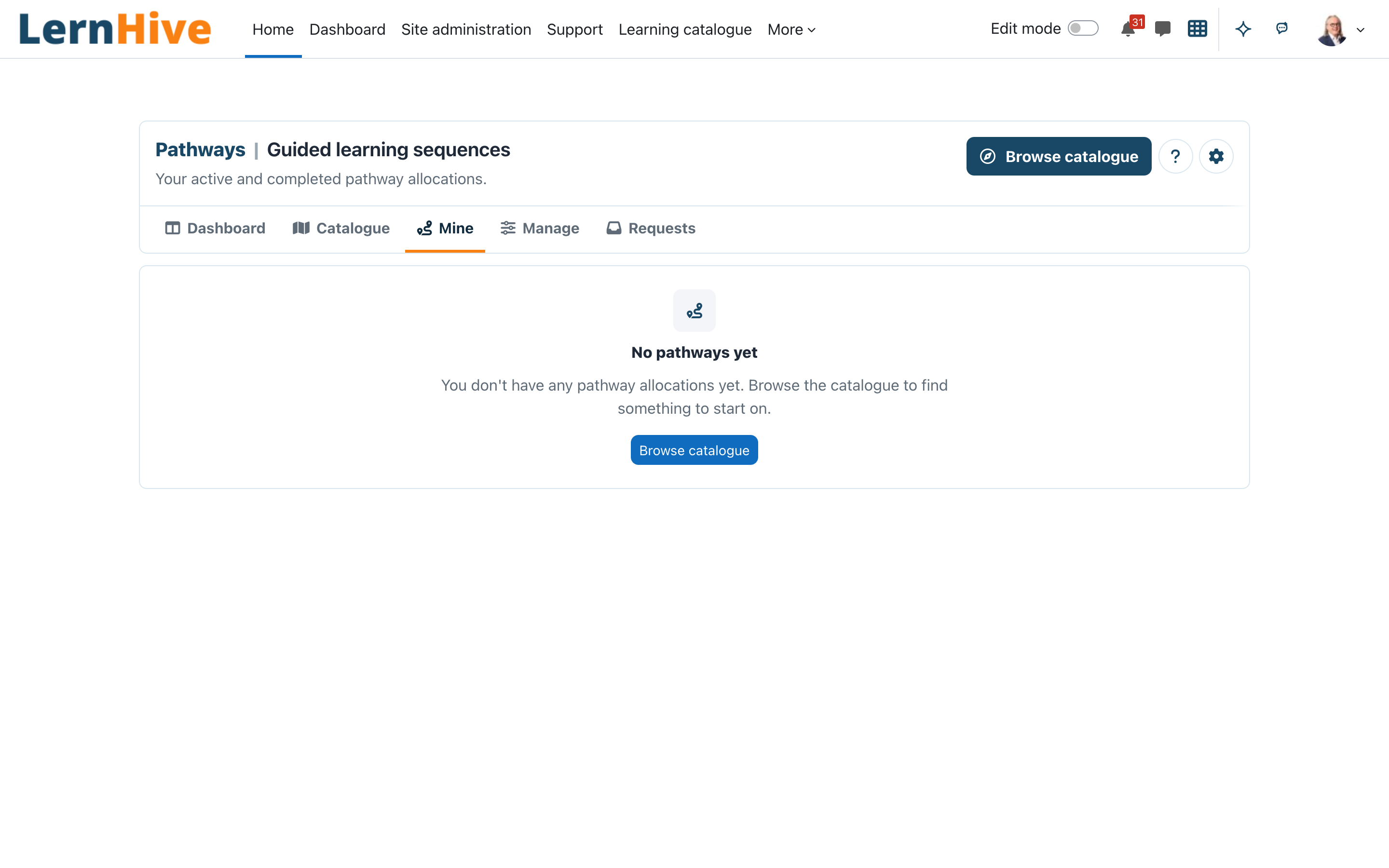
- Open Pathways and choose Mine (My pathways), or use the Dashboard section My programmes.
- Your allocations are grouped into Not started, In progress and Completed; each card shows progress, due date and allocation date. Status labels include Due soon, Overdue and Access window closed.
- Use Open pathway (or the pathway name) to open your pathway view. It lists every step with its status — Completed, In progress or Open — shows your progress as "2 of 4 required steps completed", and Continue takes you to the next open required step (its course, where there is one).
Learners do not see management or settings actions. If a management address is opened directly, LernHive shows an access message with a link back.
Manager: decide enrolment requests
- Open Pathways and choose Requests (Pathway enrolment requests). The queue is open to people who manage allocations, to managers of the requesting learners and to configured backup approvers.
- The queue lists pending requests with Learner, Pathway, Reason and Submitted.
- Choose Approve to allocate the learner immediately, or Reject to close the request. Reject first asks you to confirm; choose Reject again on the confirmation page. Both decisions notify the learner.
- Managers also receive a copy ("Team update — …") when someone in their team gets a pathway notification, provided the organisation chart supplies the reporting line.
Platform administration: create and publish a pathway
- Open Pathways (launcher) and choose Manage (Manage pathways).
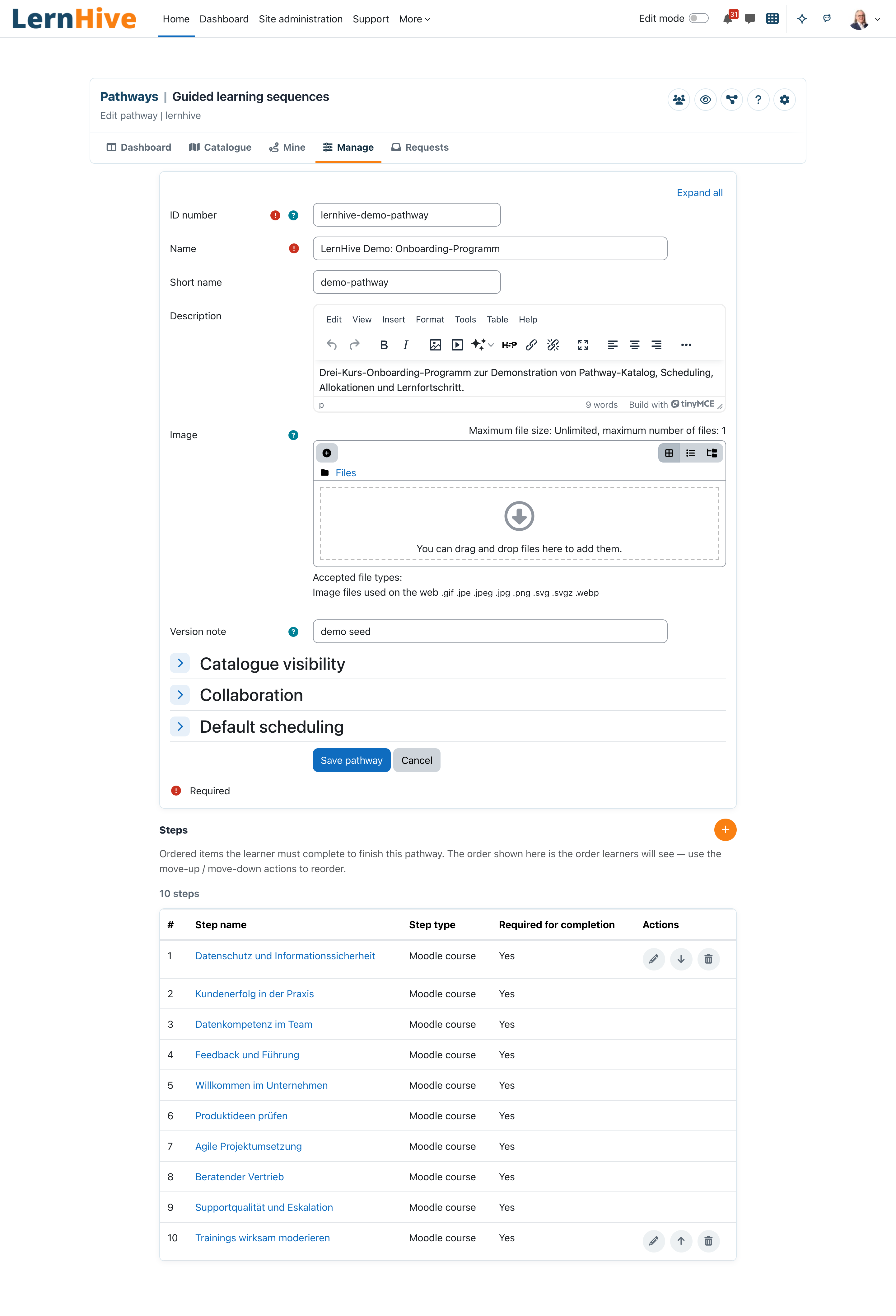
- Click Create pathway and fill in Name, Short name, ID number (a stable, unique key) and Description.
- Optional: Mandatory training (marker for compliance reporting), Image (catalogue cover), Version note, Collaboration link or Collaboration activity (course module id), and the Default scheduling rules for start, due and end dates.
- Click Save pathway — the pathway starts as Draft.
- Add steps (next journey), then use Publish to make it Active. Use Archive later to freeze it; only drafts can be deleted. Clone creates a new draft with the same steps, without learners.
Platform administration: add steps
- Open the pathway from Manage pathways.
- Click Add step and choose the Step type.
- Enter Step name, a stable Step key and the reference for the type (Course ID, Seminar booking ID or External content reference).
- Optionally set Parent set (place the step inside a set) and Required for completion. A step is completed when its course is completed or when evidence is recorded; prerequisites, completion rules and per-step due dates are not available yet.
- For a set, set Min completed children (set rule) — the "any N of M" threshold.
- Click Save step and reorder with move up / move down; the order shown is the order learners see.
Platform administration: configure visibility and allocation sources
- On the pathway form, enable List in public catalogue to show the pathway to everyone with catalogue access, and set Visible from / Visible until for a time window. Manage visibility restricts the pathway to Visibility cohorts.
- Logged-out visitors can open a public pathway only when the setting Make the learning catalogue public is on and Moodle does not force login. Hidden courses are shown with name and link only to people who may see hidden courses.
- On the pathway form, enable Allow self-allocation from catalogue and/or Allow approval-based enrolment requests.
- Under Cohort allocation sources, use Attach cohort: members are allocated on attach and whenever they join, and removed when they leave all bound cohorts.
- Under Pathway-completion chain, use Attach trigger pathway so that completing the trigger allocates learners here; cycles are refused.
- External-DB allocation sync can be enabled on the form, but it only acts when a site-specific listener plugin delivers the learners.
Platform administration: allocate learners and follow up
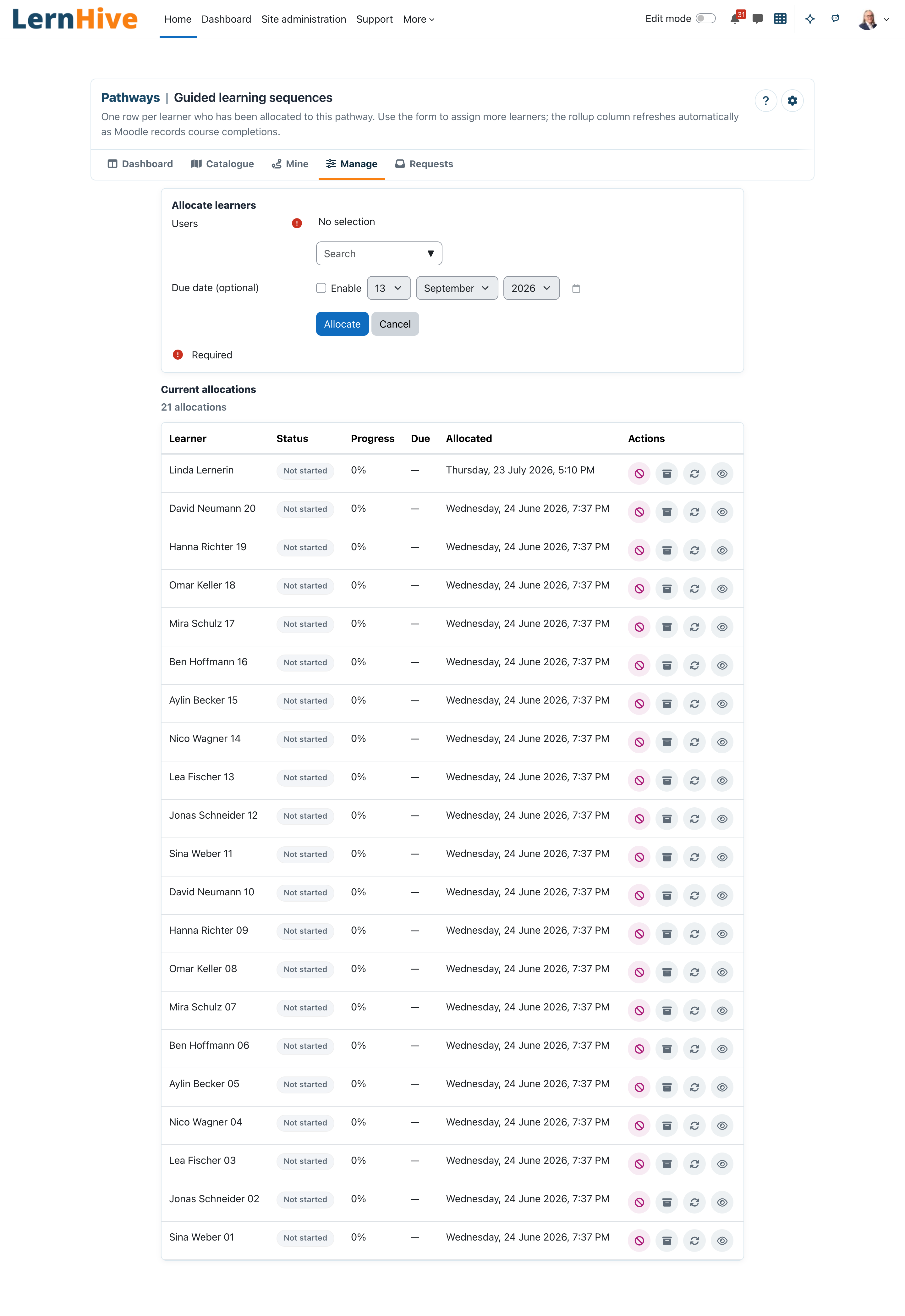
- On the pathway, open Open allocations.
- Under Allocate learners, pick Users and optionally a Due date (optional), then click Allocate. Without a date, new allocations get the pathway's default due date and learners who are already allocated keep theirs.
- Current allocations shows Learner, Status, Progress, Due and Allocated per row, with the actions Deallocate, Archive, Restore, Record evidence and, for people allowed to reset, Reset progress. Deallocate asks for confirmation first.
- To recognise prior learning, use Record evidence: pick the step, fill in Evidence type, Source / issuer, Date of evidence, Evaluator, Reference URL and Note, then click Save evidence and mark complete.
- For bulk work on definitions, choose Tools (Pathways CSV import / export) to export and re-import
pathways.csvandsteps.csv; allocations and progress are not part of the files.
Platform administration: review reports
- Open Pathways and choose Reports (Pathways reports).
- Pathway users lists every learner allocation; Approval queue lists every enrolment request and decision.
- Custom reports can use the report source Pathway allocations, including the Mandatory column and filter.
Site administrator: tune notification windows
- Go to Site administration → Plugins → Local plugins → LernHive → LernHive Pathways.
- Set Due-soon lookahead (days) and End-soon lookahead (days) (default 7 each). A daily task sends the due, due-soon, end-soon and window-closed notifications.
Site administrator: reset learner progress
- Open Open allocations on the pathway and use Reset progress for the learner.
- Choose the Reset type and confirm. No role holds this right by default; grant
local/lernhive_pathways:resetdeliberately if others need it.
Settings that matter
| Setting | Where | Effect |
|---|---|---|
| Due-soon lookahead (days) | Site administration → Plugins → Local plugins → LernHive → LernHive Pathways | "Due soon" notification when a due date falls within this many days. Default 7. |
| End-soon lookahead (days) | same page | "End soon" notification when an end date falls within this many days. Default 7. |
Per-pathway behaviour (visibility, self-allocation, approval, mandatory flag, scheduling) is configured on the pathway form — see the journeys above.
Limitations
- Steps have no prerequisites, completion rules or per-step due dates yet.
steps.csvstill carries the columnsduedays,completionruleandprevitem_stepkey; values stored earlier stay but have no effect. - A course completed before the learner was allocated does not count for the pathway.
- No pathway versioning — edits to an active pathway apply to everyone on it.
- Pathways reference courses and seminars; they do not replace Moodle enrolment. Learners still need access to the linked courses.
- The External DB source does nothing without a site-specific listener plugin.
- Mandatory training is a marker for reporting only. A dedicated mandatory training status report is planned, not in the current release.
- Scheduling rules are entered as JSON on the pathway form; there is no visual date-rule builder.
- Sets cannot be nested inside other sets.
Troubleshooting
A learner cannot self-claim a pathway from the catalogue. → Check that the pathway is Active and Allow self-allocation from catalogue is enabled — the catalogue explains refusals ("Self-enrolment is not enabled for this pathway", "You are not on the visibility allow-list for this pathway"). → Check the Visible from / Visible until window.
Progress does not update after a course was completed. → Verify the step points to the correct Course ID and course completion is configured in that course. → The completion must happen after the allocation.
Due or overdue notifications never arrive. → Confirm the scheduled task Send pathway due / end notifications runs and the lookahead settings are not zero. → Each notification is sent once per allocation — check the learner's notification preferences.
The CSV import rejects the file. → The header row must match the exported template exactly ("CSV header row does not match the expected columns"). Export first, edit, re-upload.
A pathway should disappear but history must remain. → Use Archive on the pathway, not delete. Only drafts can be deleted; archiving hides the pathway from the catalogue and freezes allocations.
Screenshots