What this plugin does
LernHive Platform Core turns Moodle into a focused learning platform. It provides the learning catalogue with a course detail page and booking flow, the five-step level system that unlocks trainer features progressively, the LernHive menus in the top navigation, the in-product Handbook and the design of LernHive emails.
Who this is for
| Role | What they experience |
|---|---|
| Learner | Browses the Learning catalogue, opens course detail pages, enrols, books or requests a booking, rates courses, follows the daily session |
| Manager | Receives Course booking requests from people in their reporting line |
| Trainer | Works at their current LernHive level, previews courses as a learner, uses the simplified enrolment page |
| Platform administration | Changes teacher levels, manages the user list, reads the whole Handbook |
| Site administrator | Configures levels, catalogue, storefront, start page, email design and teacher self-service |
Core concepts
LernHive levels
Trainer-facing Moodle features unlock progressively over five cumulative levels — Explorer, Creator, Pro, Expert, Master. Each level keeps everything the level below unlocked:
| Level | Name | What it adds |
|---|---|---|
| 1 | Explorer | Basic content (files, pages, labels, links, folders, announcement-only forum), course creation, enrolment |
| 2 | Creator | Assignments, full forum, BigBlueButton, grade viewing |
| 3 | Pro | Quizzes, H5P, lessons, group management |
| 4 | Expert | Wiki, glossary, database, workshop, gradebook setup, reports, enrolment method configuration |
| 5 | Master | SCORM, LTI, feedback, choice, survey, book, IMS content package, subsections, course backup/restore/import |
New teachers receive the configured default level on their first login. By default a trainer moves up one level automatically once every onboarding tour of the current level is complete; platform administration can also change a level at any time. Learners have no level.
Feature level overrides
A site-wide table assigns every feature (for example "Quiz" or "Manage groups") to the level at which it unlocks. The site administrator can move a feature to another level or disable it. Flavour presets from LernHive Flavour pre-fill overrides; a manual override always wins.
LernHive areas in the navigation
The top navigation shows the learner areas in the Learn menu (learning catalogue, your seminars, pathways, certificates, skills, bookmarks and other learner pages). The operator areas (seminar planning, reports, audiences, organisation, templates, Help and others) open from the launcher, the app grid next to the user menu. Each person sees only the areas their permissions allow; a menu without an entry is not shown.
Learning catalogue
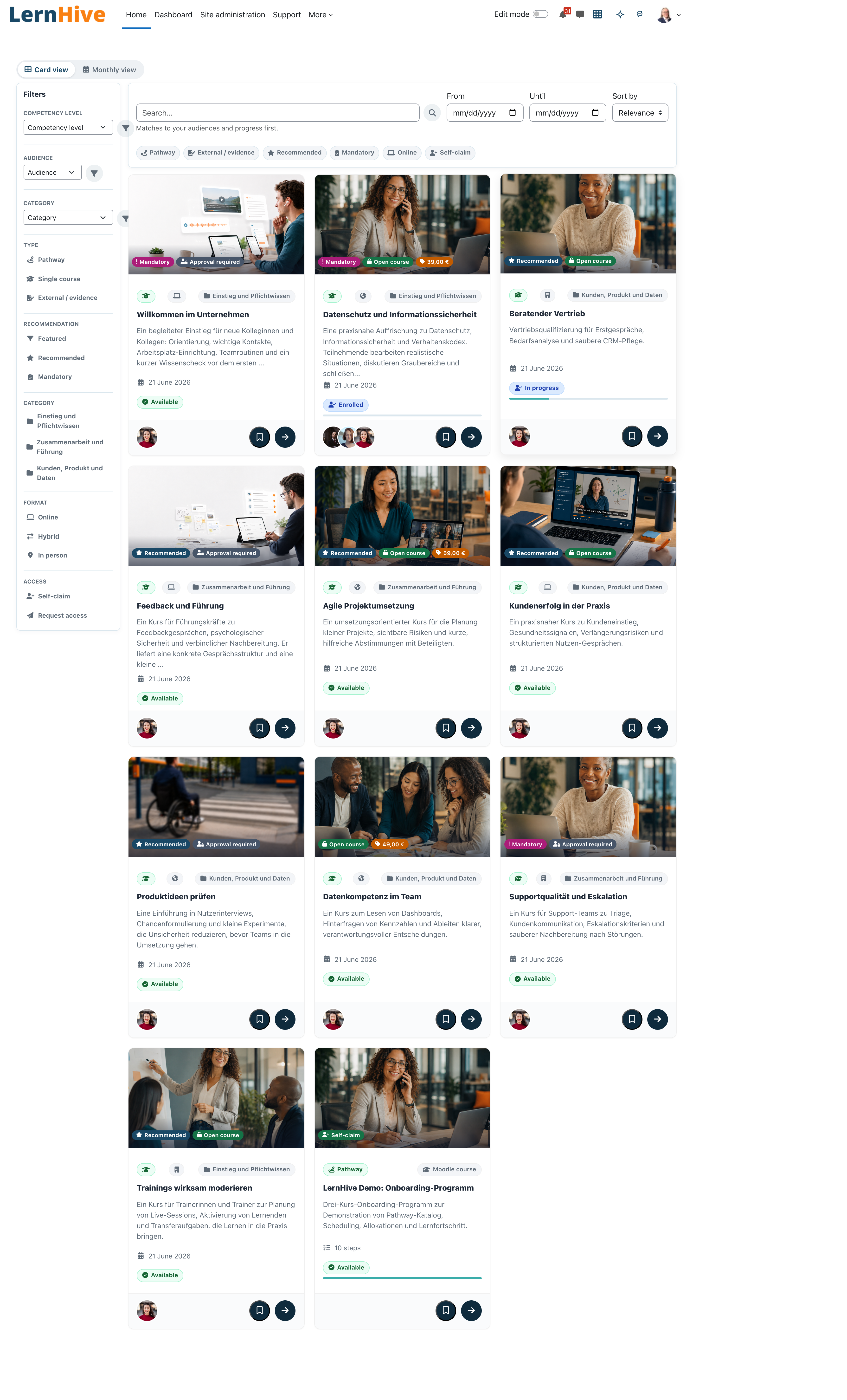
The catalogue lists the offerings of every installed LernHive area: courses and — when installed — seminars, pathways and certifications. The result line shows how many of the matching offerings are visible. Each entry opens a detail page with facts, trainers and the matching enrolment or booking action. Progress tracks are grey with a green fill; partially completed courses use the orange warning fill, and the status label beside the track says the same.
Handbook
The in-product help. It shows one tile per installed LernHive plugin and renders its handbook in the viewer's language (English when no translation exists). Every logged-in user reaches it through the Help icon at the top right of a LernHive page and reads the part written for their role: learners the learner steps, trainers also the trainer steps. People with View LernHive support (the Manager role, site administrators) read the whole handbook.
Journeys by role
Learner: browse the learning catalogue and enrol
- Open Learn → Learning catalogue.
- Use the search box (Search…); suggestions appear after two characters. Narrow the results with the Filters rail — for example Type, Recommendation, Category, Format, Access, Language and Topic — choose an option and confirm with Apply filter. Access combines self-start, request-access and assigned offerings across courses and pathways. Several values in one group show offerings with any of them. Clear all removes search, dates, filters and sorting.
- Choose the order under Sort by: Relevance, Title, Start date or Newest.
- Switch between Card view and List view as preferred.
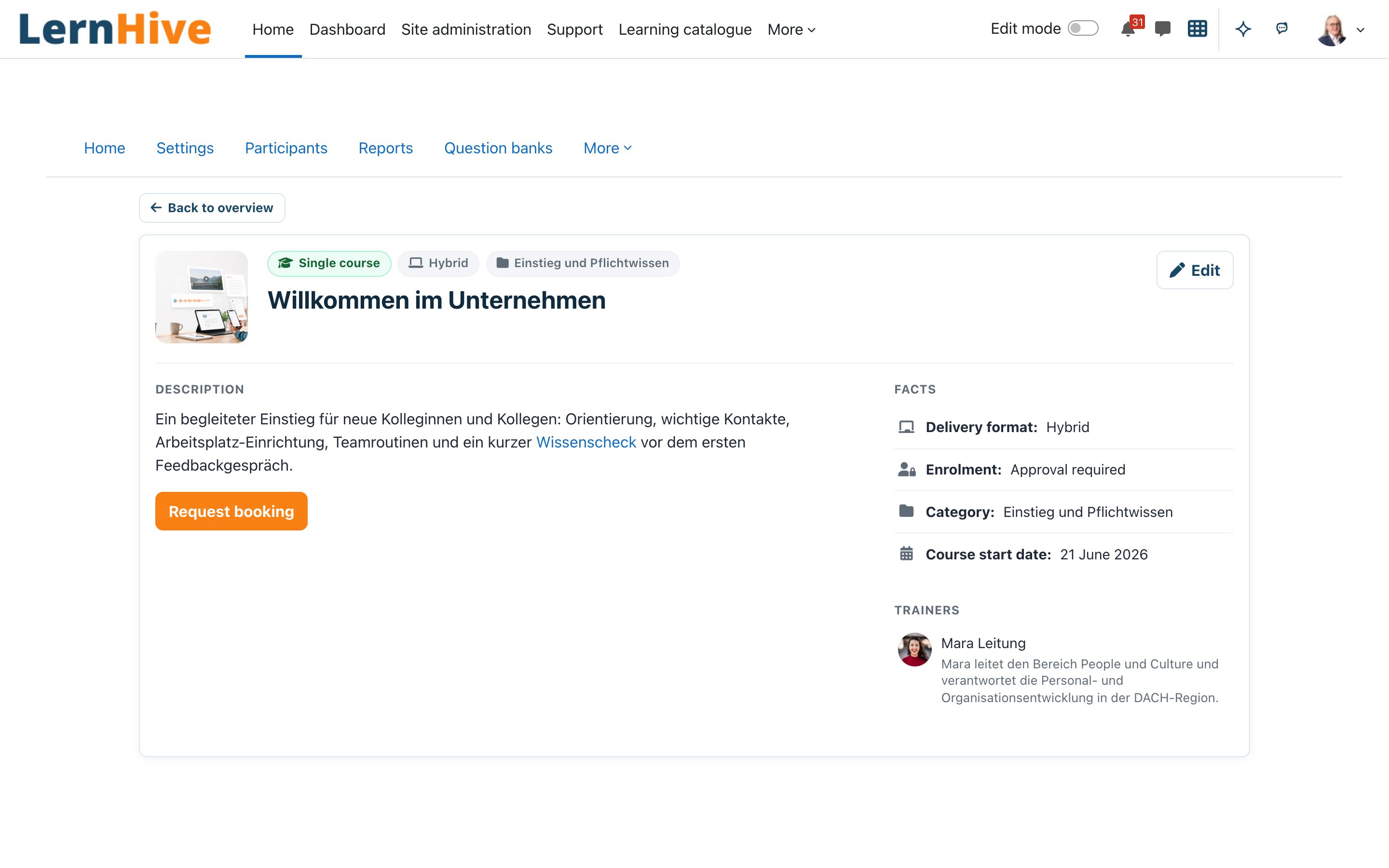
- Open a card. The detail page shows Description, Facts, Trainers, More information and, where courses are rated, the average Rating.
- Depending on the course, act on:
- Enrol now — free direct self-enrolment,
- Book now — external booking link or paid enrolment (the payment options open inside the LernHive page),
- Request booking — sends a booking request to your manager,
- Open course — when you are already enrolled.
- Back to search results (or Back to your favorites) returns to the same results with your filters and sorting.
If you belong to a target group, the rail offers My context with I am filtering for; Show the whole catalogue switches the context off.
On phones the search and date controls stack, and Filters opens the filter area directly below the search.
Learner: use the catalogue as a monthly calendar
Available when Seminar Management is installed.
- Select Monthly view at the top of the catalogue; Card view switches back.
- Page through months with Previous month, Next month or Today. Each session shows time and title; selecting it opens the seminar.
- Busy days show the first sessions plus +N more, which expands that day.
- Sessions between (From / Until) narrows both views to offerings with sessions inside the window; offerings without dates drop out while the filter is active.
The monthly view is the offering overview. Your own booked sessions are in the personal Moodle calendar on the Dashboard.
Learner: rate a course
- Open the course detail page of a course you are enrolled in.
- Under Your rating, choose one to five stars and select Save rating.
By default you can rate only after completing the course (Complete this course before rating it.). Other learners see only the average.
Learner: follow your progress and today's session
- With Show course progress bar set on a course, the course page shows the activity progress and activity pages show a compact count; the detail page shows Your course progress ("x of y activities completed"). The figures match Moodle's course progress: hidden activities do not count, a failed activity is not done, a completed course shows 100 %.
- A course card reads All activities done once every activity is done and Completed only after the course itself is complete.
- When your Dashboard offers Today's session, it opens up to three steps (repeat a quiz, continue a course, a pathway step or a recommendation). Use Open and Mark as done; course completion is still earned in the course itself. The page is headed Daily session; the date and your progress are shown below it, and the name leads back to your Dashboard.
- Edit learner profile on your profile opens Learner profile: how much time you have per day, your learning days and how you like to learn. Cancel or the name in the header leads back to your profile.
- Where the site offers the LernHive app, Show QR code on your profile opens Mobile app with the QR code that connects the app to this site. The name in the header leads back to your profile.
- If the site shows points, your profile has a Points and level card and, when enabled, a Ranking.
- Your profile starts with At a glance: how many courses, certificates, seminars, learning pathways and badges you have, and your competences. Click a figure to open the matching page. While your user picture, description, city or a competence is missing, a hint names it; Complete profile opens the profile form.
- Activity lists what you completed recently: courses, badges, certificates and learning pathways. At first only you see it. Click Show to profile visitors to show it to everyone who may see your profile, and Hide from profile visitors to make it private again.
Manager: daily session figures in reports
- Open Reports → Custom reports and create a report with the source Daily sessions.
- The report lists one row per person and day: Steps proposed, Steps done, Steps open, Estimated minutes and Session completed. Add step columns (type, source, status, course) for detail per step.
- For figures per day, group by Day and use Sum on the step counts.
You see only the people in your scope: everyone with site-wide reporting rights, otherwise the people who report to you in the organisation chart. Without such a scope the report stays empty.
Learner: open the help of the current page
- Click the Help icon (question mark) at the top right of a LernHive page.
- The Handbook opens the handbook of that area with the steps for learners. Trainers also see the steps for trainers. When the area has no steps for your role, the handbook overview opens.
- Choose another handbook from the tiles, or switch to Moodle Core for the Moodle handbooks written for your role.
Manager: receive and act on a booking request
- When a learner selects Request booking, LernHive sends the request to the learner's approvers from the organisation chart. If there is none, the site administrators receive it.
- You receive a Moodle notification (Course booking requests) with the subject Booking request: <course>, the learner's name and email address and a link to the course. Replying to the email reaches the learner.
- Open the course and enrol or book the learner through the appropriate channel.
Trainer: work at your current level
- On course and activity pages the level bar (when switched on) shows your level, for example Level 2 — Creator, the next level's new tools (Next level (…): …) and a link to Onboarding.
- Course editing menus offer only the activities and tools unlocked at your level. At the Explorer level the course settings, participants page, activity chooser, activity forms, file picker and user form show only the basic options.
- Complete the onboarding tours of your level (see the LernHive Onboarding handbook); the next level is then unlocked automatically, unless the site switched this off.
Trainer: preview a course as a learner
- On a course page select Preview (learner view) — also in courses that are not published yet.
- Moodle shows the course as a learner sees it, with a preview notice.
- Select End preview to return to your normal role.
Trainer: set up your personal course area
When the site allows teachers to create courses, the first course you create from ContentHub asks Set up your personal course area?. Confirm with Set up course area; the area is created and you continue to the course form.
Trainer: enrol users into your course
- Open
/local/lernhive/enrol.php?id=<courseid>for your course. You need the manual-enrolment permission; Remove additionally needs the manual-unenrolment permission. - Under Enrol users, search with Search by name or visible identity fields.... Additional fields appear only when the site's identity-field configuration and your course permissions allow them.
- Select Enrol next to a person — confirmation: User has been enrolled.
- Enrolled users lists everyone enrolled; Remove asks Really remove this user from the course? first.
If manual enrolment is not set up for the course, the page only shows a notice; a course manager can follow Configure enrolment methods.
Trainer: build a matrix block in a feedback
LernHive shows consecutive feedback questions as one matrix (rows = questions, columns = scale) when you create them like this:
- Use Multiple choice (rated) (or Multiple choice) with the type Multiple choice - single answer. Drop-down menus and multiple answers do not form a matrix.
- Give all questions of the block exactly the same answer options — same order, labels and values.
- Place the questions directly after each other. Any other item, label or page break ends the block.
- A block needs at least two questions.
Clear labels keep the evaluation stable across courses and copies. Without JavaScript the questions stay usable one by one and are shown as one block; the matrix never changes the stored answers.
Platform administration: change a teacher's level
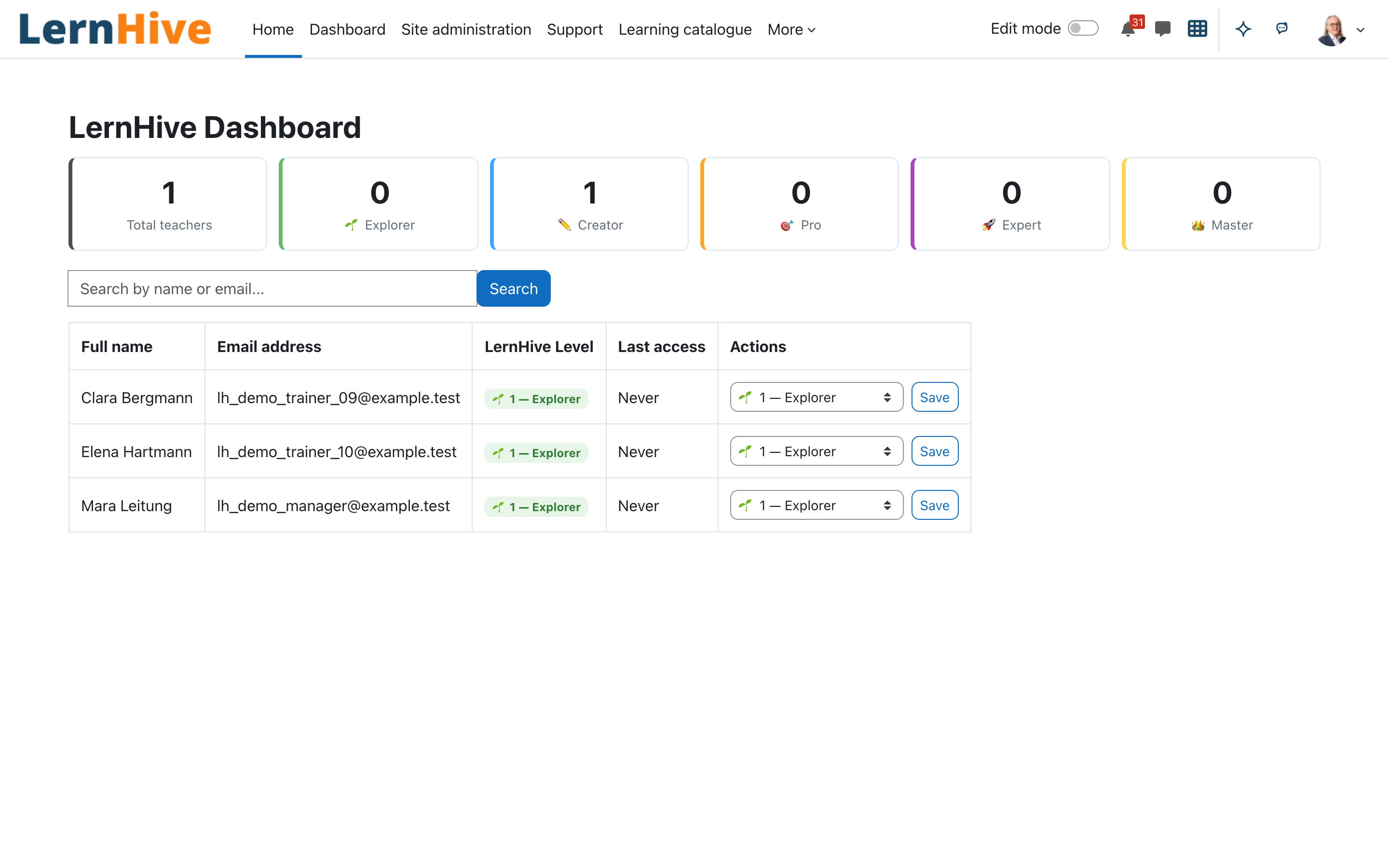
- Open the LernHive Dashboard (
/local/lernhive/admin_dashboard.php; site administrators also find it under Site administration → Plugins → Local plugins → LernHive). - Find the teacher with Search by name or email.... The page also shows Total teachers and the number of teachers per level.
- Choose the level in the row and select Save.
- The change applies immediately: "…'s level has been changed to … — …."
Platform administration: manage the user list
- Open Users (
/local/lernhive/users.php). You need the capability Browse user list (Manager role by default) or the role LernHive User Browser. - Search with Search by name or email...; the list shows name, Last access and actions.
- Suspend / Unsuspend toggles account access; suspended accounts carry Suspended.
- Deleting asks: Do you really want to delete the account of "…"? This cannot be undone. Site administrators, the guest account and your own account cannot be suspended or deleted here.
Platform administration: read the Handbook
- Open Help in the launcher. You need View LernHive support (Manager role and site administrators).
- Choose a source — LernHive, Moodle Core or Custom configuration — and search with Search handbooks… across the full handbook text. Unfinished handbooks carry Coming soon.
- Select Open … handbook on a tile; the source tabs lead back to the tiles.
Site administrator: configure levels and the feature table
- Go to Site administration → Plugins → Local plugins → LernHive → General settings.
- Under Level settings set Default level for new teachers, Show level bar and Simplify Moodle forms at the Explorer level. Under Automatic level-up, Grant the next level automatically is on by default.
- In Feature level overrides choose a level per feature, Default (Level x) to return to the registry default, or Disabled. Saving applies the change to all trainers immediately.
Site administrator: publish the catalogue on the front page
By default the catalogue requires a login. To open a public storefront:
- On General settings, tick Make the learning catalogue public.
- Mark what you want to advertise: a seminar needs Publicly visible in its booking form (optionally with a from/until window), a standalone course needs the course field Visible without login. Nothing else reaches a logged-out visitor.
- Optionally add a Catalogue intro, a Seminar programme (PDF) and a Seminar programme link; choose the Fields visible to logged-out visitors.
- Put the catalogue on the front page: turn editing on there, add the LernHive Learning Catalogue block and set its Display mode to Full catalogue view (filter rail, all results). For full width, first enable the
content-upperblock region for the front page under Site administration → Appearance → Boost Union → Feel → Blocks. - Leave Force users to log in off; with it on, the storefront stays closed.
A course detail page opens without login only when the storefront is open, the course is visible and it carries Visible without login. Moodle guest access counts as logged out. Logged-out visitors get search, the format filter and the monthly view; filters built from your site data (categories, topics, tags) stay hidden. A visitor who picks an offer and then logs in or signs up sees Selected offer with the offer's name and Back to the offer on the login page, and returns to the offer after login.
To send logged-in users to their Dashboard instead of the front page, set Site administration → Appearance → Navigation → Start page for users to Dashboard.
Site administrator: design LernHive emails
- Open Site administration → Plugins → Local plugins → LernHive → Email design.
- Fill in Email header, Email footer and Email imprint; the placeholder
{$a->sitename}is available. Advanced raw HTML override replaces the whole frame. - Logo and brand colour come from Appearance → Logos and the theme.
LernHive mails (seminars, certificates, pathways, notifications, booking requests …) carry this frame unless a category mail profile of LernHive Templates applies. Moodle's own mails (password reset, enrolment) are framed by Boost Union's email branding.
Site administrator: start page, points and teacher self-service
- News and notices — one teaser per line:
Title | Teaser | Image URL | Link URL | From | Until | Cohort. Start page section order sets the order of the Dashboard sections. - Show points and levels, point weights, Level thresholds, Show the ranking (off by default) and Learners in the ranking control the learner points card.
- Allow teachers to create courses — editing teachers get a personal course area after confirming it.
- Show user creation action and Show user list action — see Limitations.
- Assign the roles LernHive User Creator or LernHive User Browser under Site administration → Users → Permissions → Assign system roles. A LernHive level never grants these rights.
Settings that matter
All on Site administration → Plugins → Local plugins → LernHive (site administrator).
| Setting | Page | Effect |
|---|---|---|
| Default level for new teachers | General settings | Level an editing teacher gets at first login (Explorer by default) |
| Show level bar | General settings | Level bar for trainers on course pages; on by default |
| Simplify Moodle forms at the Explorer level | General settings | Reduced Moodle forms at the Explorer level; on by default |
| Show messages and notifications in chat style | General settings | Moodle messages as chat bubbles (own right, received left, time in the message), conversation list and contacts as rows, notifications with an unread dot, filter chips (All, Unread, Group, Starred) and a Notifications tab in the message drawer; on by default |
| Show the profile page as a person profile | General settings | Profile page with cover band, large user picture, key figures on top and the sections as cards; on by default |
| Feature level overrides | General settings | Per-feature level or disable, site-wide |
| Grant the next level automatically | General settings | Automatic level-up after the onboarding tours; on by default |
| Show the learning catalogue | General settings | Off removes the catalogue from navigation and blocks |
| Make the learning catalogue public | General settings | Opens the storefront for logged-out visitors |
| Require course completion before rating | General settings | Rating only after course completion; on by default |
| Catalogue intro, Seminar programme (PDF), Seminar programme link, Fields visible to logged-out visitors | General settings | Storefront content |
| Visible filter groups | General settings | Filter groups shown in the catalogue |
| Hidden LernHive plugins | General settings | Hides plugins from navigation and Handbook; direct URLs keep working |
| Show points and levels, Show the ranking | General settings | Learner points card and ranking |
| News and notices, Start page section order | General settings | Learner Dashboard content |
| Allow teachers to create courses | General settings | Personal course area for editing teachers |
| Email header, Email footer, Email imprint, Advanced raw HTML override | Email design | Frame of LernHive emails |
Limitations
- Levels apply to trainers; learners have no level.
- Show user creation action and Show user list action currently have no visible effect: no page shows these actions any more. The user list stays available at its address for holders of the required role.
- The LernHive Dashboard and the user list have no entry in the top navigation; platform administration opens them by their address.
- The catalogue lists only offerings of installed LernHive areas; Moodle's own course index is unchanged.
- Without View LernHive support the Handbook shows only the learner and trainer steps of each handbook and the Moodle Core handbooks written for these roles. A custom handbook appears for them only when its front matter names the role (for example
rollen: ["Student"]). Steps for managers of a reporting line (Orgchart) are not part of this view yet. - The LernHive profile fields for address, birth date, billing and payment are private: only the person and users with View user full information (
moodle/user:viewalldetails) see them, also through web services. - Demo data is not part of this plugin (see the plugin eLeDia | Demo).
Troubleshooting
The level bar does not appear. → Check that Show level bar is on. The bar shows only for logged-in, non-admin trainers with a level, on course and activity pages.
A learner sees "There is currently no responsible contact set up…" after Request booking. → Neither an approver in the organisation chart nor a site administrator could receive the request. Assign an approver or switch the course to another booking mode.
A teacher cannot see an activity type. → The feature is above their level or disabled. Check Feature level overrides and, if appropriate, change the level in the LernHive Dashboard.
The catalogue is missing from the navigation. → Show the learning catalogue is off, or the plugin is listed under Hidden LernHive plugins.
A user does not find a handbook in the Handbook. → Without View LernHive support (Manager role and site administrators by default) only handbooks with steps for the user's role appear. Trainers are users who teach in at least one course. Guests get no help.
Some handbook tiles show "Coming soon". → The plugin is installed but its handbook is not written yet.
Screenshots
The screenshots show the LernHive demo interface; the top navigation in them predates the Learn menu and the launcher.