What this plugin does
LernHive Reporting is a calm entry point for the most common reporting questions: how many people are in a course, which courses are the most popular, who has completed what, how seminars are running and how feedback compares across courses. It presents factual numbers in simple dashboards and drilldown tables with one-click exports, and hands you over to Moodle Custom reports whenever you need reusable, shared, scheduled or charted reports.
Who this is for
| Role | What they do |
|---|---|
| Platform administration | Review the dashboard, run the people/popularity/completion drilldowns, compare feedback, run the seminar bookings report, export data, create reusable reports through Moodle Custom reports |
| Site administrator | Set the feedback privacy settings, grant reporting access to additional roles, verify the LernHive report sources in Moodle Custom reports |
Access requires the local/lernhive_reporting:view capability. Granted in the system context (by default to Moodle's Manager role, Platform administration) it covers the whole site. Trainers (Moodle role Teacher) hold it by default as well and so see the reports of the courses they teach. Granted through a role in a course category or a course, every report shows only those courses — seminar figures only those categories.
Core concepts
Report areas
The section navigation splits reporting by question type: Dashboard (overview tiles), Course reports (questions about one selected course), Platform reports (aggregations across courses), Operative reports (day-to-day seminar operations) and Report Generator (the hand-off to Moodle Custom reports).
Platform reports offers Popular courses, Participation by course, Feedback analysis, Mandatory training status and Certificates in period. The last two open the Report Generator, where the matching Moodle Custom report presets live. Operative reports offers Seminar operations for bookings and cancellations.
Drilldown
Each dashboard tile links to a full-page report — the drilldown — with sorting, filtering where applicable, and export buttons for the current result set.
Saved view
A private, per-user shortcut that stores the filter set of the Seminar bookings report. Saved views are not shared with other users and are not scheduled reports.
Report Generator and report sources
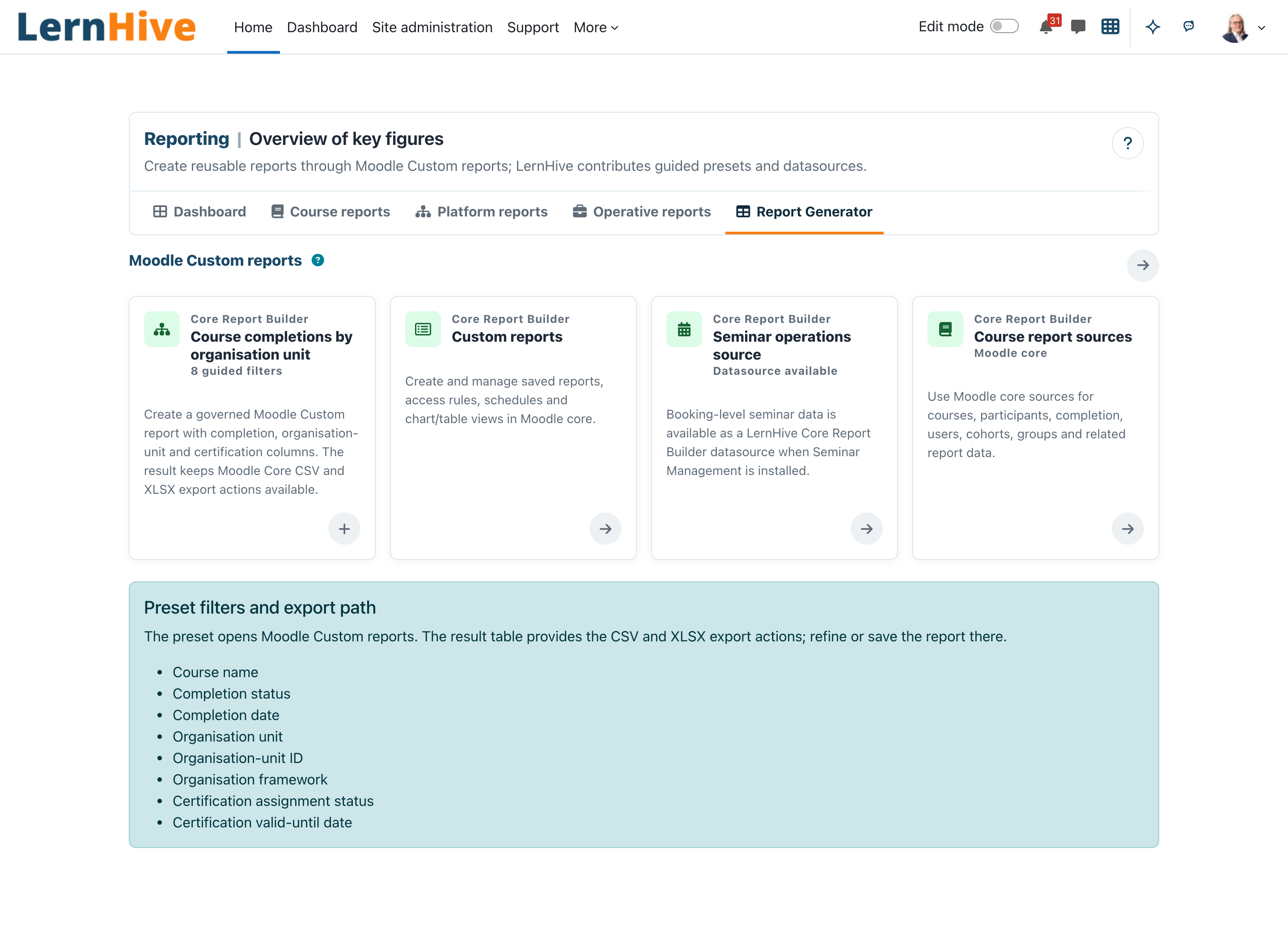
The Report Generator page does not build reports locally. It routes you to Moodle Custom reports (Site administration → Reports → Custom reports), where LernHive contributes eleven report sources: Seminar operations, Bookings and cancellations, Invoices and payments, Course completions, Course enrolments, Cohort memberships, Feedback completions, Feedback responses, Badge awards, Group memberships and Role assignments. The three seminar sources appear only when Seminar Management is installed. Saving, sharing, scheduling and charting reports happens there with Moodle core tools.
In Feedback completions, anonymous submissions never show who submitted them: the name, organisation unit and position stay empty, and filters on these fields do not match them. Once a feedback activity is set to anonymous, earlier named submissions are hidden in the same way.
Factual analytics only
The plugin shows only factual criteria — enrolments, bookings, attendance, completion, access, feedback answers. It does not use Moodle predictive Learning Analytics models.
Journeys by role
Platform administration: open reporting and read the dashboard
- Open Reports in the launcher. The Dashboard opens.
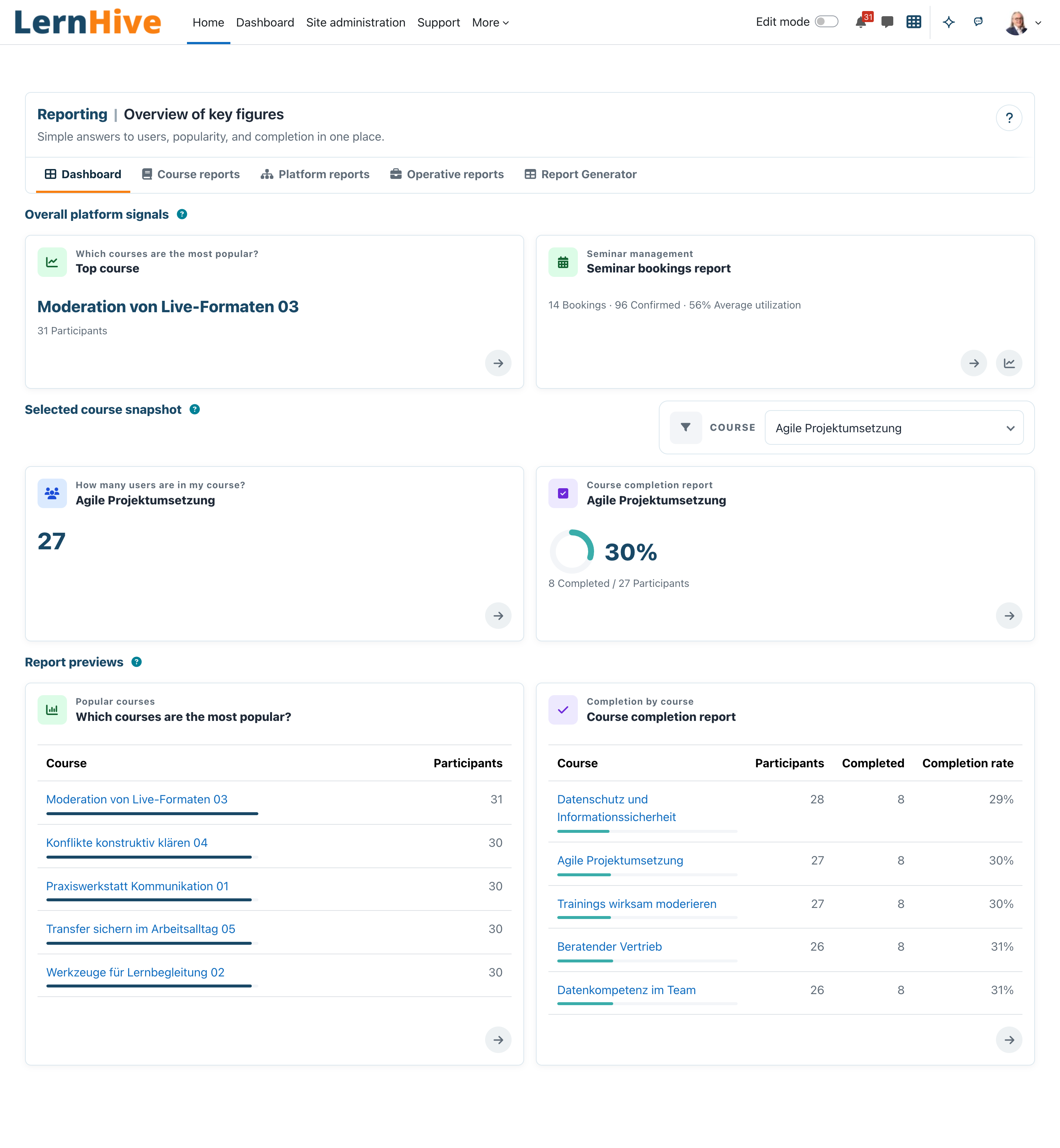
- Review Overall platform signals — cross-course figures such as the top course and, where Seminar Management is installed, seminar bookings. These are not affected by the course selector.
- Under Selected course snapshot, use the Course filter to select one course and click Apply filters. All course-specific tiles update consistently; Reset filters clears the selection.
- Review Report previews for short excerpts of each report. Each row carries a bar showing its share of the largest value; the completion tile shows a ring for the selected course. The ? next to a section heading opens a short explanation of what the section covers.
- Use Open report on each tile to jump into the matching drilldown.
Platform administration: list the people in a course
- Open Course reports in the section navigation and choose People in course (or open the dashboard tile How many users are in my course?).
- If needed, switch the course with the Course filter. Without a selection, the first accessible course is preselected.
- Use Search people (name or email) to narrow the list; sort by name or last access using the column headers on larger screens or Sort people above the list on smaller screens. Page through long lists with the page links.
- Export the list with Export CSV, Export XLSX, Export ODS, Export JSON or Export HTML. The export always contains every participant of the course, not only the page on screen.
Platform administration: review course completion
- Open Course reports and choose Course completion (or the dashboard tile Course completion report).
- Review the key figures for the selected course: participants, completed, pending and completion rate.
- Review the completion table to compare completion rates across your visible courses.
- Export the snapshot with Export CSV, Export XLSX, Export ODS, Export JSON or Export HTML.
Platform administration: find the most popular courses
- Open Platform reports and choose Popular courses (or the dashboard tile Which courses are the most popular?).
- Review the ranking of accessible courses by active participant count; sort by clicking the column headers.
- Export the ranking with Export CSV, Export XLSX, Export ODS, Export JSON or Export HTML.
Platform administration: compare feedback and its trend
- Open Platform reports and choose Feedback analysis.
- Select a Question, a Group by dimension (course; with Seminar Management also topic, learning format, trainer and building) and a Period.
- Read the bar chart and table for the comparison between groups.
- Under Distribution of answers you see how the answers spread over the scale steps — count and share per step. The average alone hides whether a middle score comes from many middle answers or from very good and very poor ones. Below the minimum number of responses the distribution stays hidden.
- If the question belongs to a Matrix block — consecutive questions sharing one scale — the page reports the whole block: rows are the questions, columns the scale steps.
- If at least two months have results, review Trend over time (monthly average). Answers are counted per feedback activity in blocks of at least the configured minimum number of responses: a block spanning several months appears under its first month, and a period contains a block completely or not at all. Feedback activities with fewer responses than the minimum are left out of every figure — including topic, format, trainer and building — and a notice says how many responses that affects. This way no comparison of two figures reveals individual submissions.
- Under Export this analysis, download exactly this analysis with Export CSV, Export XLSX or Export PDF. CSV holds the figures per group, XLSX adds distribution, trend and matrix block as separate sheets, and the PDF contains the same sections with embedded charts. No export contains raw answers or names.
- Under Curated report templates, create a reusable Moodle Custom report for the comparison. This requires Moodle's report-creation permission.
Platform administration: export a trainer's feedback summary
- In Feedback analysis, choose a trainer under Trainer. Only feedback blocks that belong to this trainer are shown.
- Under Export trainer summary, choose Export XLSX or Export PDF. The file contains question, average and response count only — no names, email addresses or individual answers. Groups below the configured minimum are neither shown nor exported.
Platform administration: run the seminar bookings report
Requires LernHive Seminar Management; otherwise the page shows an unavailability notice.
- Open Operative reports and choose Seminar operations to reach the Seminar bookings report.
- Narrow the data with the seminar filters: search, seminar status, category, trainer and the From / To date range. Active filters appear as removable chips.
- Review the summary figures: bookings, confirmed, waitlisted, cancelled, average utilisation and no-show rate.
- Review the standard report sections below the bookings table: utilisation per room, trainer assignments per month, participant history and no-show rate per topic.
- Export the filtered report with Export CSV, Export XLSX, Export PDF, Export ODS, Export JSON or Export HTML.
- Use Open seminar management in the page header to jump to the bookings administration in Seminar Management.
The figures distinguish deliveries/events from participant counts. The no-show rate states its denominator as "absent / recorded attendance". Without attendance data the report shows Not yet calculable, which is distinct from a measured 0 % rate.
Platform administration: save and reuse a seminar filter view
- On the Seminar bookings report, apply the filter combination you want to keep.
- Under Saved views, enter a name in Name this filter set and click Save current view.
- Reopen the view later from the Saved views list; remove it with Delete.
- Saved views are private to your account — they are not visible to other users.
Platform administration: create a reusable custom report
- Open Report Generator in the section navigation.
- Pick a preset card:
- Course completions by organisation unit — click Create organisation-unit report preset. The Moodle Custom report has eight guided filters, including organisation unit and certification status/date; use the result table's CSV or XLSX export there.
- Bookings and cancellations by day (with Seminar Management) — click Create bookings and cancellations report. In Moodle Custom reports, set the event-date range and the course, course-template, format and course-manager filters, group the event date and count event types for daily totals.
- The cards Custom reports, Seminar operations source and Course report sources open Moodle Custom reports directly (Open Moodle Custom reports).
- In Moodle Custom reports, configure columns, conditions, filters and sorting, then save the report. Use the report's audience and schedule settings in Moodle core to share it and send it by email on a recurring cadence.
Site administrator: set the feedback privacy settings
- Go to Site administration → Plugins → Local plugins → LernHive → LernHive Reporting.
- Set Minimum group size for feedback analysis (default 5).
- Leave Allow free custom reports on feedback responses switched on, or switch it off to remove the answer-level Feedback responses source from Moodle Custom reports entirely. The feedback analysis page stays available.
Site administrator: grant reporting access
- The capability
local/lernhive_reporting:viewcontrols access to every reporting page and to the Reports entry in the launcher. Allowed in the system context (by default for themanagerarchetype, so Moodle's Manager role) it means the whole site. - To open reporting for a part of the site, allow the capability on a role that can be assigned in categories or courses (Site administration → Users → Permissions → Define roles) and assign that role in the category or course. The person then sees only those courses — in the course selector, every page, every export and every custom report from the LernHive data sources; seminar figures only for the categories.
- Verify the LernHive report sources by opening Site administration → Reports → Custom reports and creating a new report — the LernHive sources appear in the source picker (the three seminar sources only when Seminar Management is installed).
Settings that matter
Under Site administration → Plugins → Local plugins → LernHive → LernHive Reporting (site administrators only):
| Setting | Default | Effect |
|---|---|---|
| Minimum group size for feedback analysis | 5 | Smallest number of responses a figure of the feedback analysis may be based on |
| Allow free custom reports on feedback responses | on | Switched off, the answer-level Feedback responses source disappears from Moodle Custom reports and the curated templates are hidden |
Report audiences, schedules and the site-wide Custom-report limit remain Moodle core settings.
Limitations
- No Learner, Manager or Trainer views. There is no team dashboard scoped to the Orgchart reporting line and no learner-facing page. Manager/team dashboards and Audience-wide filters are planned, not in the current release.
- Course feedback and Course tests are shown as Planned cards in Course reports and do not open a report yet.
- Saved views are private shortcuts only (maximum 12), limited to the Seminar bookings report. They cannot be shared, scheduled or exported as definitions.
- No local scheduling, sharing or free-form report building. The former interactive local builder is retired; reusable reports live in Moodle Custom reports.
- Seminar reporting requires Seminar Management. Without it, the seminar report, the seminar sources and the bookings preset are unavailable.
- PDF export exists on the Seminar bookings report and for the feedback analysis and trainer summary. The people, popularity and completion drilldowns export CSV/XLSX/ODS/JSON/HTML.
- The course selector lists up to 200 courses for users with site-wide report access. A course outside the list still opens through a link with its course id when you may report on it.
- Factual data only — no predictive scoring, no behavioural-risk analytics.
Troubleshooting
Reports is missing from the launcher, or a page shows an access error. → Check that a role of the person allows local/lernhive_reporting:view in the system context, a course category or a course. → By default only the manager archetype (Platform administration) and site administrators have it.
The dashboard says "No course available" or "You do not have any accessible courses yet." → For users without site-wide report access, check that they hold course-level reporting rights (course update or completion report) in at least one course. → Check that courses exist besides the site home.
The seminar report says that seminar reporting is unavailable. → Check that LernHive Seminar Management is installed and upgraded; the report reads its booking tables directly. → The same cause shows the Datasource unavailable badge on the Report Generator's seminar card.
Completion shows participants but a 0 % rate. → The page then shows "Participants exist, but none have completed the course yet." Check that course completion is configured and tracked in the course itself; the report only mirrors Moodle completion records.
An old bookmarked Report Generator link only shows "The local report-builder actions have been retired." → This is expected. Build, save, share and export reports in Moodle Custom reports instead; the preset cards in the Report Generator take you there.
The feedback analysis shows no groups or a "withheld" notice. → Each figure needs at least the configured minimum number of responses per feedback activity. Smaller activities are left out on purpose; lowering the minimum is a site administrator decision.
A saved view was not created. → Check that a name was entered — the report rejects empty names with "Please enter a name for the saved view." → Only the 12 most recent views are kept per user.
Screenshots
The following screenshots show the LernHive demo interface before the main navigation entry was added; the Report Generator image does not yet show the bookings preset.