What this plugin does
Skills shows every learner which skills their current role requires, where they stand today, and which learning content closes the gap. It builds on Moodle core competencies: role targets, self and manager ratings, and learning evidence are combined into a calculated level per skill, and matching courses, snacks and activities are recommended. The focus is development, not performance review — there is no peer rating and no ranking.
Who this is for
| Role | What they do |
|---|---|
| Learner | Review their own skill profile, record a Skill Check-in, set personal Learning goals, follow recommended learning |
| Manager | Review the skill gaps of their reports within the org chart, use the Team competency matrix, record manager ratings |
| Platform administration | Maintain the Role skill matrix and the Skill Impact Rules, review the aggregated Skill heatmap |
| Site administrator | Configure target-level defaults, scale mappings and the recalculation batch size; assign the HR/L&D capabilities |
Access is capability-based. Learner self-service is granted to every authenticated user. Team view, team rating, heatmap and configuration are granted to Moodle's Manager role by default; to give team leads from the org chart access to their team, assign View skill profiles of team members and Rate skills for team members to the role they hold. View all skill profiles and Rate skills for any user are granted to no role by default.
Core concepts
Skill and competency
A skill is the user-friendly label (e.g. "AI basics"); behind each skill sits a Moodle core competency, grouped into competency frameworks (the Skill area). No separate taxonomy is created.
Proficiency scale (0–5)
One global scale is used everywhere:
| Level | Label |
|---|---|
| 0 | Not rated — no reliable assessment yet, not poor performance |
| 1 | Basic understanding |
| 2 | Guided application |
| 3 | Independent application |
| 4 | Advanced — enables others |
| 5 | Expert — shapes practice |
Target level, calculated level, and gap
The Target level comes from the role skill matrix, from a Moodle learning plan, or from your own learning goal — whichever is highest. The Calculated level is derived from ratings and evidence: validating evidence beats HR/admin ratings, which beat manager ratings, which beat self ratings. The skill gap is target minus calculated level; being above target is not flagged as a problem.
Evidence and rating sources
Every signal is stored with its source (Self, Manager, HR / L&D, Admin) or evidence type (Course completed, Activity completed, Assessment passed, Competency completed, Manual evidence) and a trust strength (Low, Medium, High, Validating). Course and activity completions create evidence automatically when a matching Skill Impact Rule exists; validating assessments can raise the level automatically.
Conflict marker
When self and manager ratings differ strongly, the profile shows Conflicting ratings: "Self rating and manager rating differ. The recommendation uses the validated level. All ratings remain visible."
Journeys by role
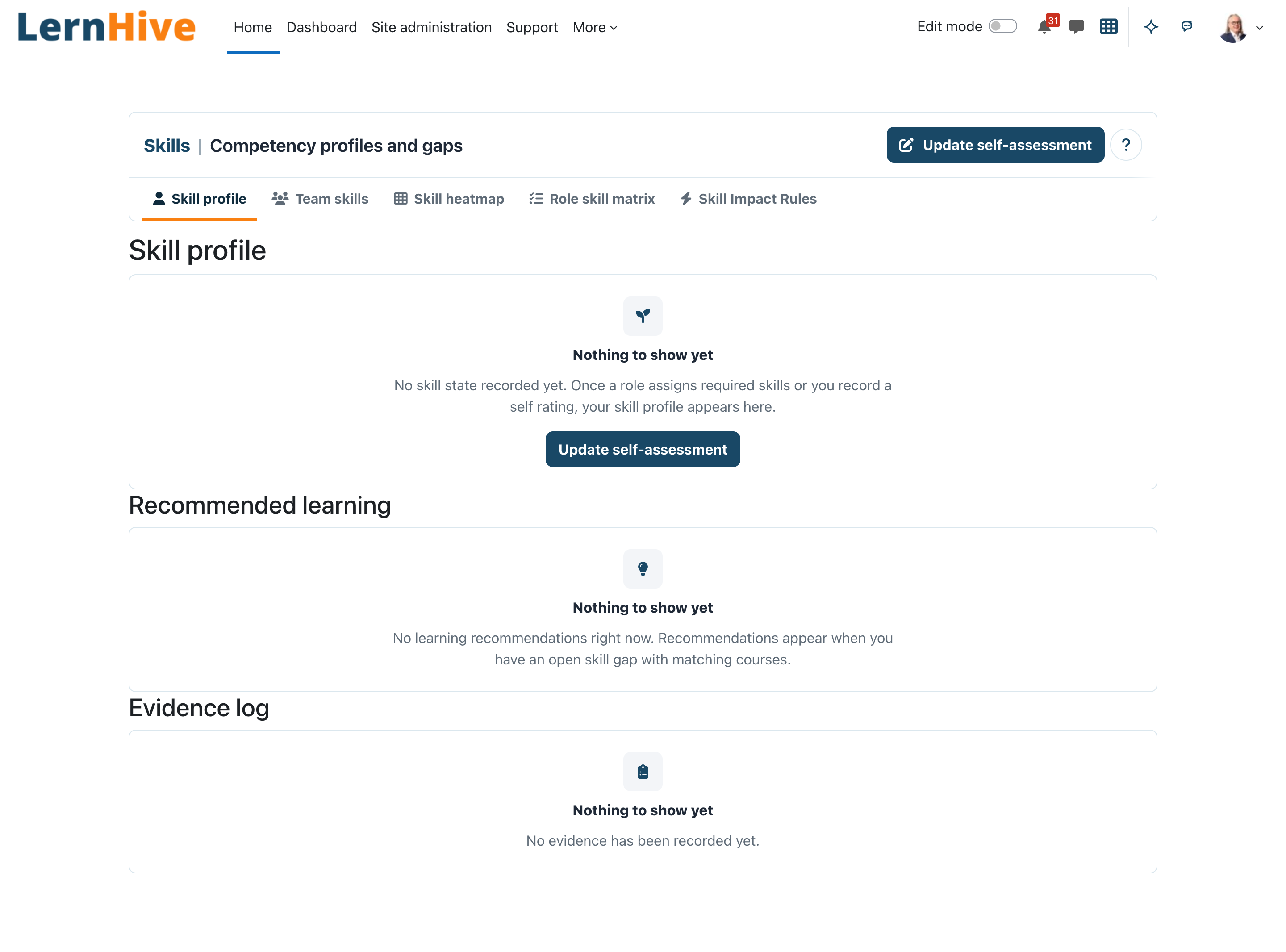
Learner: review the skill profile
- Open Learn → Skills in the primary navigation. You land on Skill profile (or on Skill Check-in if you may not view a profile).
- The skills table shows Skill, Target level, Calculated level, gap, and Reason — which signal drove the calculated level (e.g. Manager rating, Validating evidence, No signal yet) — with the Conflicting ratings badge where sources disagree.
- Recommended learning lists courses, snacks and activities that close open gaps, each with a reason line such as "Closes … gap for … (level … → target …) with …" and a Not enrolled badge where applicable.
- The Evidence log shows the latest 10 entries with Source, Strength, Effect, level and time.
The profile also shows your current org-chart roles when available.
Learner: record a Skill Check-in
- On Skill profile, choose Update self-assessment.
- For each skill, set your own current level from 0 to 5 and optionally add Note (optional).
- Click Save check-in — you see "Your self-assessment has been saved."
- Self ratings are stored as their own source; they never overwrite manager, HR or assessment signals.
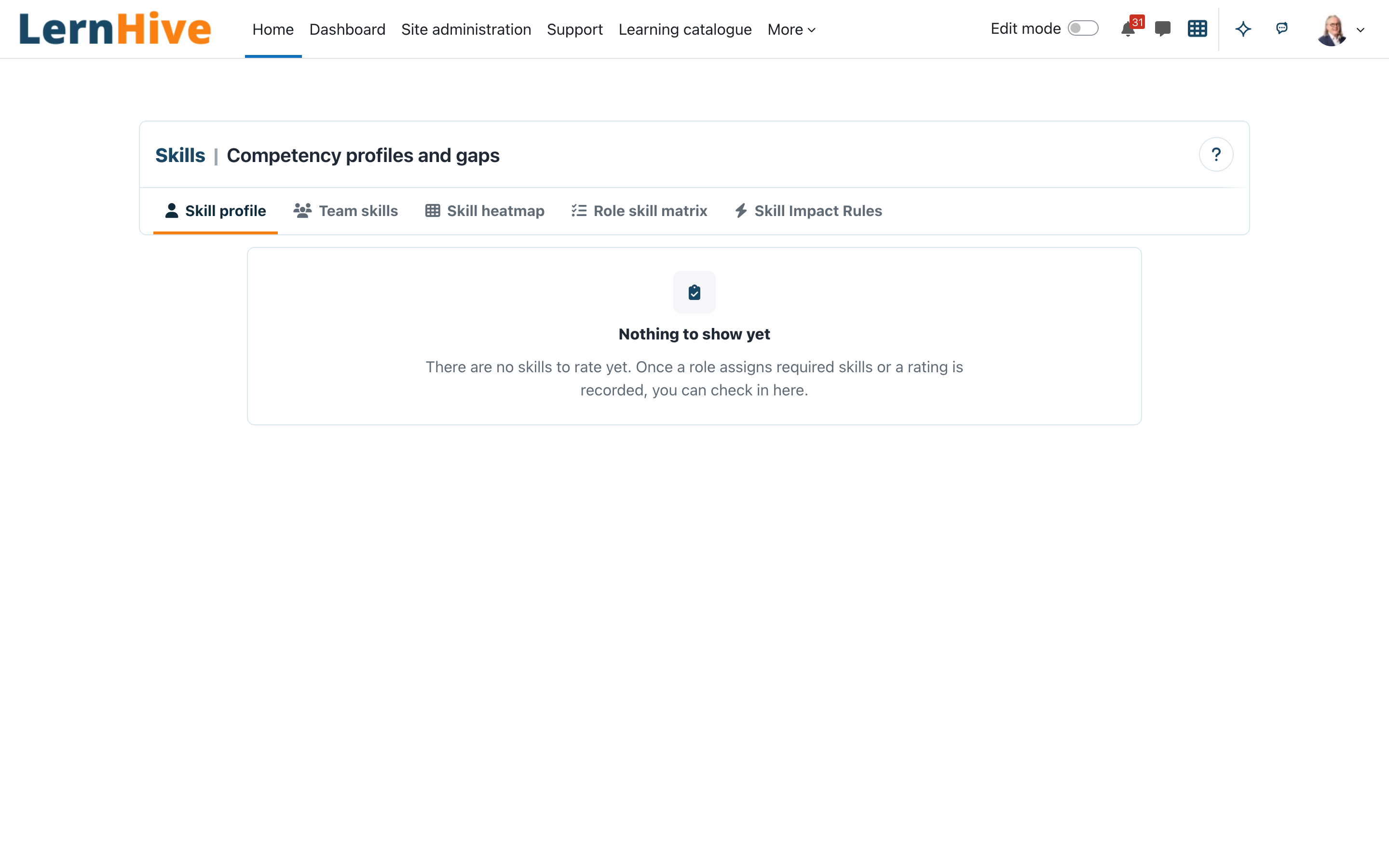
If no competencies are available yet, the page explains that the check-in covers role competencies or competencies with existing ratings or evidence, and offers Learning goals instead.
Learner: set personal learning goals
- Open Learning goals from the empty Skill Check-in or from the "My progress" area of your Dashboard.
- For each competency, choose a goal level from 1 to 5, or No goal.
- Click Save goals — you see "Learning goals saved."
A goal can raise your target level but never lower a target your role requires. Your profile and recommendations update immediately.
Manager: review team skills
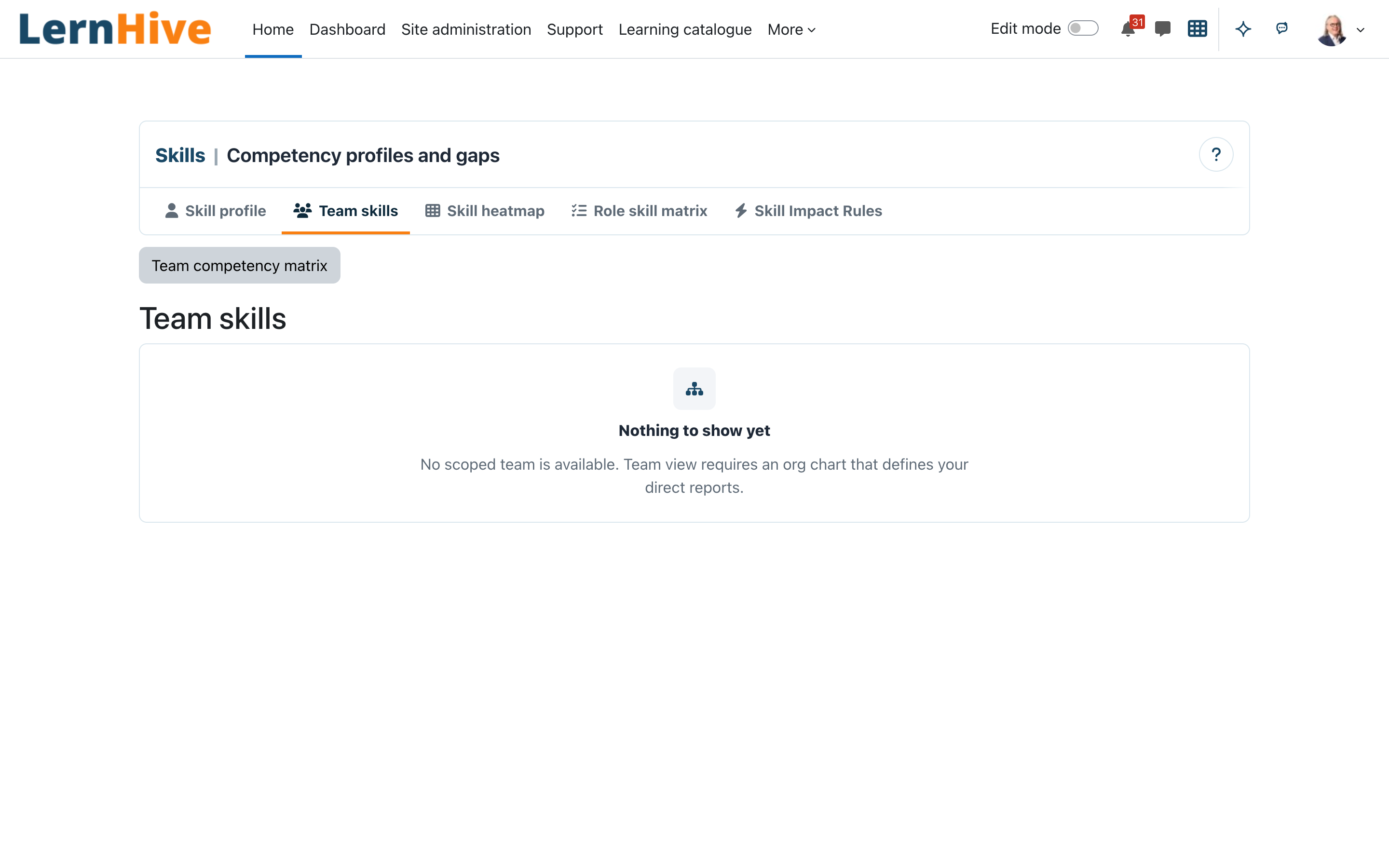
- Open Skills in the primary navigation and choose Team skills in the section navigation (managers without an own profile open Skills from the launcher and land there directly).
- Review each report's skills with target, calculated level, gap and conflict markers. Each report can show up to three recommended learning items with the same gap reason and enrolment state as the learner profile.
- Choose Team competency matrix for an overview: reports as rows, competencies as columns, each cell with current/target level, a colour, a symbol and accessible text (target met, small gap, significant gap). Selecting a name opens that person's profile.
Only people inside your org-chart reporting line are shown. If no org chart defines your reports, the page explains: "No scoped team is available. Team view requires an org chart that defines your direct reports."
Manager: rate a team member's skill
- On Team skills, choose Rate on a report's skill row.
- Set the Manager rating level (0–5) and an optional note.
- Click Save rating — "Manager rating saved." The service re-checks both the capability and the org-chart scope before storing; outside the scope you get "You do not have permission to act on this user."
Platform administration: maintain the Role skill matrix
- Open Skills and choose Role skill matrix in the section navigation.
- Click Add role skill requirement.
- Pick the competency, the Scope (— Global (everyone) —, a Department, or a Position from the org chart), the Target level, Importance (1–5), whether it is Required, and an optional validity window (Valid from / Valid until).
- Save — "Role skill requirement saved." Requirements drive target levels, gaps and recommendations for everyone in scope.
Platform administration: define Skill Impact Rules
- Open Skills and choose Skill Impact Rules in the section navigation (also listed in Site administration in the LernHive category).
- Click Add skill-impact rule.
- Choose the Skill, the Course and optionally an Activity (optional), the Target level, the Effect (no impact, evidence only, review required, auto-level), What the activity checks (no check, knowledge check, application proof — see How proficiency levels are reached), the Evidence strength, the Minimum condition and the Conflict policy. Tick Allow automatic level update only for validating assessments.
- Save — "Skill-impact rule saved." Delete a rule with the delete icon and confirm.
Platform administration: import starter competency models
- Open Skills and choose Starter competency models in the section navigation (also in Site administration in the LernHive category). You need Manage skill frameworks and areas and Moodle's Manage competency frameworks.
- The page lists the bundled models — AI competence, Leadership strength, Feedback & communication — and the role templates Team lead and Employee — AI basics, each with available and installed version and a status such as Not installed, Update available or locally changed.
- Click Preview and import. Choose the language (English or German). The preview shows, per skill, whether it is new, updated, unchanged, locally changed or no longer in the model, plus the number of proficiency level descriptions and learning objectives.
- Click Import. The model becomes an ordinary Moodle competency framework: you can use it in learning plans, course and activity competencies and badges. Every skill describes what each proficiency level 1–5 means.
- Importing again later updates only what changed. Nothing is deleted: a skill that left the model stays and is marked No longer in the model, with its usage. Skills you renamed or edited in Moodle keep your version unless you tick Overwrite local changes.
- To use your own model, upload a JSON file in the LernHive model format under Upload a model or role template; it is checked completely before anything is saved.
Platform administration: bind a role template
- Import the role template like a model, then choose Bindings. All models the template refers to must be installed first.
- Pick a position, a department or Everyone under Bind to and click Preview: you see the requirements, their target levels and how many people are affected now. Everyone gives every person targets and gaps for these skills.
- Click Bind. The requirements appear in the Role skill matrix. Because Skills counts a requirement for the skills in a person's learning plan, the binding also keeps a Moodle learning plan template with these skills and links it to the cohort that Organisation Structure keeps for the position or department. Moodle then gives every member an active learning plan, and their targets and gaps appear after the background recalculation. If the position or department has no cohort, the preview says so: bind a cohort in Organisation Structure, or assign the learning plan template to people yourself.
- After a newer template version, Preview the binding again and Bind to update. Requirements you edited in the role skill matrix are kept. Remove deletes the unchanged requirements of a binding and keeps edited ones; the learning plan template and the plans people already have stay, only new cohort members no longer get a plan.
Platform administration: use a model in Moodle without LernHive
- Open a model's Preview and import page and choose the language.
- Click Download CSV for Moodle import.
- On any Moodle site, go to Site administration → Competencies → Import competency framework and upload the file. The site gets the same framework, ID numbers, hierarchy, scale and level descriptions. Learning objectives and role templates need LernHive.
How proficiency levels are reached
Every level of a skill states what kind of evidence it needs:
- Levels 1–2 (knowledge): understanding and guided use can be shown with a knowledge check, such as a quiz.
- Levels 3–5 (application): independent use, handling difficult cases and enabling others need an application proof — an assignment, a case simulation or a rating by the manager.
- Learning without a check (for example working through videos and texts) counts as learning progress. It is shown, but it never raises a level on its own.
Skills applies the rule through the Skill Impact Rules: every rule states What the activity checks. A rule with No check only records learning progress. A Knowledge check raises a level at most to Highest level from knowledge checks (Site administration → Plugins → Local plugins → LernHive Skills, default 2). An Application proof raises up to the rule's target level. Rules that existed before this option count as application proof, so they work as before. The proficiency level descriptions of the starter models also say which kind of evidence each level needs.
Teacher: set the level an activity leads to
- In the course, open More → Competency levels of activities (you need Set the competency levels of course activities; editing teachers have it).
- The table lists every activity with the skills Moodle links to it, the level and learning function each activity has for each skill, and its content tag from ContentHub (format; you edit it in ContentHub). An activity can lead to several skills, each with its own level and function.
- AI assistants connected through LernHive can propose levels; they appear as Proposed · proposed by AI. Check them and click Confirm, or Remove them. A skill that is linked but has no level yet shows Linked in Moodle, no level yet.
- Under Set the level for a skill, choose the activity, skill, level and Learning function (explain, example, practise, check, apply) and click Save and confirm. A skill only grows through evidence that measures it: in a quiz that checks several skills, tag each question with
comp:<skill ID number>; an activity with one overall grade for several skills creates evidence that needs review. - Confirming links the skill to the activity in Moodle as well. These levels never raise a learner's level; levels only change through evidence (Skill Impact Rules). They travel with the activity when you back up, duplicate or import it.
Site administrator: use a framework as reference model
- Import the framework as a competency model (Starter competency models, upload).
- Open Site administration → LernHive → Competency model mapping (or the link under the model catalogue) and click Use as reference model for it. Learners cannot set goals in a reference model, and its levels are never rated.
- Open Mappings for the model and click Propose mappings. Proposals come from the alignment in the models, from the AI assistant or from similar words; they do not count yet.
- Check each proposal: Equivalent (same ability), Includes (the home skill covers all of it) or Part of (the home skill covers part of it; the reference level is reached when all parts reach it). Confirm or Remove it, or add a mapping by hand.
- Reference levels are then worked out from the levels in the home models. A reference skill without a confirmed mapping stays empty.
Platform administration: review the Skill heatmap
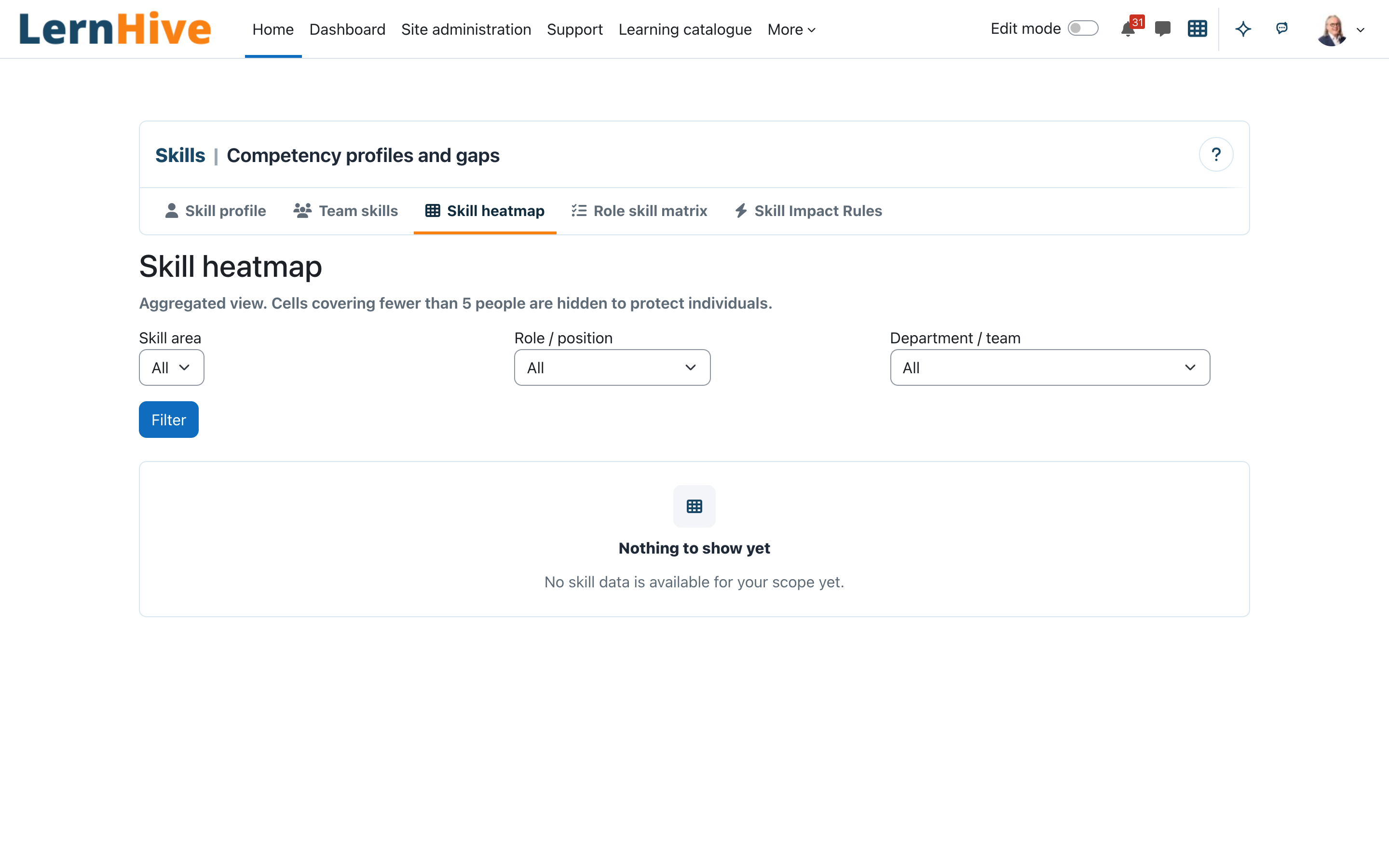
- Open Skills and choose Skill heatmap in the section navigation.
- Optionally filter by Skill area, Role / position and Department / team, then click Filter.
- The aggregated table shows per competency: People (n), Average gap, With open gap and Average level for the people in your org-chart scope.
- Cells covering fewer than five people are suppressed ("— (too few people to show)") to protect individuals.
- With View all skill profiles granted, use Details to drill down to the individual rows for a competency.
Site administrator: configure calculation defaults
- Go to Site administration → Plugins → Local plugins → LernHive Skills.
- Set Default target level — the fallback target (1–5, default 3) for a competency targeted by a learning plan without an explicit role requirement.
- Optionally maintain Scale mappings — JSON mapping LernHive levels to Moodle scale grades per framework; leave empty to use the built-in proficiency mapping. Automatic level updates in Moodle competencies only happen when a mapping resolves.
- Optionally change Recalculation batch size (default 500 people per run of the nightly recalculation).
- To enable HR/L&D drill-down, assign View all skill profiles (
local/lernhive_skills:viewallprofiles) to the appropriate role — no role holds it by default.
Settings that matter
| Setting | Where | Effect |
|---|---|---|
| Default target level | Site administration → Plugins → Local plugins → LernHive Skills | Fallback target (1–5, default 3) for plan-targeted competencies without a role requirement |
| Scale mappings | same page | JSON per-framework mapping of LernHive levels to Moodle scale grades; empty = built-in mapping |
| Recalculation batch size | same page | People recalculated per run of the scheduled task (default 500) |
All three settings are site-administrator settings.
Limitations
- No page for HR or admin ratings yet; ratings are recorded by learners (check-in) and managers (team view). Rating outside the reporting line is not possible in the user interface.
- Role requirements set target levels only for skills in the person's active learning plans; a bound role template takes care of this through its learning plan template when the position or department has a cohort.
- Starter models are imported in one language at a time; profile and check-in show the levels 0–5, not native scale labels.
- The profile evidence log shows only the latest 10 entries; a full filterable log is planned.
- Managers cannot assign learning to reports; recommendations are learner-facing.
- No warning before a Moodle competency that Skills still uses is deleted.
- No peer rating, no employee ranking, no performance mode — deliberately out of scope.
- Team view, team matrix and manager rating require
local_lernhive_orgchartreporting relations; without an org chart no team is shown.
Troubleshooting
A learner's profile says "No skill state recorded yet." → The user has no role skill requirement in scope, no learning plan, no goal and no rating yet. Add a matrix entry that covers them (global, department or position), or have them record a Skill Check-in or a learning goal.
No learning recommendations appear. → Recommendations require an open gap and courses linked to the competency in Moodle ("Recommendations appear when you have an open skill gap with matching courses"). Check the gap and the course competency links.
A manager sees "You have no reports with recorded skills yet." → The org chart defines no direct reports for this user, or the reports have no skill state. Verify the reporting line in the org chart first.
A manager does not see Team skills at all. → The manager's role lacks View skill profiles of team members. Assign it (and Rate skills for team members for rating) to that role.
Saving a manager rating fails with a permission error. → The target user is outside the manager's org-chart scope.
Heatmap cells show "— (too few people to show)". → Working as intended: aggregates covering fewer than five people are suppressed. Broaden the filter or accept the suppression.
A passed quiz did not raise the skill level. → Automatic level updates need a matching Skill Impact Rule with Allow automatic level update, a validating condition and a resolvable scale mapping; otherwise the completion is stored as evidence only.
Screenshots
The screenshots below were taken on the demo site with an empty skill dataset; the primary navigation shown predates the Skills entry.