What this plugin does
LernHive Templates is the shared home for the mail and document output your LernHive platform generates: booking confirmations, certificates, notices and similar artefacts. It centralises layouts (logo, header, footer, legal text) and template bodies with placeholders, so every plugin sends consistent, branded output instead of hard-coded text. In the current release the plugin ships the overview workspace, the global fallback settings, the underlying rendering engine and a capability-gated management UI for layouts and templates. PDF templates render as UTF-8 A4 PDF files through Moodle Core.
Who this is for
| Role | What they do |
|---|---|
| Platform administration | Opens the template workspace to see which template areas exist (mail, DOCX, PDF, variables); with the manage capability, sets the tenant fallback sender name and legal footer from the in-shell Configuration page |
| Site administrator | Same as above — the tenant fallbacks now live in the plugin shell, not in Site administration |
Learners, Managers and Trainers never interact with this plugin directly — they only receive the mails and documents that other LernHive plugins generate through it.
Core concepts
Layout
A reusable frame around generated output: logo placement, header, footer and legal text. One layout can serve many templates, so rebranding happens in one place.
Template
The body of one concrete output — for example a booking confirmation mail or a certificate document. Templates belong to the plugin that sends them (Seminar Management, Certify, Pathways) and exist per output format.
Placeholder (token)
Templates use double-brace placeholders with dot paths, for example:
Hello {{participant.fullname}},
your seminar {{seminar.title}} starts on {{slot.startdate}}.
Placeholders are filled with real values at send time. A placeholder whose value is missing renders as empty text — old templates keep working when new optional variables appear. Placeholders insert values only; they cannot contain logic, conditions or loops.
Output format
Four formats are defined: HTML mail, plain-text mail, PDF and DOCX. In the current release, mail formats render as text, PDF renders as an A4 document and DOCX renders as a real Word file.
Journeys by role
Platform administration: review the template workspace
- Open Templates in the launcher, or open
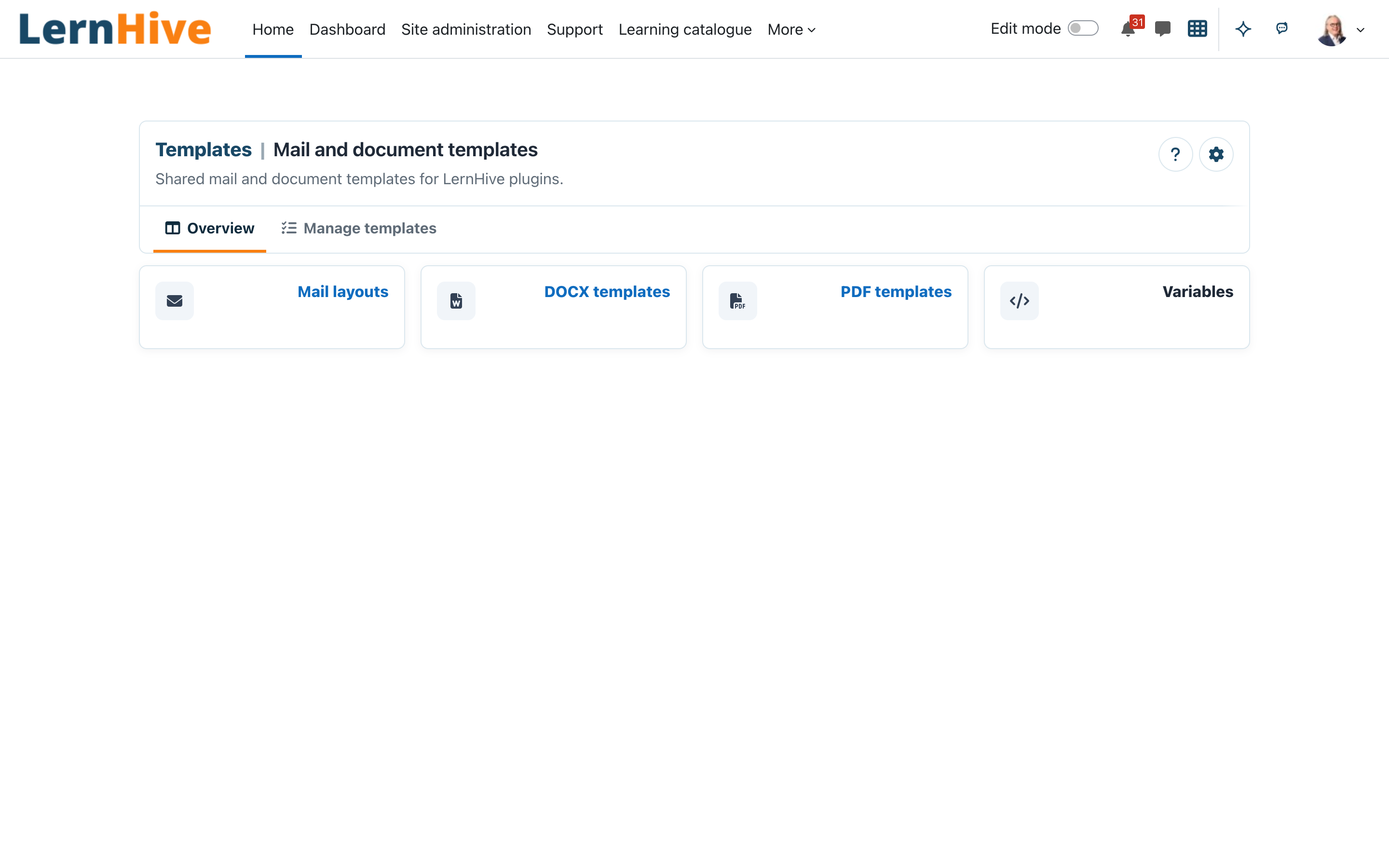
/local/lernhive_templates/index.phpdirectly. - The LernHive Templates page opens with the subtitle Shared mail and document templates for LernHive plugins.
- Review the four workspace areas shown as cards: Mail layouts, DOCX templates, PDF templates and Variables.
- Select DOCX templates to upload or replace a customer DOCX template, or manage the shared template records when you have the management capability.
Platform administration: upload or replace a DOCX template
- Open the DOCX templates card in the template workspace.
- Enter the owning component, stable template key and display name.
- Upload exactly one .docx file and save. A later upload for the same component/key replaces the current package.
- Use the returned template record id when calling the rendering API so generated DOCX output uses the imported package.
Uploaded packages must be valid, non-macro DOCX files. Unsafe ZIP paths, external XML entities and oversized packages are rejected.
Platform administration: manage layouts and templates
- Open the workspace and select a layout or template area.
- Select Add layout or Add template to create a resource, or select the edit icon on an existing row.
- Enter the resource name, output format and body. Templates also require the owning Moodle component and stable template key.
- Save the form. Use the delete icon and the Moodle confirmation page to remove an unlocked resource. A layout assigned to a template and a locked template cannot be deleted.
Manager: configure the tenant fallbacks
- Open the template workspace and click the settings cog in the page header (Zone A) — it opens the in-shell Template settings page (
/local/lernhive_templates/configuration.php). Since SUI-995 these fallbacks are per-tenant customer content and no longer live in Moodle's Site administration. - Set Default sender name — the fallback sender name used by plugins that do not provide their own sender name.
- Set Default legal footer — the fallback legal text used by generated mail and document layouts when no layout-specific footer is set.
- Save changes. The values take effect for output generated through the templates engine.
The settings cog is shown to users with the manage capability only.
Settings that matter
| Setting | Where | Effect |
|---|---|---|
| Default sender name | In-shell Template settings (settings cog on the workspace → configuration.php) | Fallback sender name for plugins that do not set their own (default: LernHive) |
| Default legal footer | same page | Fallback legal text for generated mail and document layouts without a layout-specific footer |
| Approved sender domains | same page | One externally verified SPF/DKIM/DMARC-ready domain per line; active Academy profiles must use one of them |
| Mail a person triggers is sent as | same page | The person (default): the person is the sender, their address the Reply-To. No-reply with Reply-To to the person: the mail comes from the no-reply address or the Academy mail profile identity, replies go to the person. Choose no-reply when the people's mail domains do not authorise this server (SPF, DMARC); see the help icon and Moodle's allowedemaildomains and emailfromvia |
Editing these fallbacks requires the manage capability (local/lernhive_templates:manage); viewers see the workspace without the settings cog.
Limitations
Academy mail profiles
The Mail profiles section lets a permitted administrator select an Academy course category, assign separate HTML and plain-text layouts, enter an approved sender name/address and Reply-To, and activate the profile. Course and Seminar communication inherits the nearest active profile from the primary category. System mail for which the profile applies (automation rules, reminders, scheduled tasks, automatic confirmations) comes from the profile's sender name and address, with its Reply-To; mail a person causes keeps that person as sender (or no-reply with Reply-To on the person, see Mail a person triggers is sent as). Moodle sends from the profile address only when its domain is listed in Moodle's allowedemaildomains, otherwise from the site no-reply address with the profile's sender name. Activation is rejected unless the From domain is present in Moodle's approved sender-domain list. Preview shows the sender plus sandboxed HTML and plain- text samples. Delivery audit lists the immutable profile/source snapshot used for successful Courseflow and Seminar deliveries. Seminar Managers with profile-management permission may select optional Seminar and Run overrides on the Run's Booking mail templates page. Each profile also links to Change history, which retains a full snapshot for every create, update and delete operation, including the responsible user.
- Limited template management. DOCX upload and replacement plus layout/template CRUD and Academy-profile preview are available. Provider registration remains planned.
- No variable registration yet. Variables are stored by the schema, but provider registration is planned.
- Partial producer adoption. Courseflow and Seminar Management consume Academy mail profiles. Certify and Pathways do not yet use this mail-profile path.
- PDF output is intentionally simple. The shared renderer writes the token-resolved title and HTML body to an A4 PDF; rich layout editing remains a separate UI concern.
- DOCX output depends on the selected source. Without an imported template, generated Word files contain a bold title and text paragraphs. Imported DOCX packages retain their images, tables, headers, footers and styles; supported tokens in Word text parts are replaced during rendering.
- Placeholders are values only. No conditional text, loops or calculations inside templates.
Troubleshooting
"Access denied" when opening the workspace. → Check that your role includes the capability View shared mail and document templates (local/lernhive_templates:view). By default it is granted to the manager archetype, and therefore to Moodle's Manager role (Platform administration).
A workspace card does not open a management page. → The Variables card is informational until provider registration ships. The Mail, DOCX and PDF cards open their matching management view.
A placeholder in a template comes out empty. → Placeholders render as empty text when no value is available. Check the placeholder spelling — it must exactly match a provided variable path such as participant.fullname (letters, digits, dots, hyphens and underscores only).
The default sender name or legal footer does not appear in outgoing mail. → These settings are fallbacks used only by output generated through the templates engine. Mail sent by plugins that have not adopted the engine yet is unaffected. Also check whether a layout-specific footer overrides the default.
Cannot find "Template settings". → Since SUI-995 it lives in the plugin shell, not Site administration: open the Templates workspace and click the settings cog in the page header. The cog is shown only to users with the manage capability (local/lernhive_templates:manage).
Screenshots
The following screenshots show the current LernHive demo interface: